I will show you how to set up ZeroClaw completely locally with Ollama and connect it to Telegram. This is a beginner-friendly, step-by-step walkthrough you can follow from any terminal. I ran it on Ubuntu, but you can follow along on your device of choice.
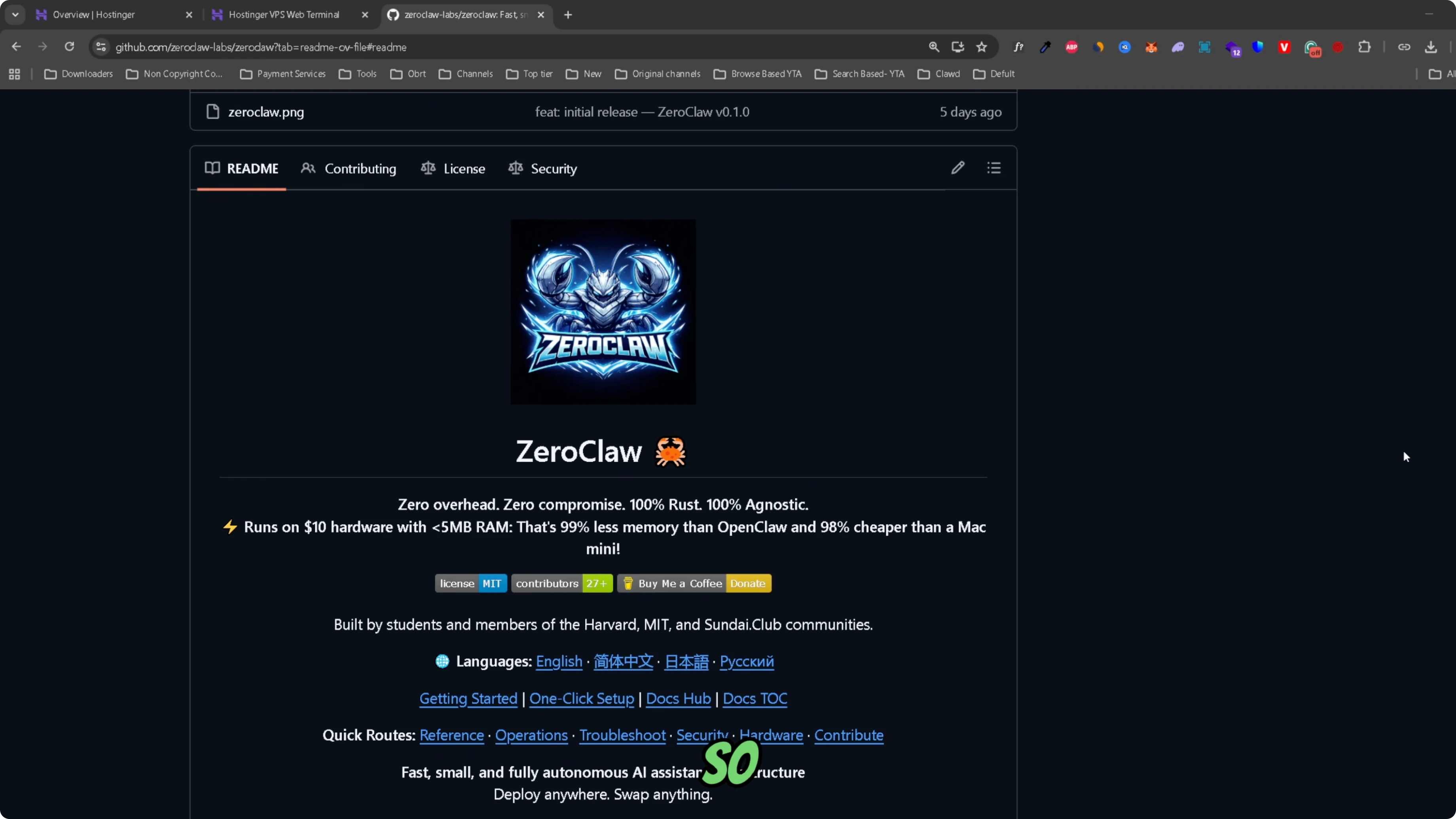
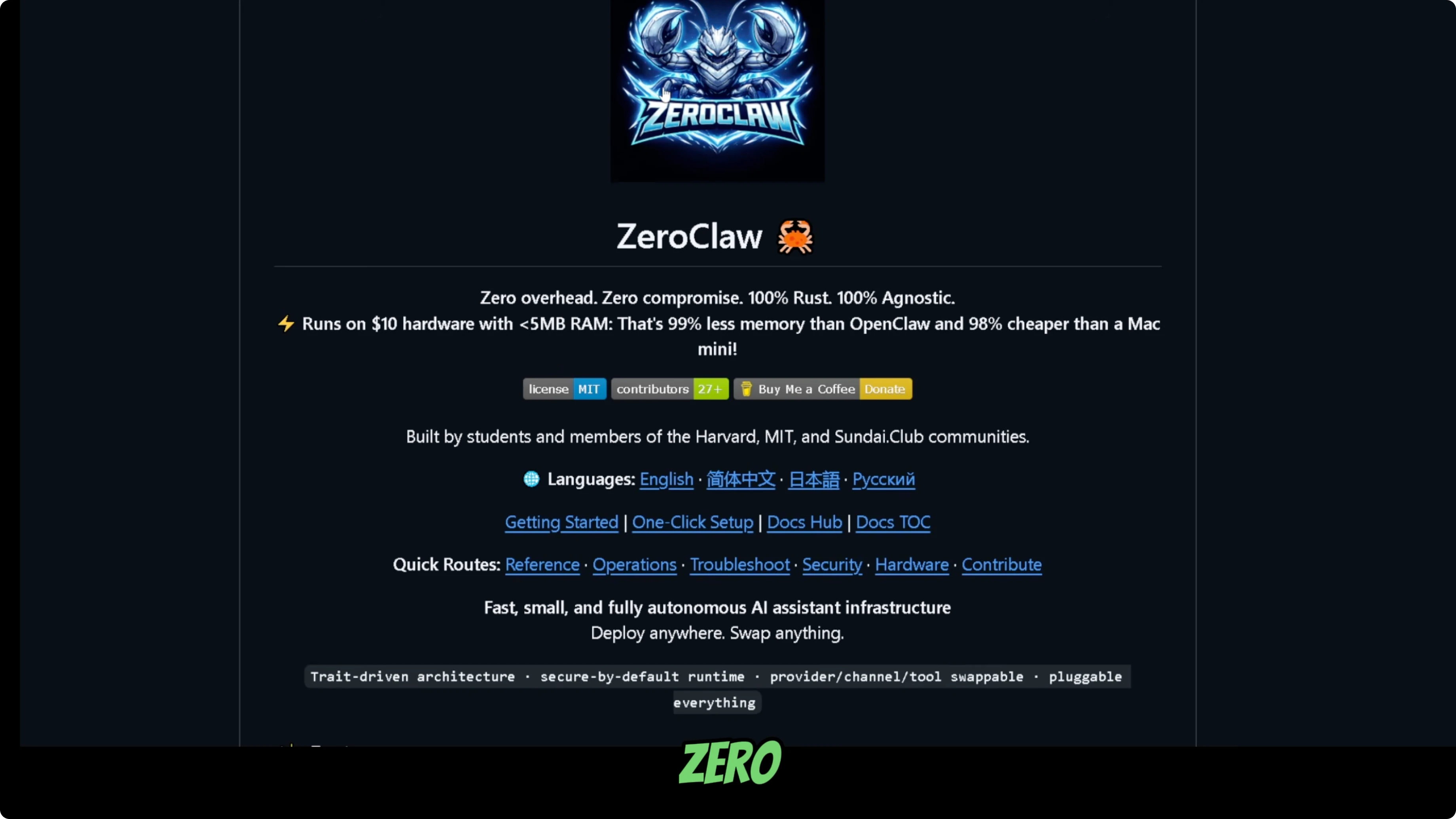
ZeroClaw is a light-version fork of the OpenClaw project. They claim it uses 99% less memory than OpenClaw and can run on any device. For differences, see OpenClaw vs ZeroClaw.
Why run it locally
I like running ZeroClaw locally because it keeps the entire stack on my machine. Ollama lets me run the LLM without external APIs. If you want the project overview, check the ZeroClaw site.
Prerequisites
Open a terminal on your device. I used a VPS with Ubuntu Linux. A GPU will speed up responses, but you can run a smaller model on CPU.
System prep
Update your system to the latest packages.
sudo apt update && sudo apt upgrade -y
Install any build tools and libraries your distro typically needs for Rust and cargo builds. Keep your terminal open for the next steps.
Install Rust
ZeroClaw is written in Rust, so install Rust first.
curl --proto '=https' --tlsv1.2 -sSf https://sh.rustup.rs | sh
When prompted, pick the standard installation. Wait a minute or two for the installer to finish.
Load Rust into your current shell session.
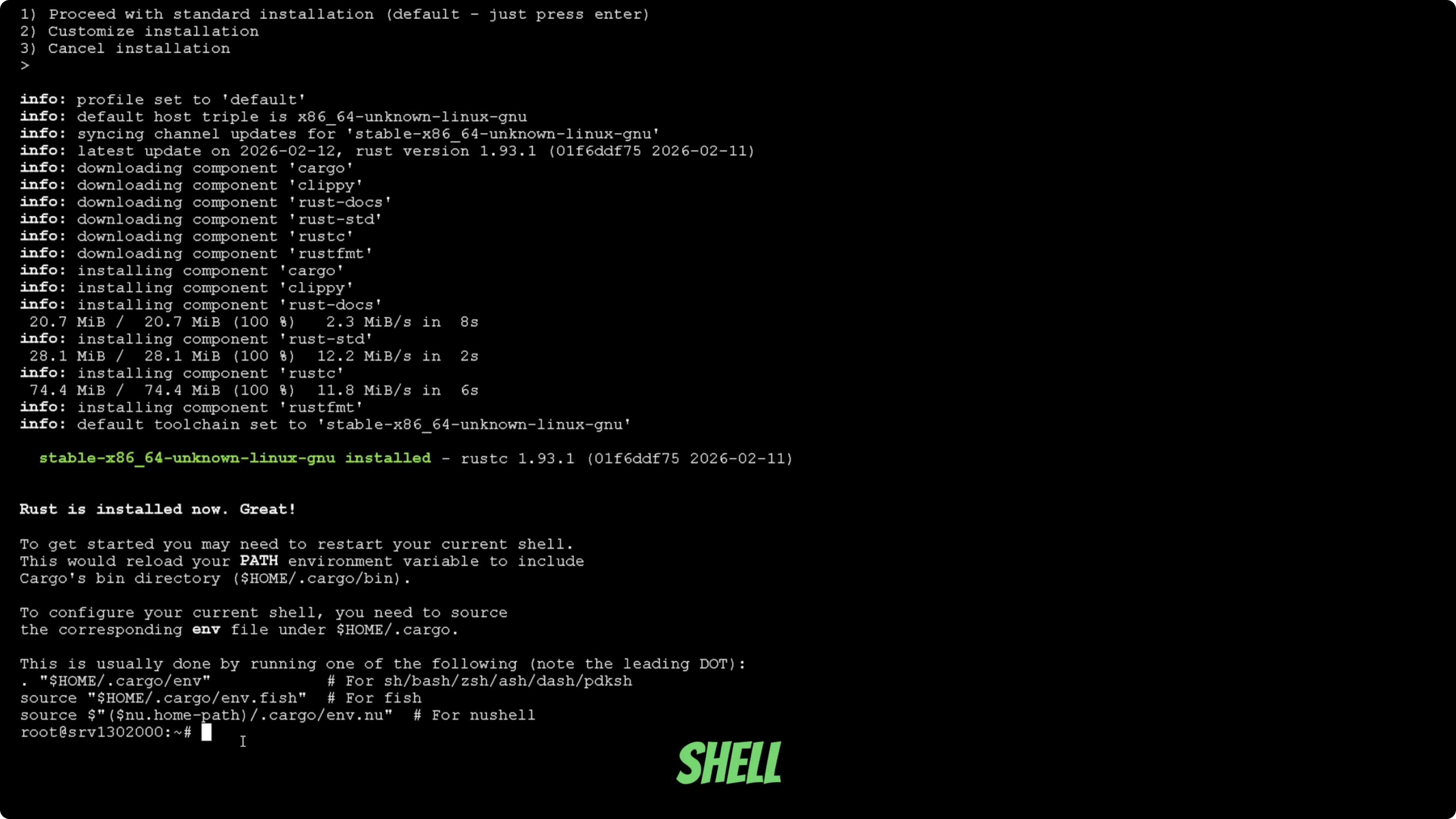
source $HOME/.cargo/env
Install Ollama
Install Ollama with the official script.
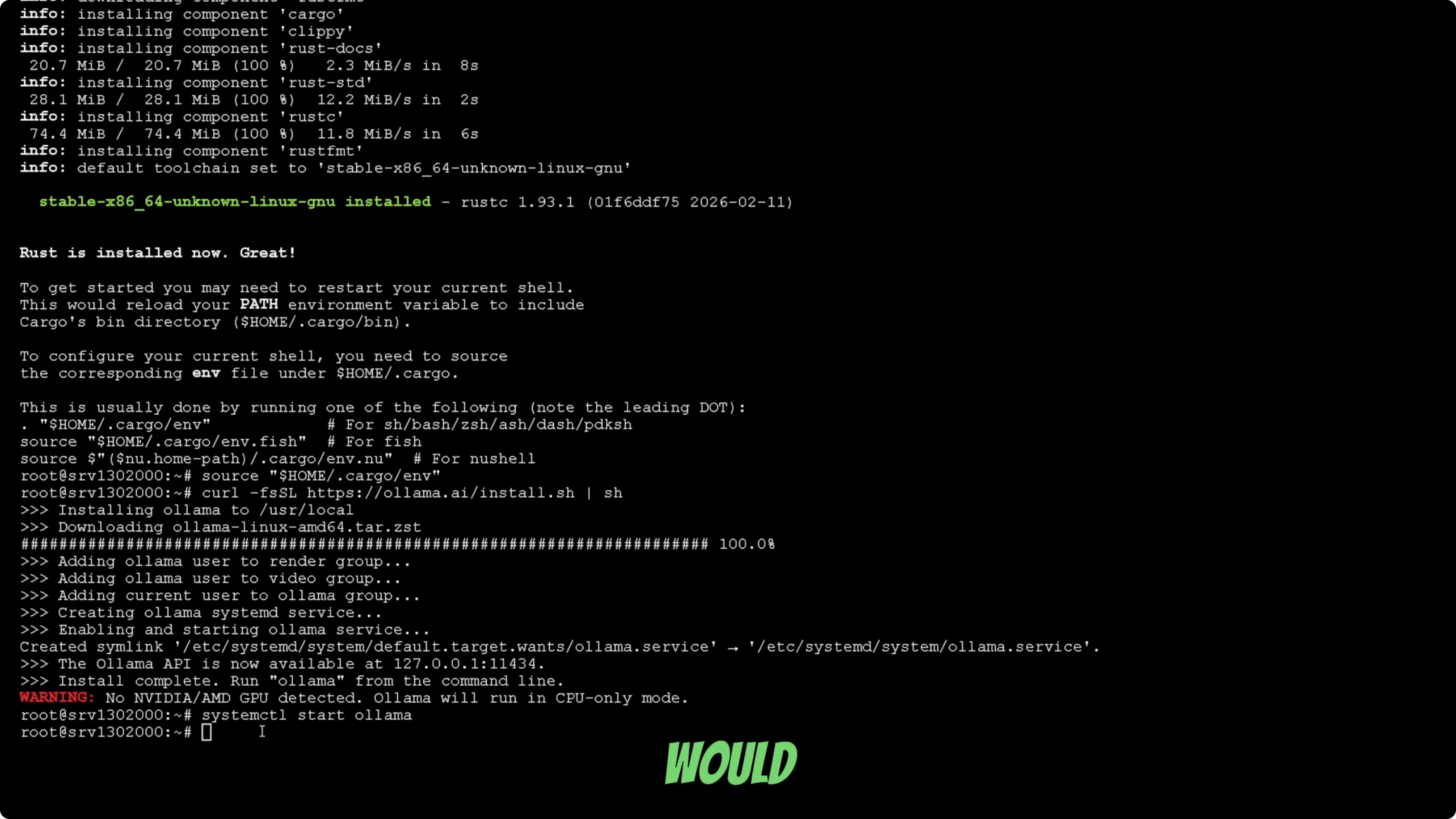
curl -fsSL https://ollama.com/install.sh | sh
Start the Ollama service.
ollama serve
Pull the model you want to run. I used GLM4, but you can switch to any model that fits your GPU or CPU.
ollama pull glm4
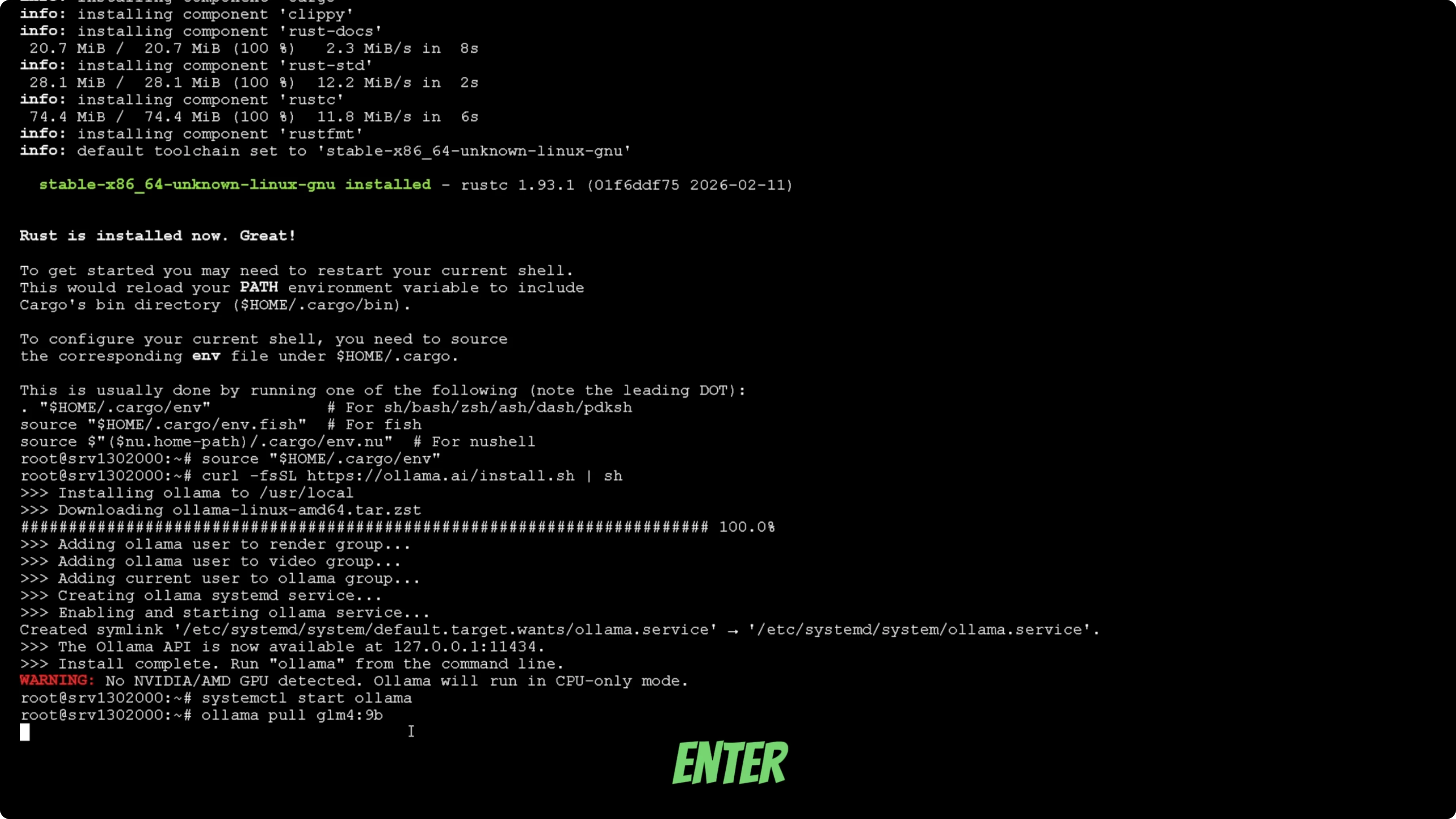
If you do not have a GPU, use a lighter model so you can run on CPU. GPU models will respond much faster than CPU on larger LLMs.
Install ZeroClaw
Install the ZeroClaw bot locally. Run the installation command from your terminal and let it finish. This part depends on your connection speed.
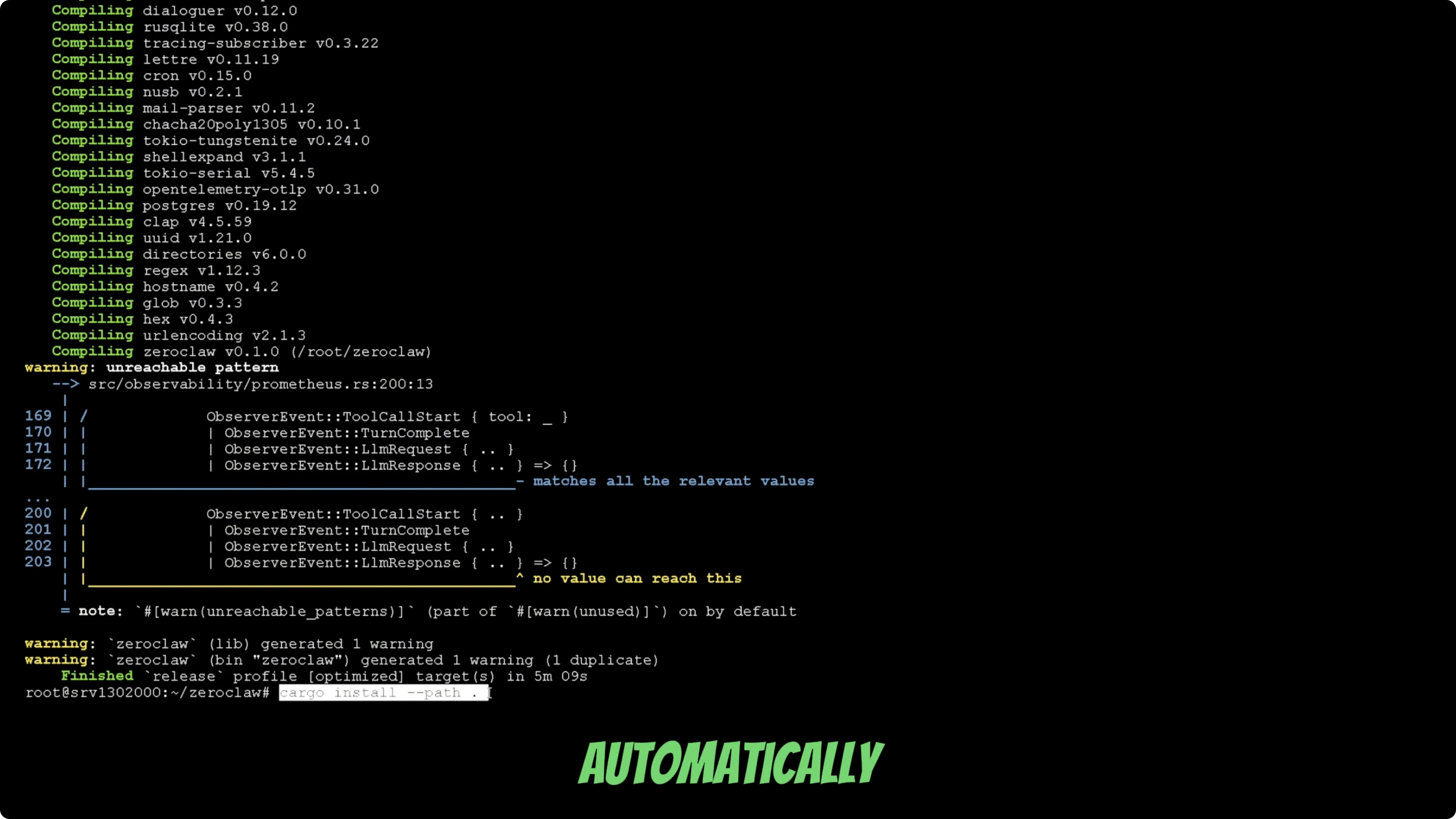
Build the project in release mode so binaries are optimized. Use the cargo build command and let it complete.
Install it globally so you do not have to specify the full path when running commands. After this, your terminal can find the zeroclaw binary directly.
Onboard wizard
Run the onboarding command for ZeroClaw. This opens an onboarding wizard that auto-installs what you need and drops you into a terminal UI. It works similarly to OpenClaw, but the design feels cleaner.
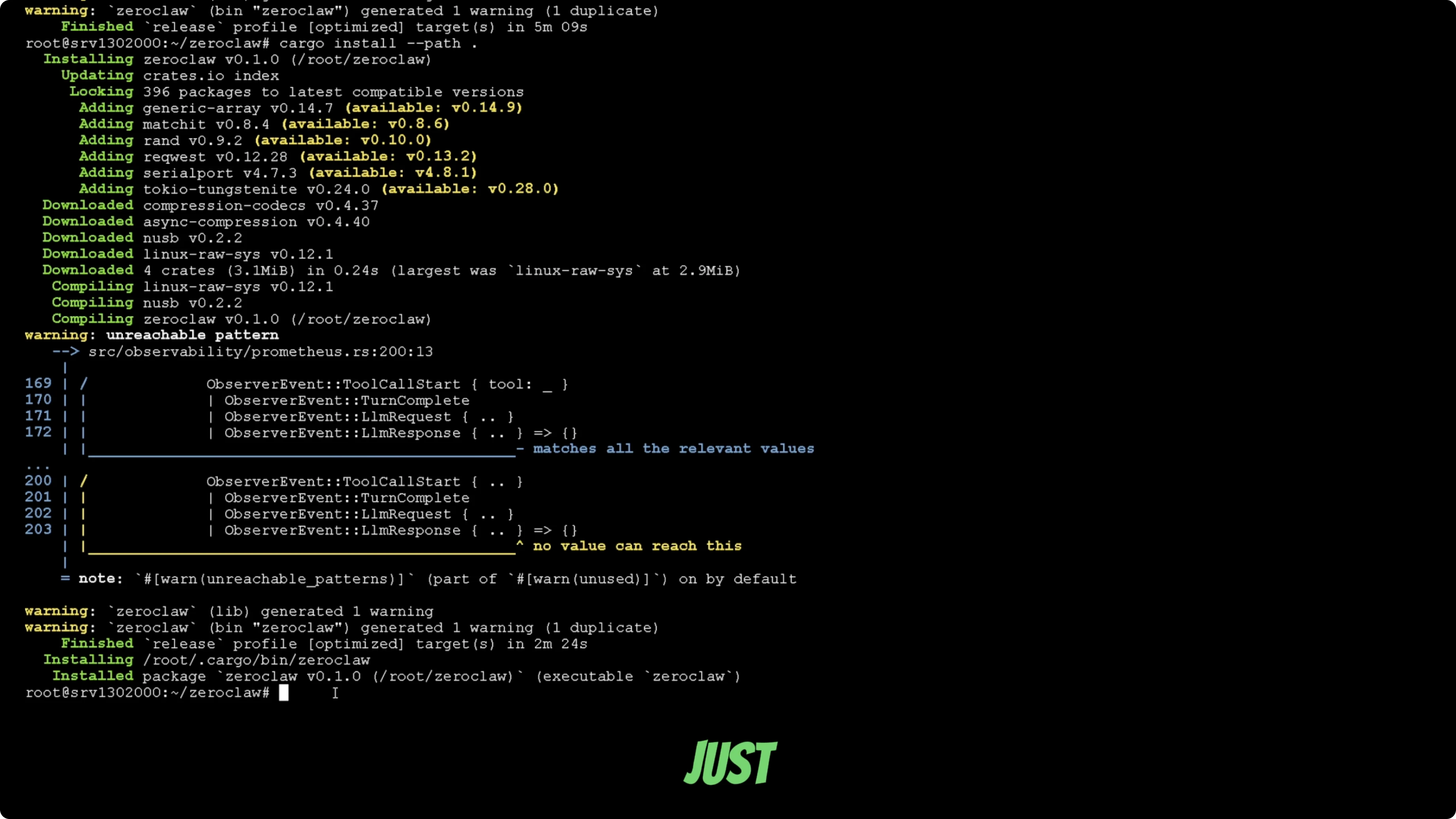
You will see that the tunnel is not set up. The tunnel is the chat app integration layer, and you can chat through the terminal for now. I will set it up with Telegram next.
Configure Ollama model
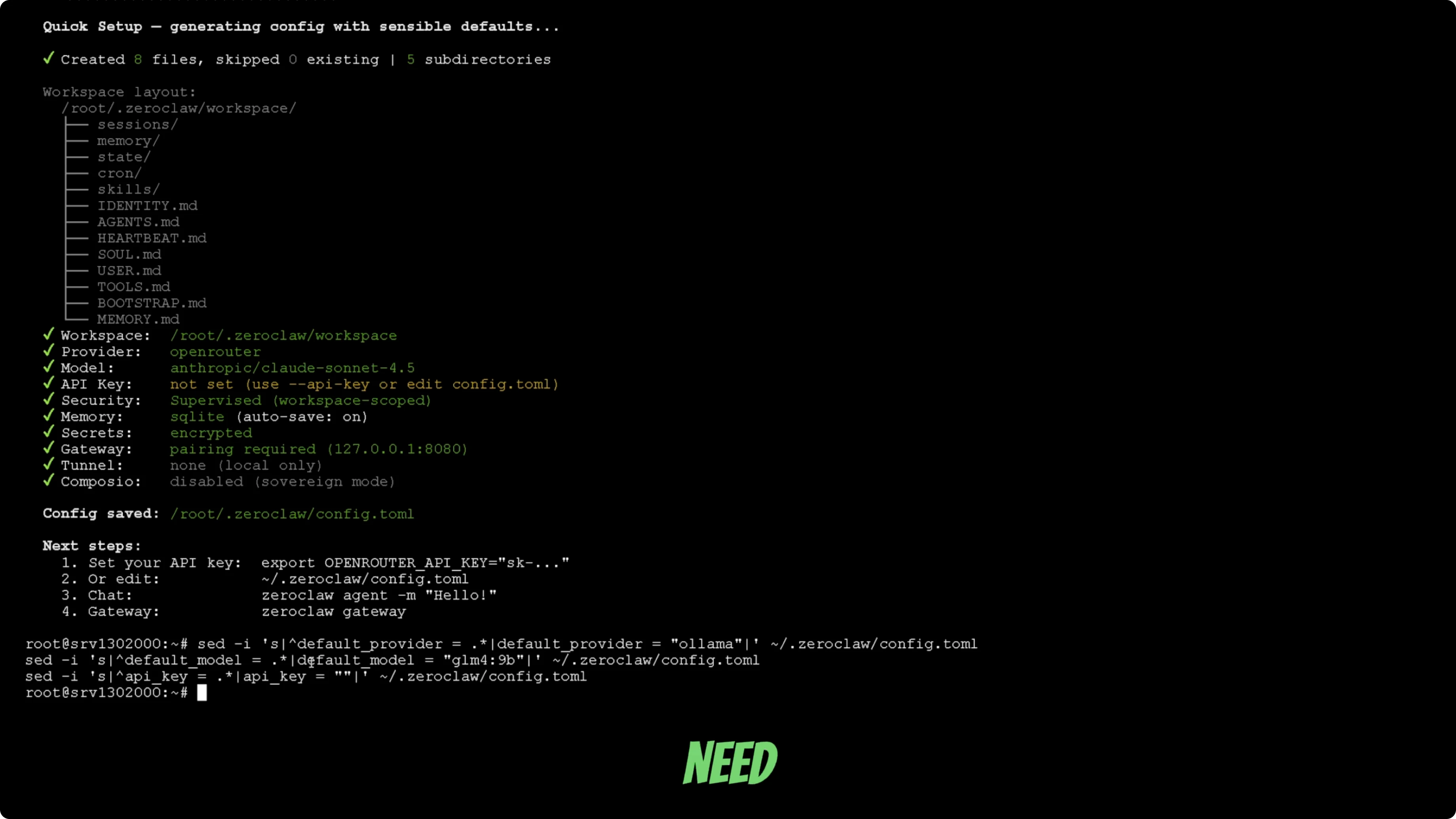
Change the LLM config so ZeroClaw points to Ollama instead of the default Claude config. Make sure the model name matches what you pulled with Ollama, for example GLM4.
If your model name is different, edit it to match your Ollama model. Save the config and continue. You can run a quick test, but on CPU it may take a long time to produce a response.
For a broader comparison across similar bots, see this tool comparison.
Connect Telegram
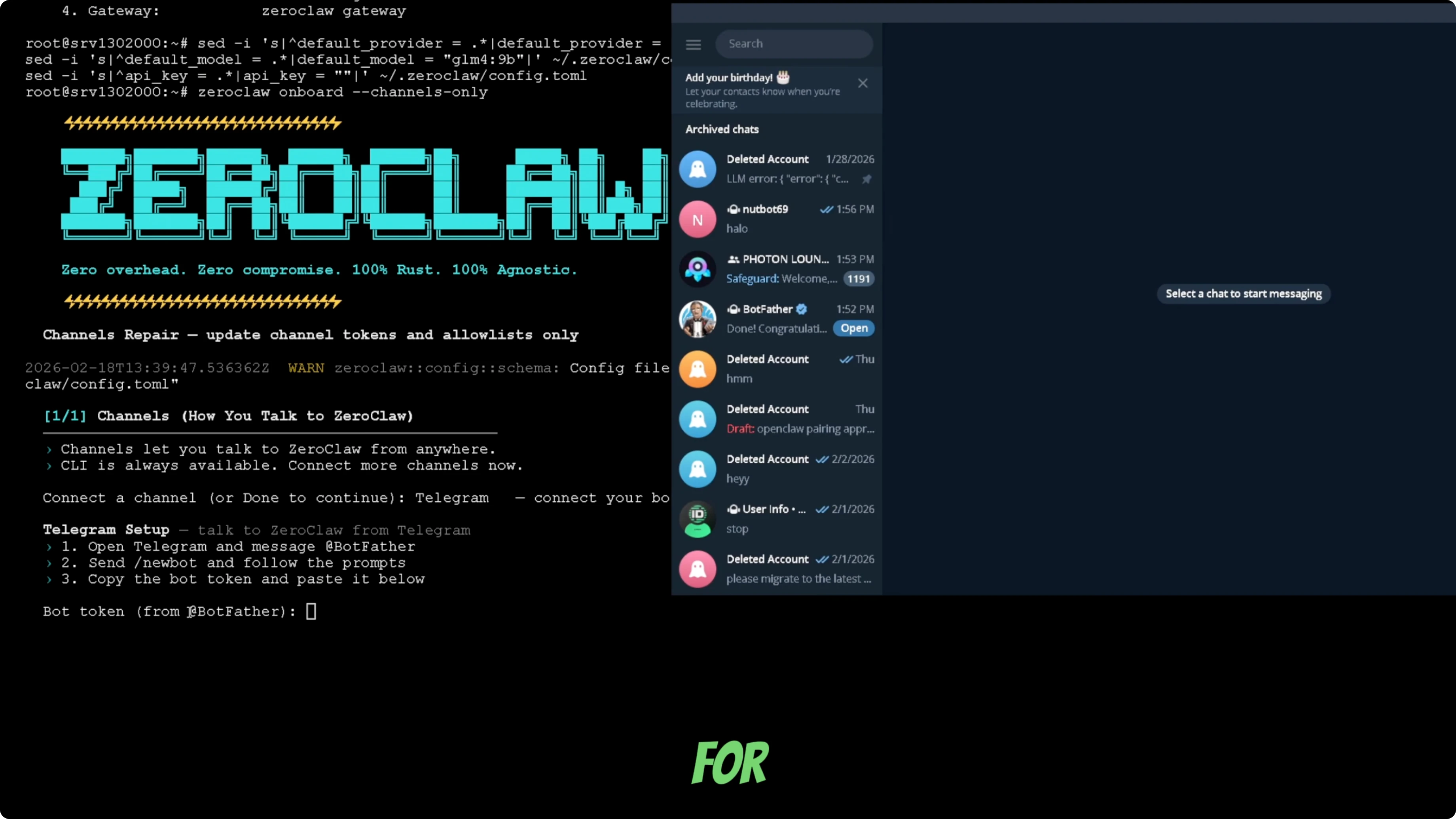
Run the channel onboarding command so you can connect a chat app. Pick Telegram from the list and confirm your choice. The wizard will prompt you for a Telegram bot token.
Create a Telegram bot
Open Telegram and search for BotFather. Start a chat and send the /newbot command. Choose a display name and then a unique username that ends with "bot".
BotFather will return an API token for your new bot. Copy that token. Keep the chat handy in case you need to regenerate the token later.
Add the bot token
Paste the bot token into the ZeroClaw terminal when prompted. Wait a moment for the connection to initialize and confirm your bot name. Send a first message to the bot in Telegram so it can start the conversation.
You will be returned to the channel selector. You can add more apps or select Done to finish. I finish the setup and return to the terminal.
Finish and restart
Restart the gateway so everything reloads with the new config. Your ZeroClaw bot should start typing in Telegram. On CPU-only setups, first responses can take 10 to 20 minutes on larger models.
That is the complete local setup with ZeroClaw and Ollama connected to Telegram. Make sure you pick a model that matches your hardware for practical response times.
Final thoughts
ZeroClaw runs well locally with Ollama and a simple Telegram bot for chatting. The onboarding wizard makes the process straightforward once Rust and Ollama are in place. If you want more background on the project itself, have a look at the ZeroClaw site.