ZeroClaw is lighter and faster than Nanobot in my tests. The benchmark snapshot shows OpenClaw, Nanobot, ZeroClaw, and PulseClaw side by side. RAM requirements are way down, and the cost is the standout detail.
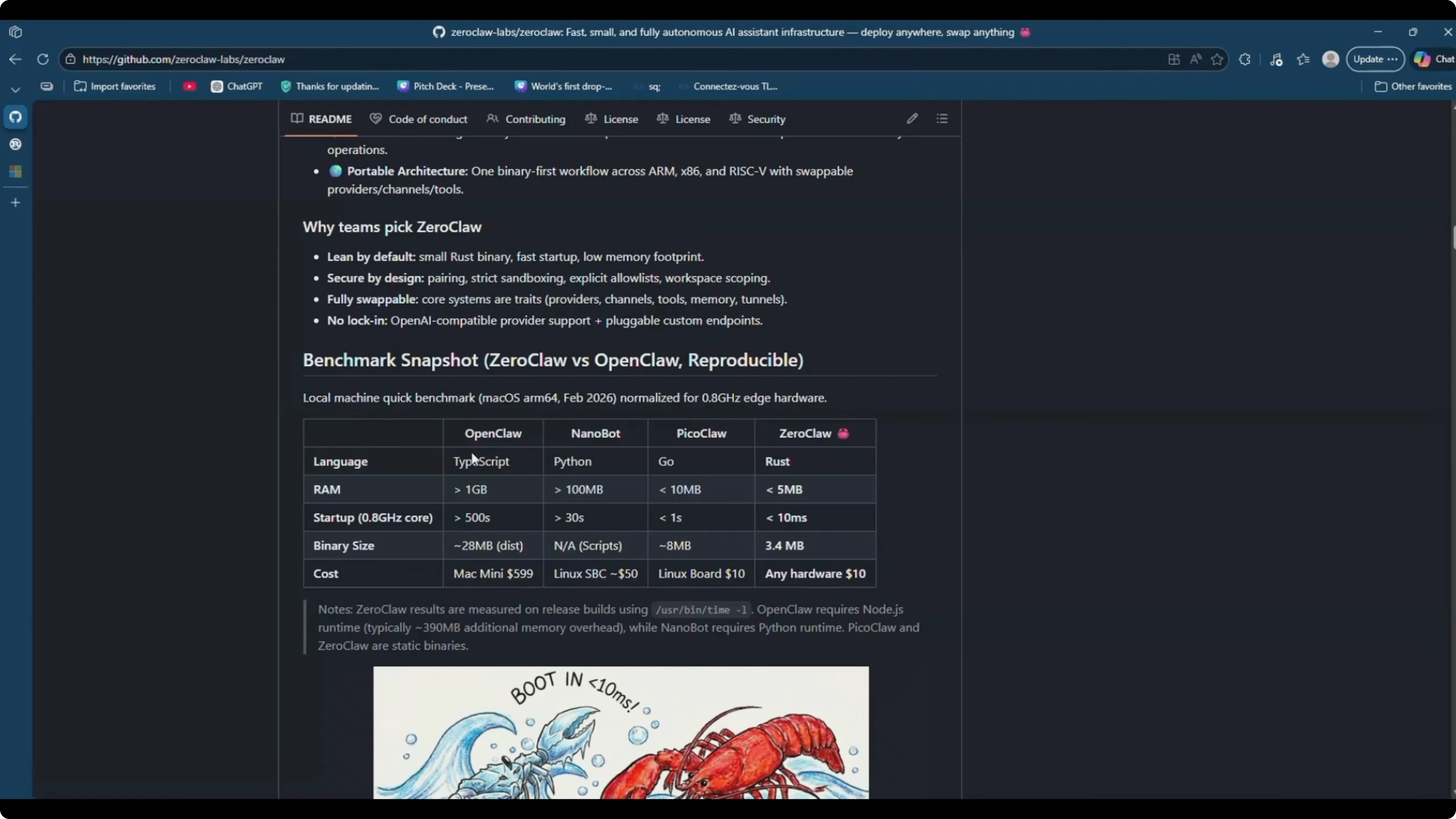
You can run it on modest hardware because it is that cheap to operate. I wanted to get it, test it, and see how it holds up in a practical setup. For a direct comparison, see OpenClaw vs.
Why ZeroClaw is so light
The chart makes the differences obvious in both memory and spend. That translates into faster setup and lower ongoing bills. If you want more context on positioning, check this OpenClaw alternative.
Install prerequisites
You need Rust. Install it from the official site, open the installer, proceed through the terminal prompts, and you are set.
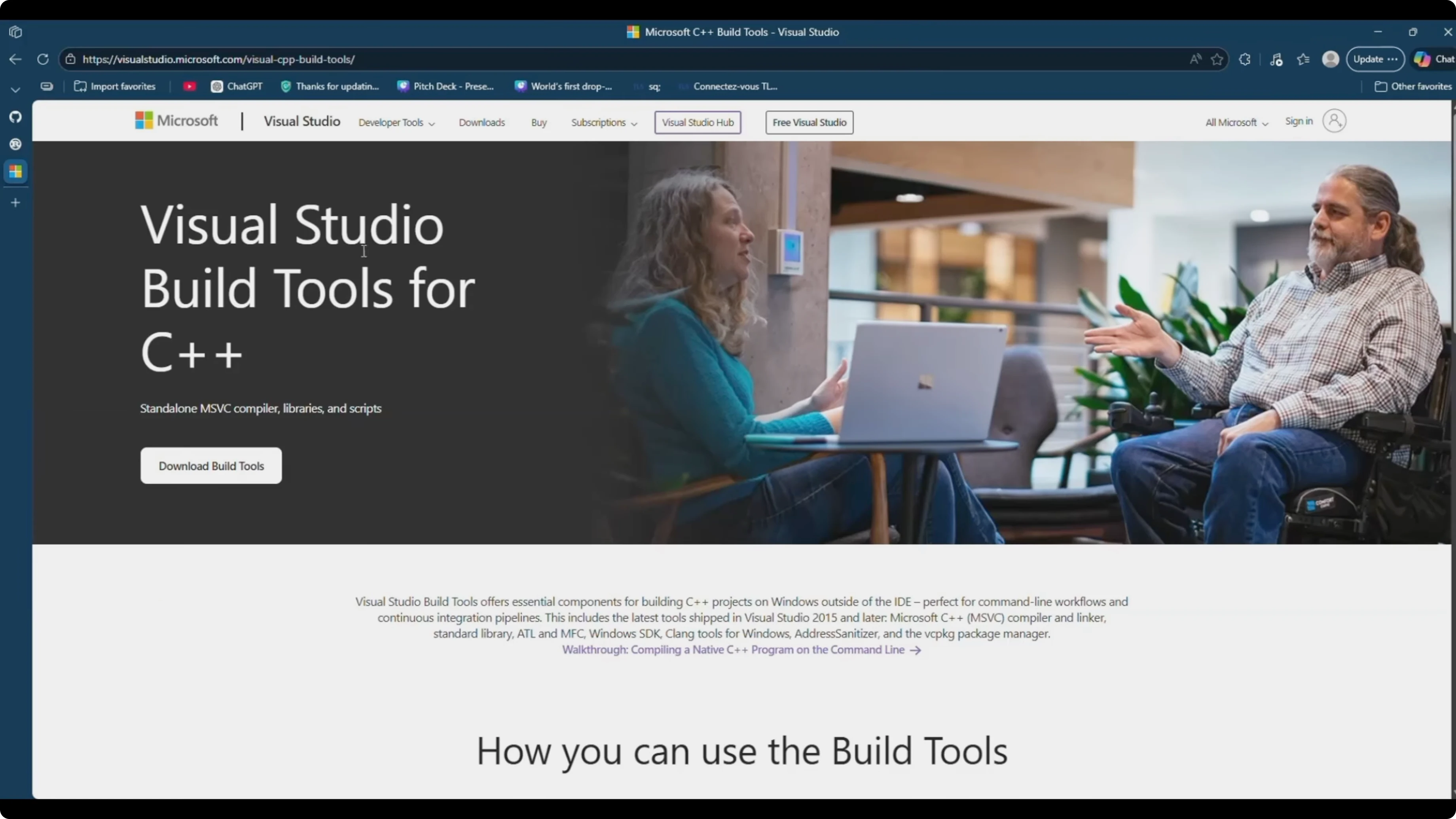
You also need Visual Studio Build Tools for C++ on Windows. Download and install them, and your machine is ready for ZeroClaw. For extra build notes, see this Rust setup.
Clone and build
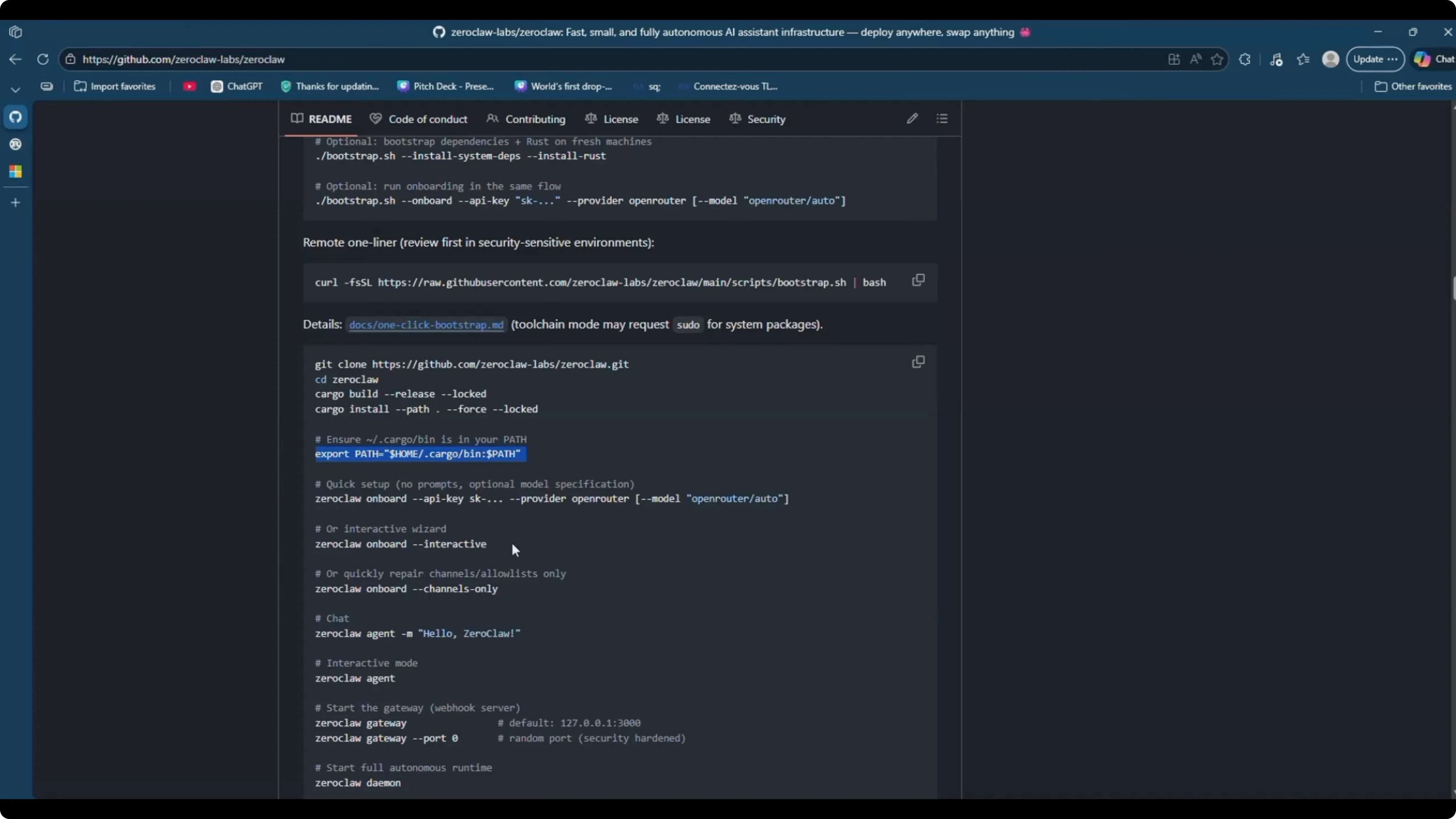
Take the repo command and clone it.
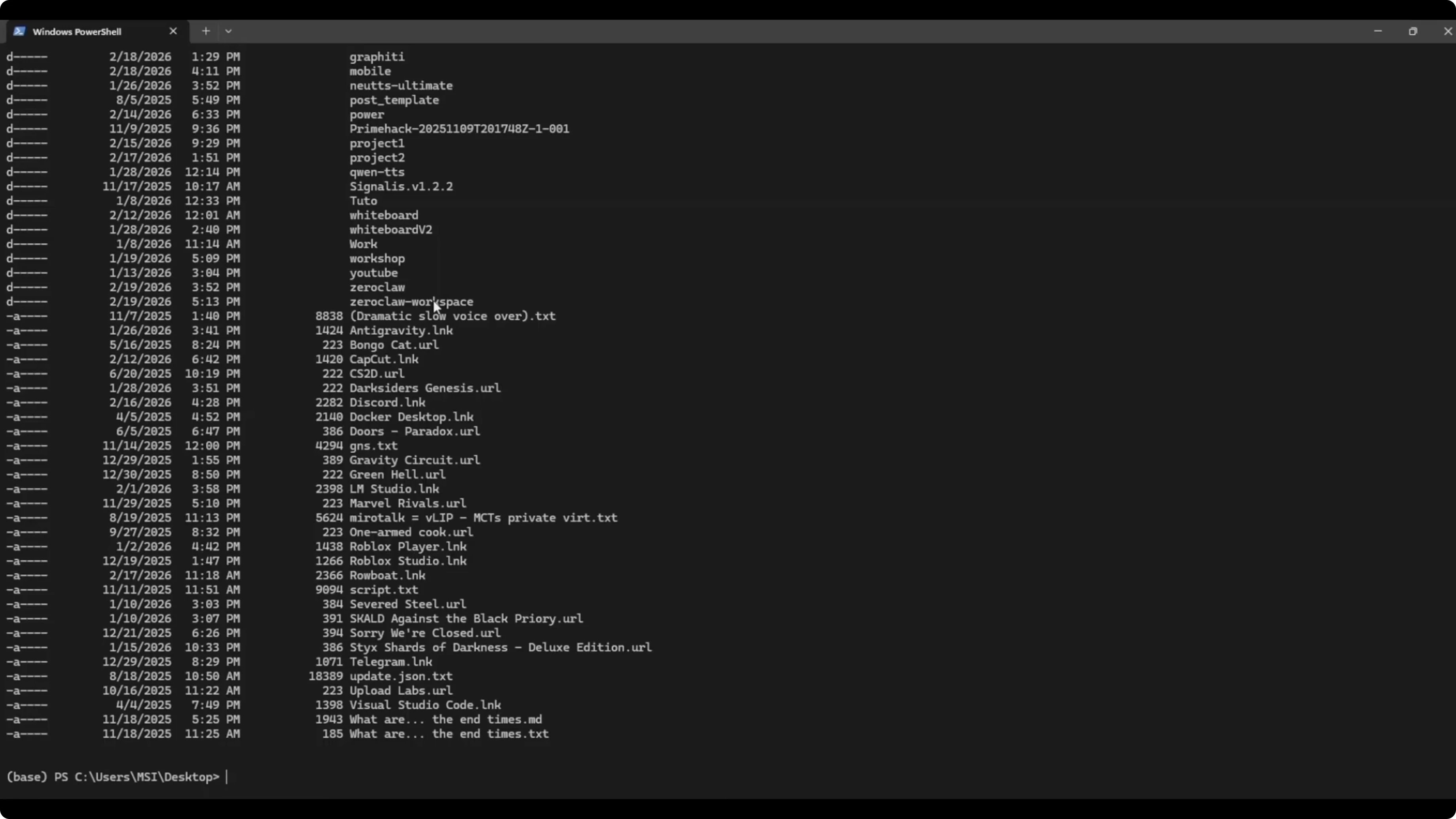
git clone <repo-url>
cd <repo-folder>
cargo build
If cargo build throws an error, open the schema file and modify two lines by removing the trailing .await on those lines, then build again.
cd <repo-folder>
notepad src/config/schema
# remove ".await" at the end of the two specified lines
cargo build
If your build passes on the first run, you do not need these edits. If it fails, these two line changes fix it.
Start interactive setup
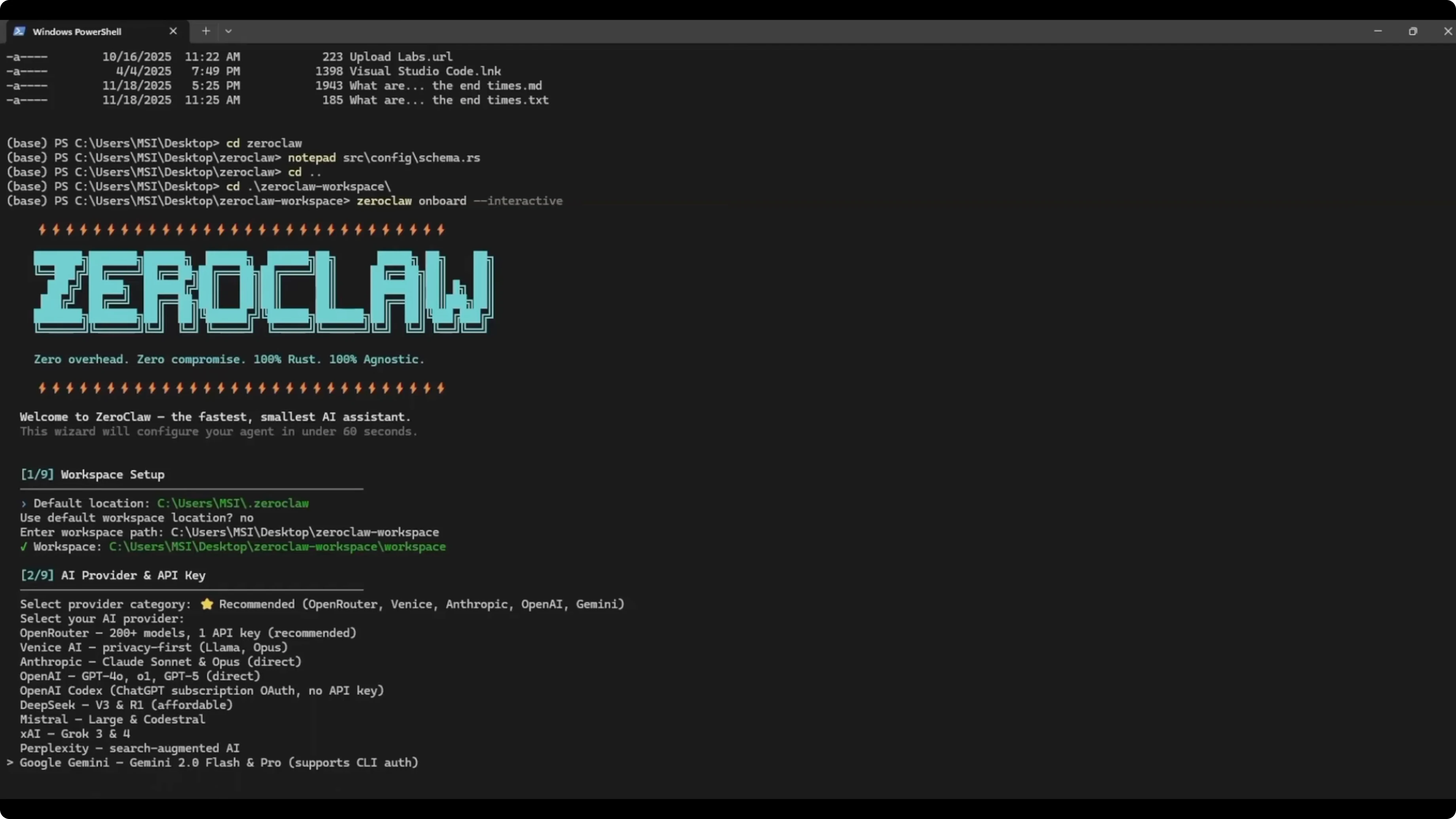
CD into the working directory. Launch the interactive mode to make setup easier.
cd <repo-folder>
zeroclaw --interactive
Choose a workspace path. I point it to my ZeroClaw workspace folder by pasting its full path.
Select a provider category. Recommended is the easiest path, and I picked Google Gemini.
Paste your API key. When prompted, fetch the latest models, then choose the curated model list.
I used a low cost Gemini option, like 2.5 Flash. That keeps the bill small while still being quick. Then continue to channels.
Telegram channel
ZeroClaw can connect to channels like Telegram. It walks you through the steps, which go like this.
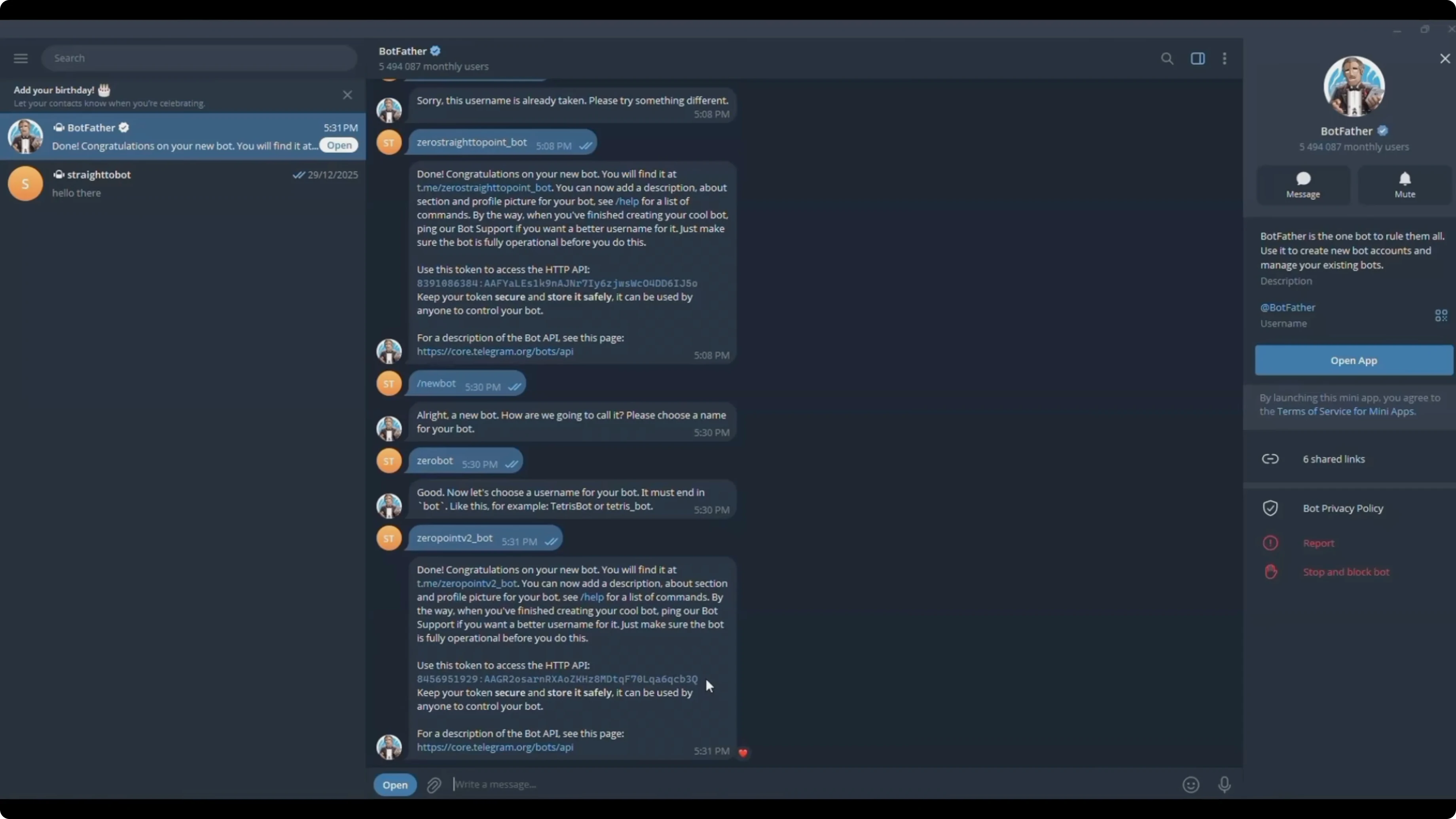
Open Telegram and talk to BotFather. Run /newbot, give it a name, then pick a username that ends with _bot.
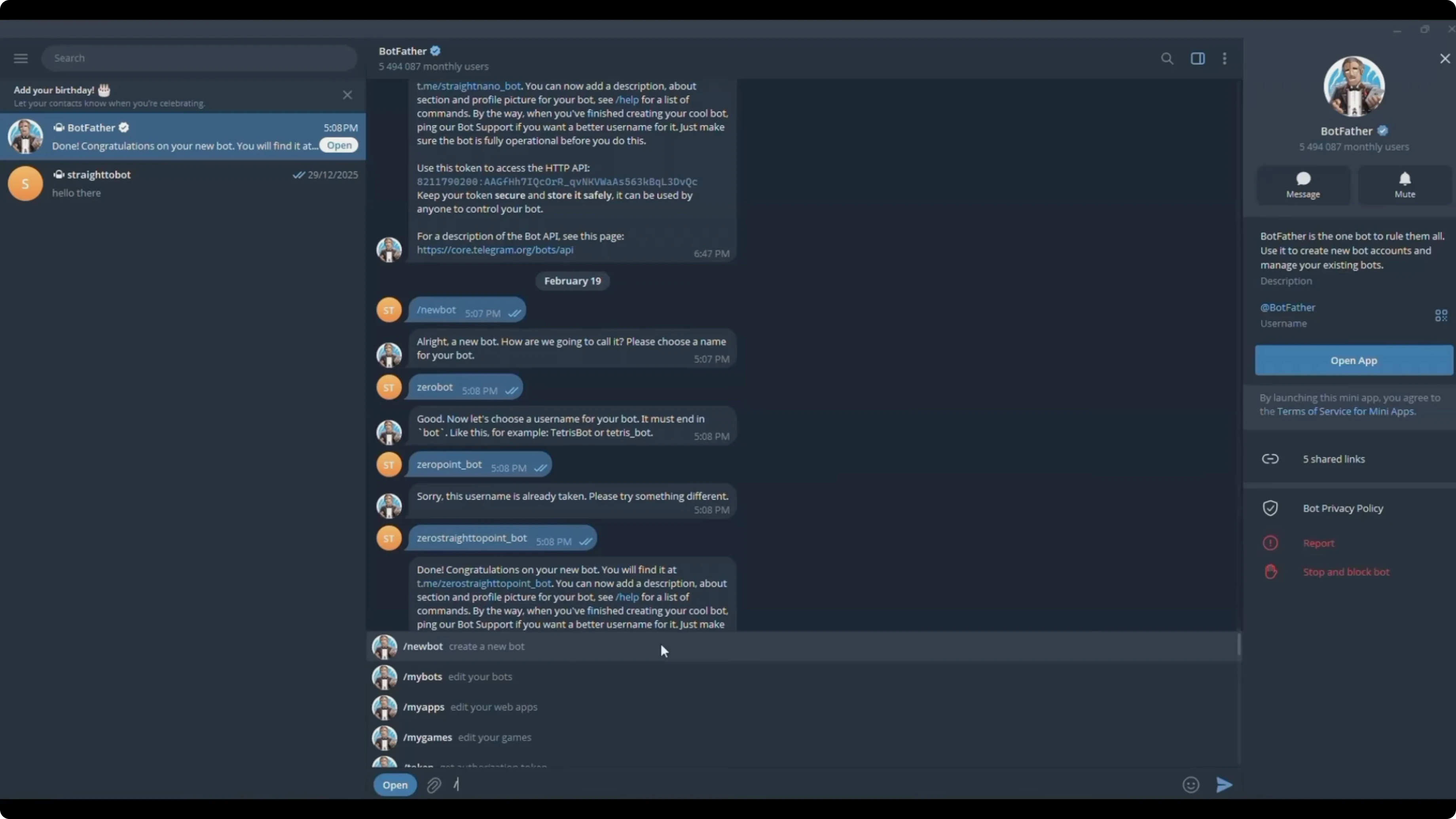
Copy the token BotFather returns. Paste it into the terminal when ZeroClaw asks for it, and you will see it connect.
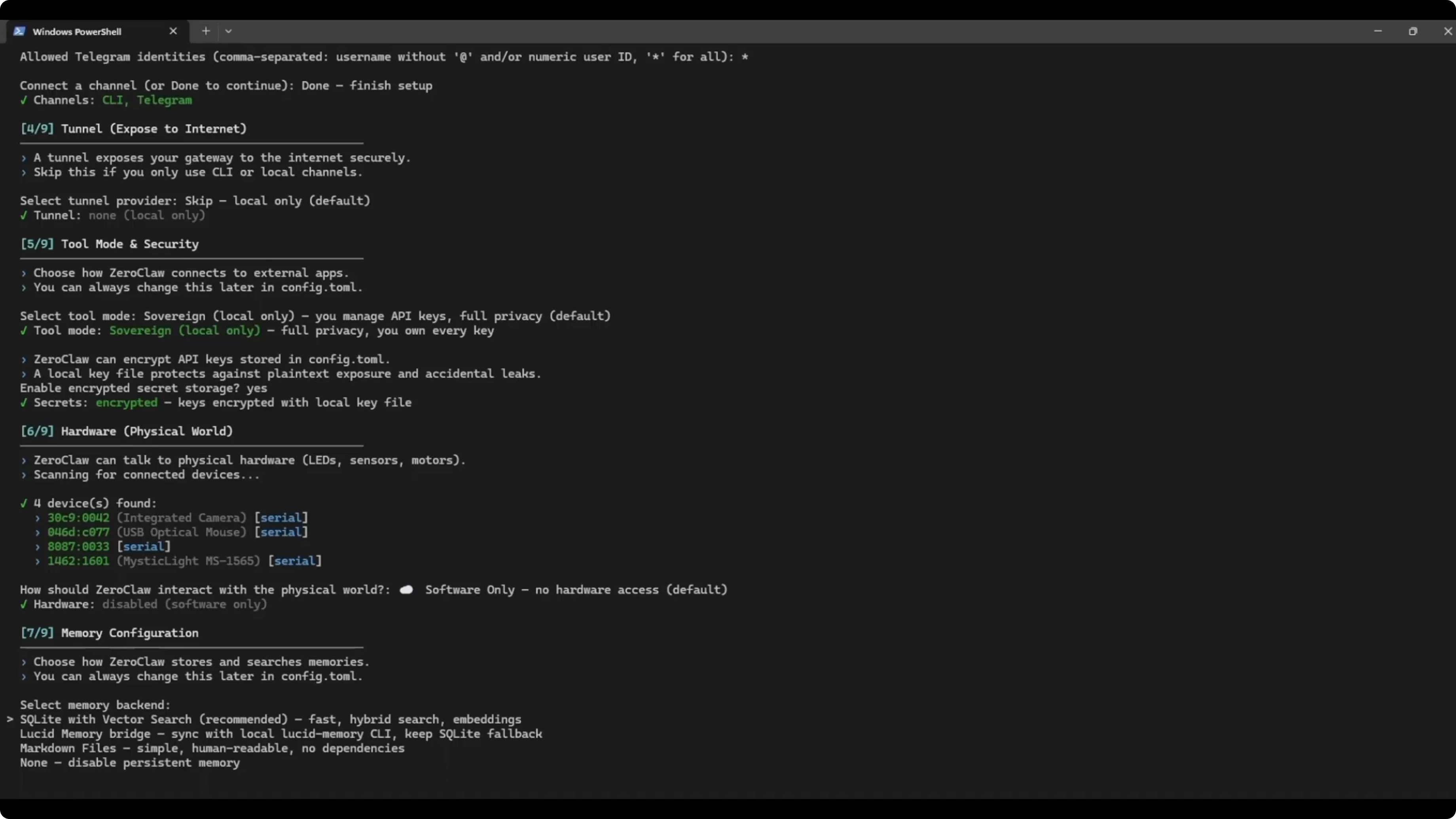
ZeroClaw will also ask to allow Telegram ident for this use case. I used a star to keep it temporary.
Tunnels
You can set up a tunnel with Cloudflare or similar. I skipped this because I ran locally.
Tools and security
You will be asked to choose the tool mode. Sovereign lets you manage your API keys with full control, so I selected that.
ZeroClaw encrypts API keys stored in config.toml. I enabled encryption.
It will ask how ZeroClaw should interact with the physical world. I chose software only since I am not using a Raspberry Pi, Arduino, or USB device.
Memory and identity
Choose persistent memory or none. I selected none for now, but you can pick SQLite and it will set it up automatically.
Enter your name, time zone, agent name, and choose a communication style. I set the style to balanced.
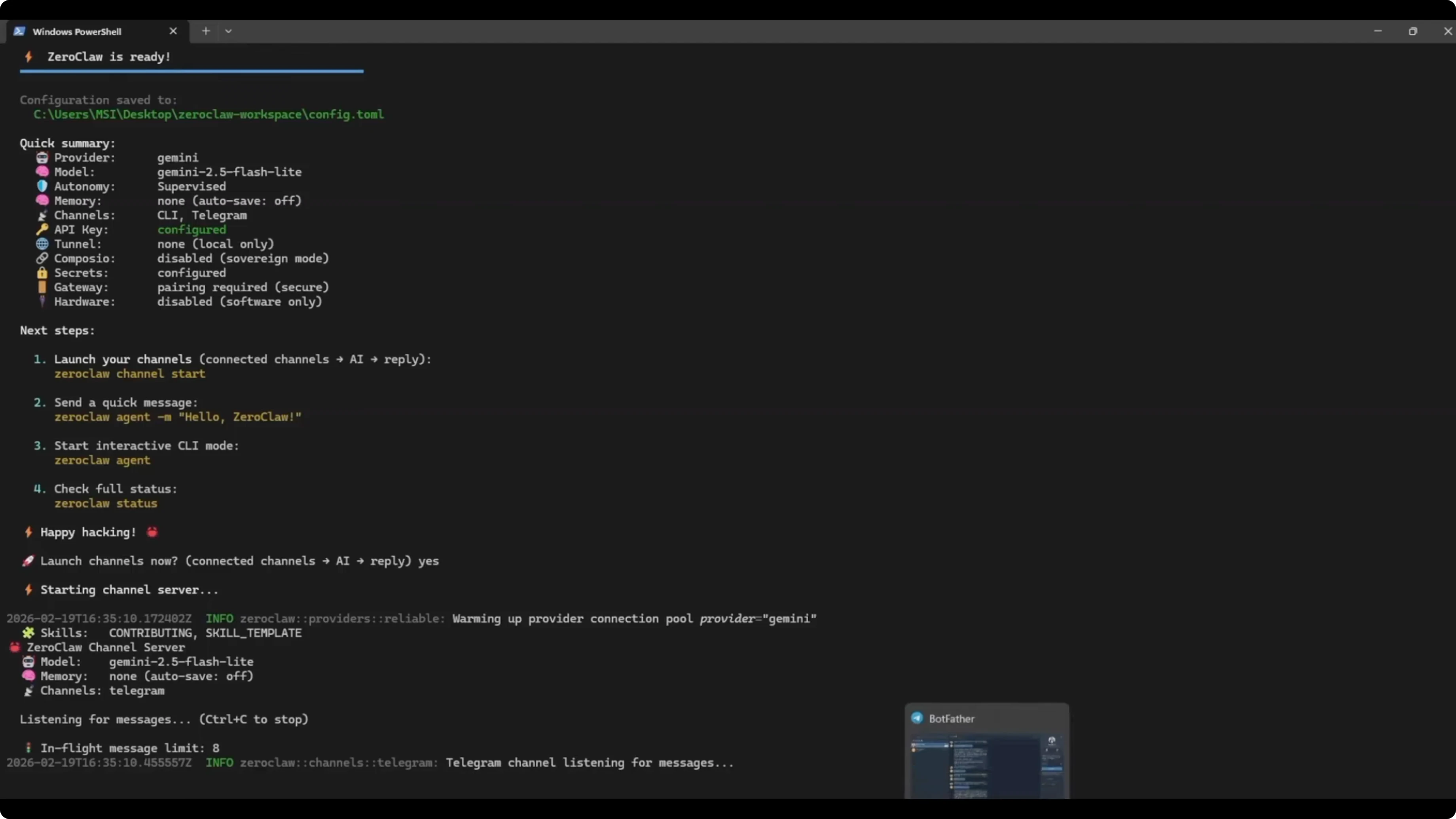
Launch the channel. In Telegram, open your bot link, hit Start, and you are ready.
Workspace test
The ZeroClaw workspace has folders like skills, states, and memory. What I care about here are three empty text files named 1, 2, and 3.
I told the bot it has three text files and asked it to change the content of file 1. The content should be the number 1, and it completed the edit.
I then told it to put that file into a subfolder. It replied with a brief apology, but it still created the subfolder and moved the file successfully.
This is normal, because the agent can work on the environment but sometimes thinks it is sandboxed. Tell it otherwise and it will proceed correctly.
Windows command whitelist
I opened my config and changed the allowed commands to Windows commands so the agent could work on my machine.
notepad C:\Users\<you>\Desktop\<workspace>\config.toml
Example allowed commands for Windows:
[security]
allowed_commands = [
  "dir",
  "type",
  "copy",
  "move",
  "del",
  "mkdir",
  "rmdir",
  "powershell"
]
If you are on Windows, remember to swap any Linux defaults for Windows commands here. That small change makes file operations and other tasks work as expected.
Step by step setup
Install Rust, then install Visual Studio Build Tools for C++ on Windows.
Clone the repo, cd into it, and run cargo build.
If the build fails, open src/config/schema, remove .await at the two flagged lines, then cargo build again.
Run zeroclaw --interactive and set your workspace path.
Pick Recommended, choose Google Gemini, paste your API key, update models, then select a curated model like 2.5 Flash.
Connect Telegram by creating a bot with BotFather, copy the token, and paste it into the prompt.
Skip tunnels if running local, pick Sovereign for tool mode, and enable key encryption in config.toml.
Choose software only for device interaction, disable persistent memory for a stateless start, set your identity details, and select balanced style.
Launch the channel, open your Telegram bot, and press Start.
Test the workspace by asking the agent to write the number 1 into file 1 and move it into a subfolder.
Final thoughts
ZeroClaw was quick to install, light on RAM, and cheap to run. The interactive setup with a recommended provider made it straightforward, and Telegram integration worked immediately.
If you need a fast OpenClaw alternative with a Rust-based stack, this is a strong pick for local experiments and agents.