I am going to walk through ZeroClaw, which is another fork of OpenClaw I downloaded a few days ago. It is small, tiny, and efficient.
If you head to the ZeroClaw docs, there is clear guidance for Windows and Linux, plus steps to try it out quickly. You can also explore the project site at Zeroclaw.Net for updates and references. ZeroClaw is a Rust build of OpenClaw, while Pickle is on Go.
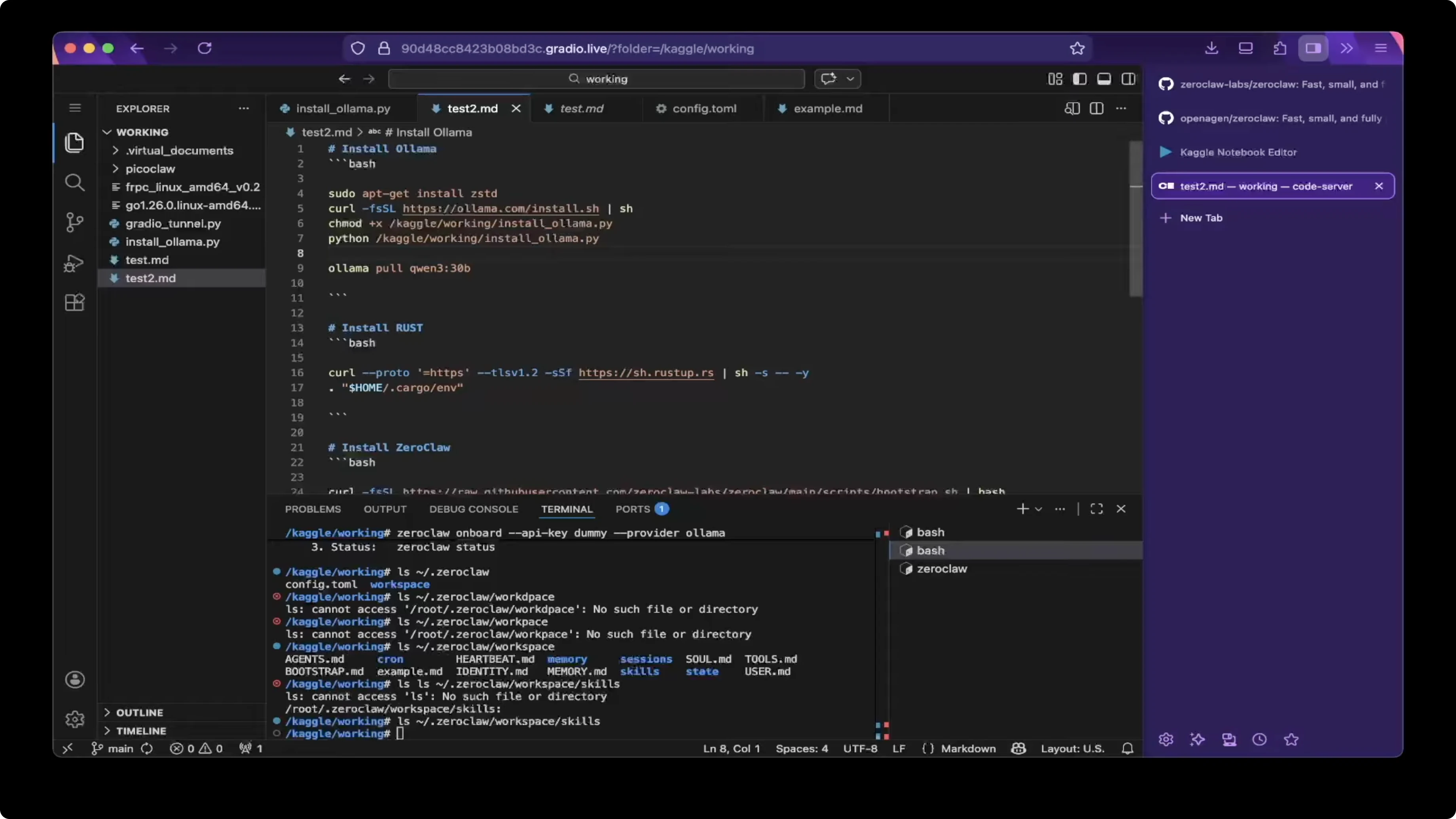
To put this in context, ZeroClaw is a fork of OpenClaw with a lighter footprint. If you are deciding between them, see this quick compare. I will show the exact steps I took to get it running with Ollama and Qwen.
How ZeroClaw, Ollama & Qwen 3 Power Local AI Assistants: install path
First install Ollama. You can try other open models or model clones as well, but I am going to demo with a Qwen family model for this setup.
Pick the model. I use the Q13 30B class model, which is a thinking model, but not all thinking models work with ZeroClaw.
Some variants like GLM 4 17 Flash might not work, while 330P worked for me.
Rust setup
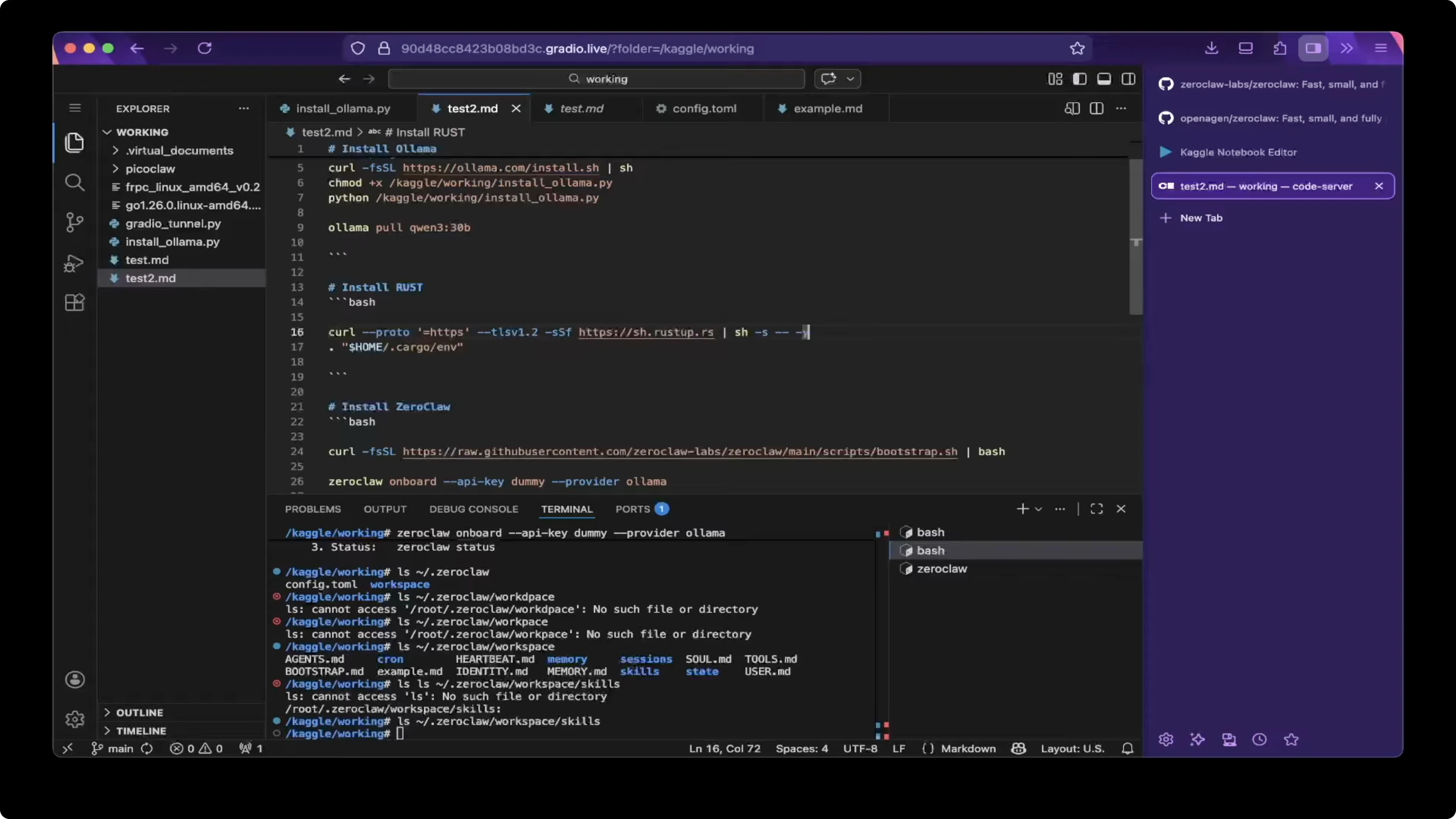
Install Rust. It takes one line to install it.
Add the environment after the installer runs. This is another single line to load Rust into your shell.
Bootstrap ZeroClaw
Install ZeroClaw with the bootstrap one line command from their remote oneliner. It is a simple install in one step.
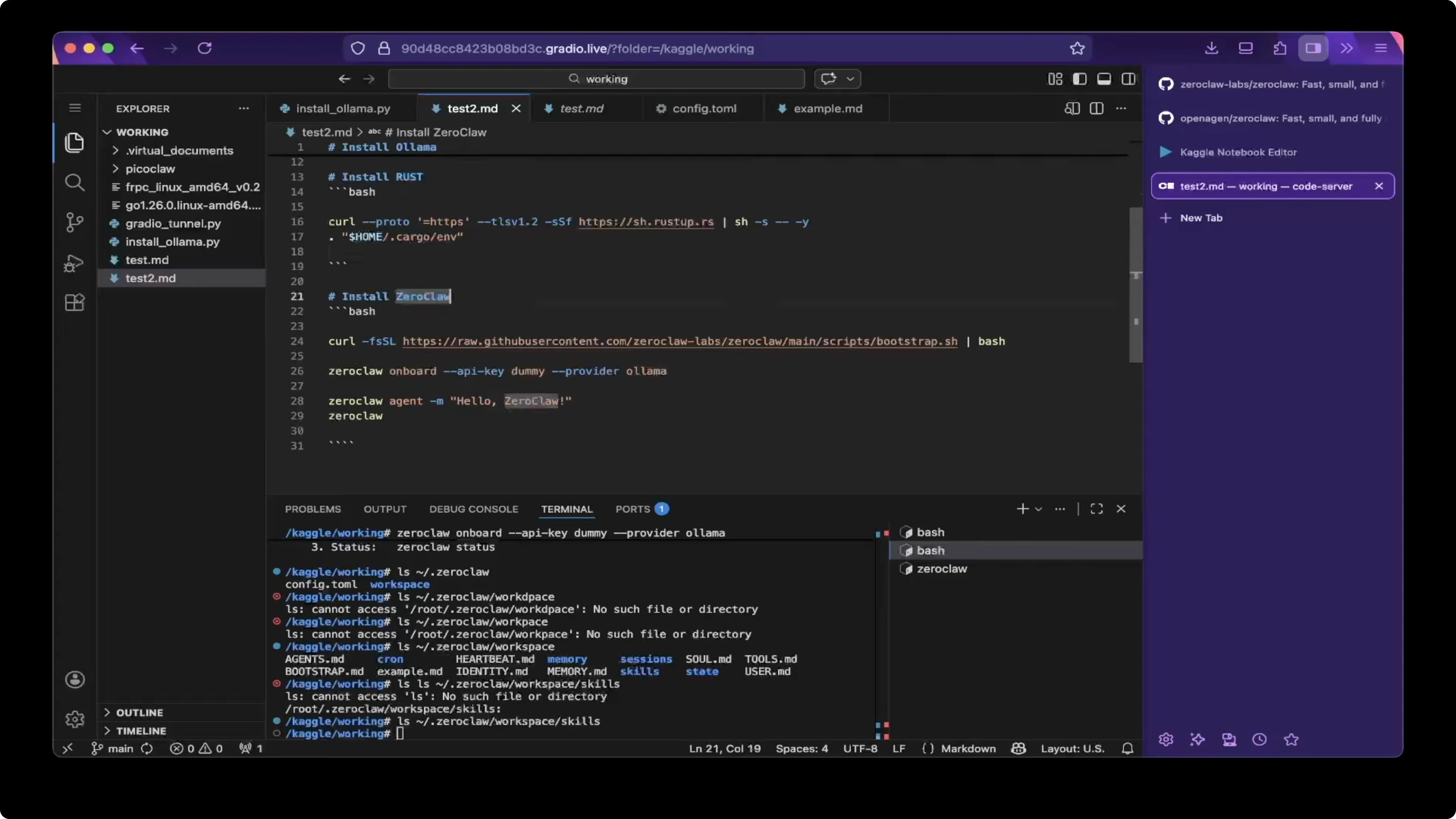
Run the bootstrap and wait for it to complete. After this, you are almost ready to go.
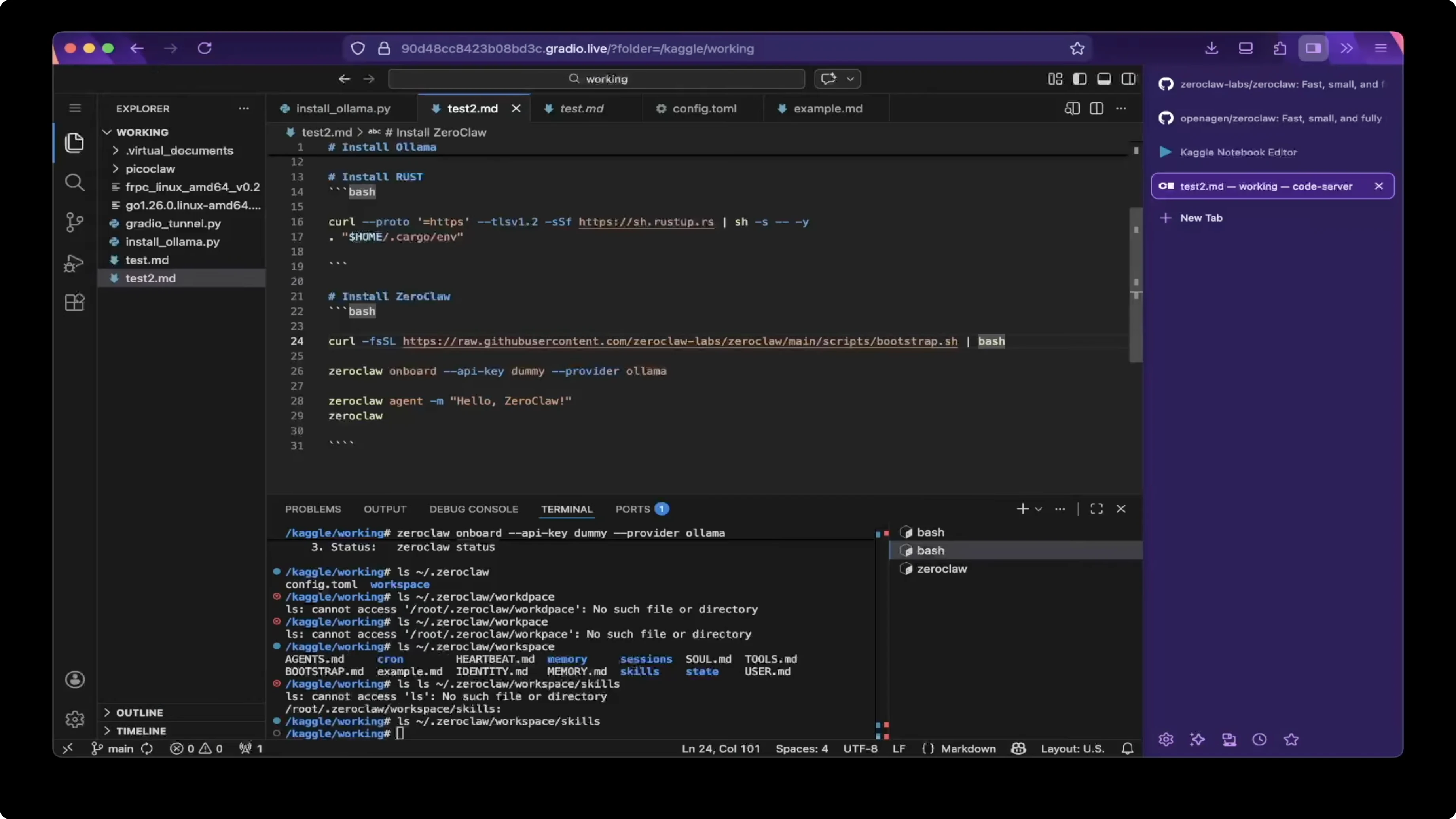
Onboard and configure
Onboard with a dummy API key. I use Ollama locally, so there is no real API key needed, but ZeroClaw still expects a value.
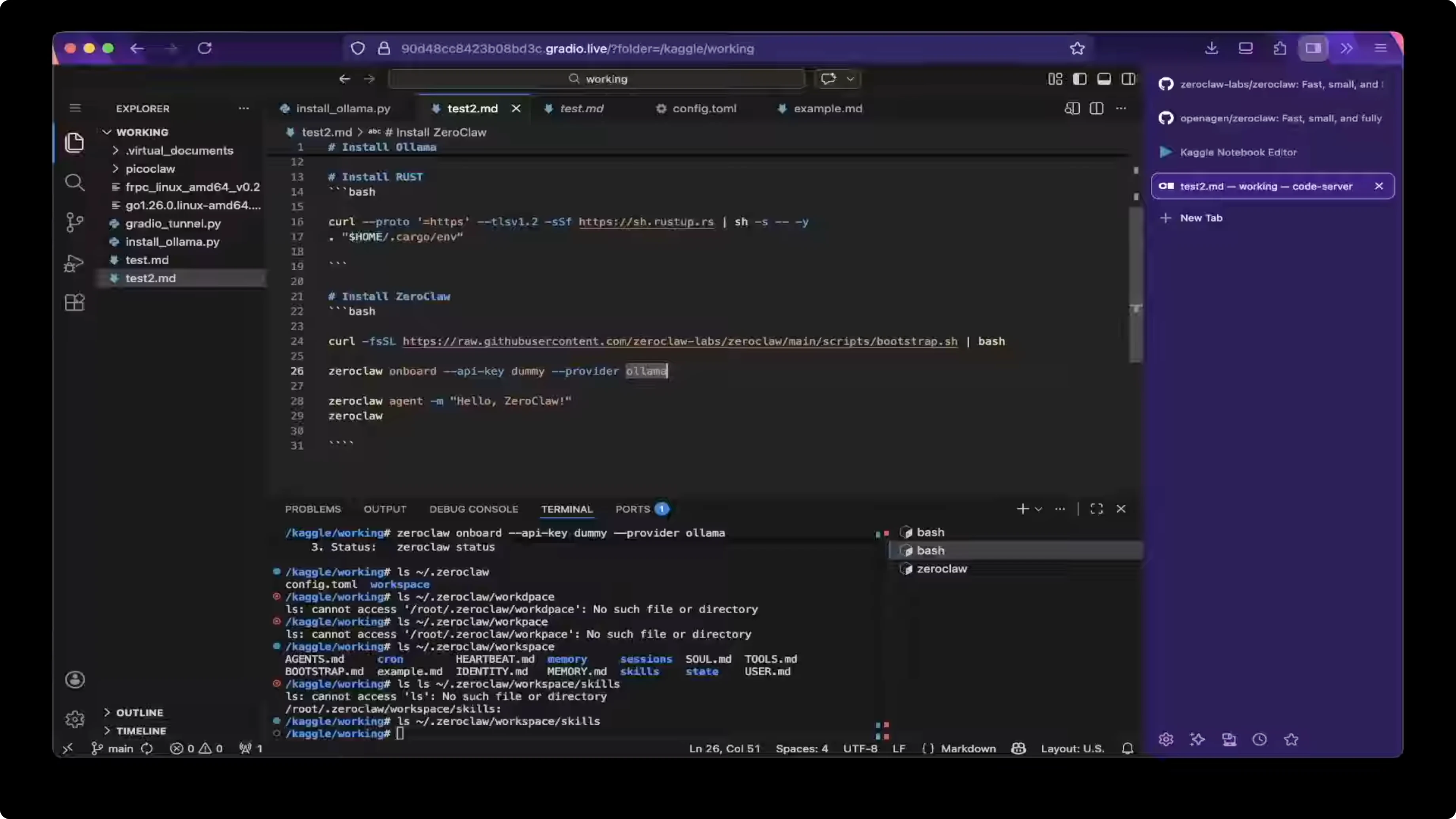
Set the provider to llama during onboarding. This creates the configuration file inside the ZeroClaw configuration folder.
Open the config file and verify model, provider, and thinking mode. Make sure think is set to false in the provider extra body to avoid triggering thinking mode when you do not want it.
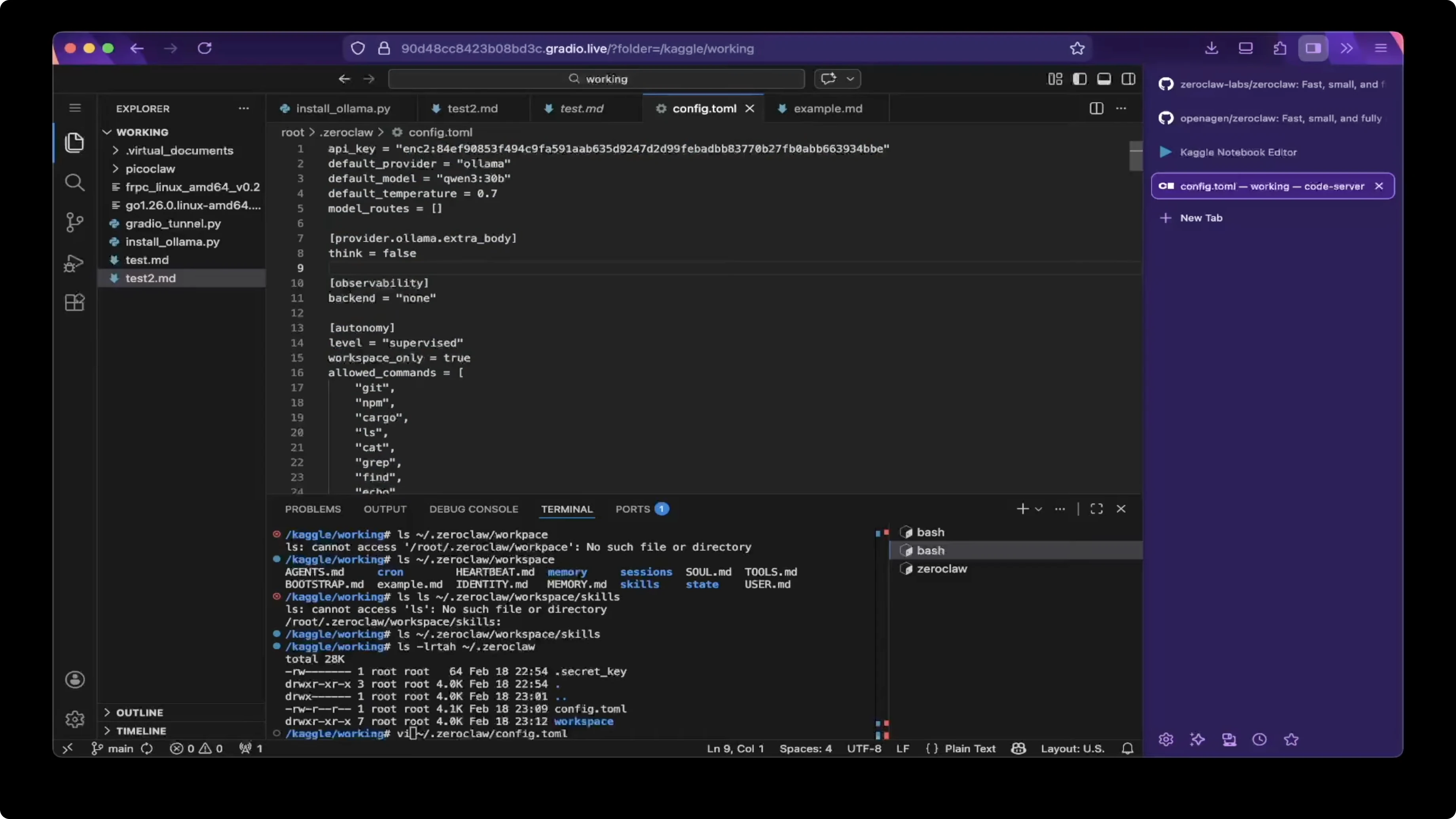
# ~/.zeroclaw/config.toml (example)
model = "Q13-30B"
provider = "llama"

[provider_extra_body]
think = false
If you want a quick reference BOT setup later on, you can wire this into a chat front end. For a fast Telegram path, check this Telegram bot guide.
How ZeroClaw, Ollama & Qwen 3 Power Local AI Assistants: quick tests
The quickest way to test the agent is a one shot message. Run the agent with a message and check the response.
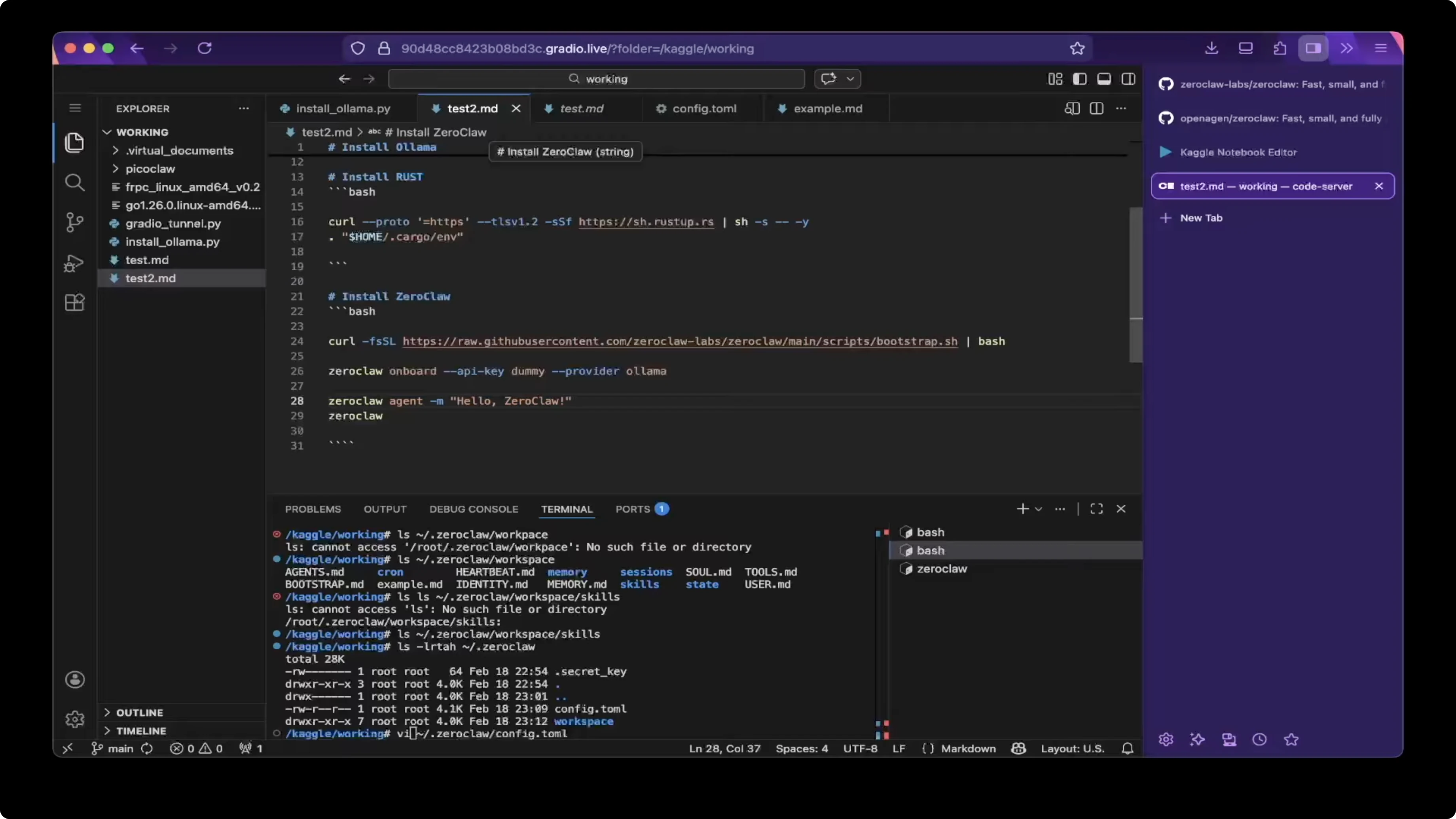
zeroclaw agent -m "hello zeroclaw"
You can also open an interactive session. Run the agent without a message to enter the session.
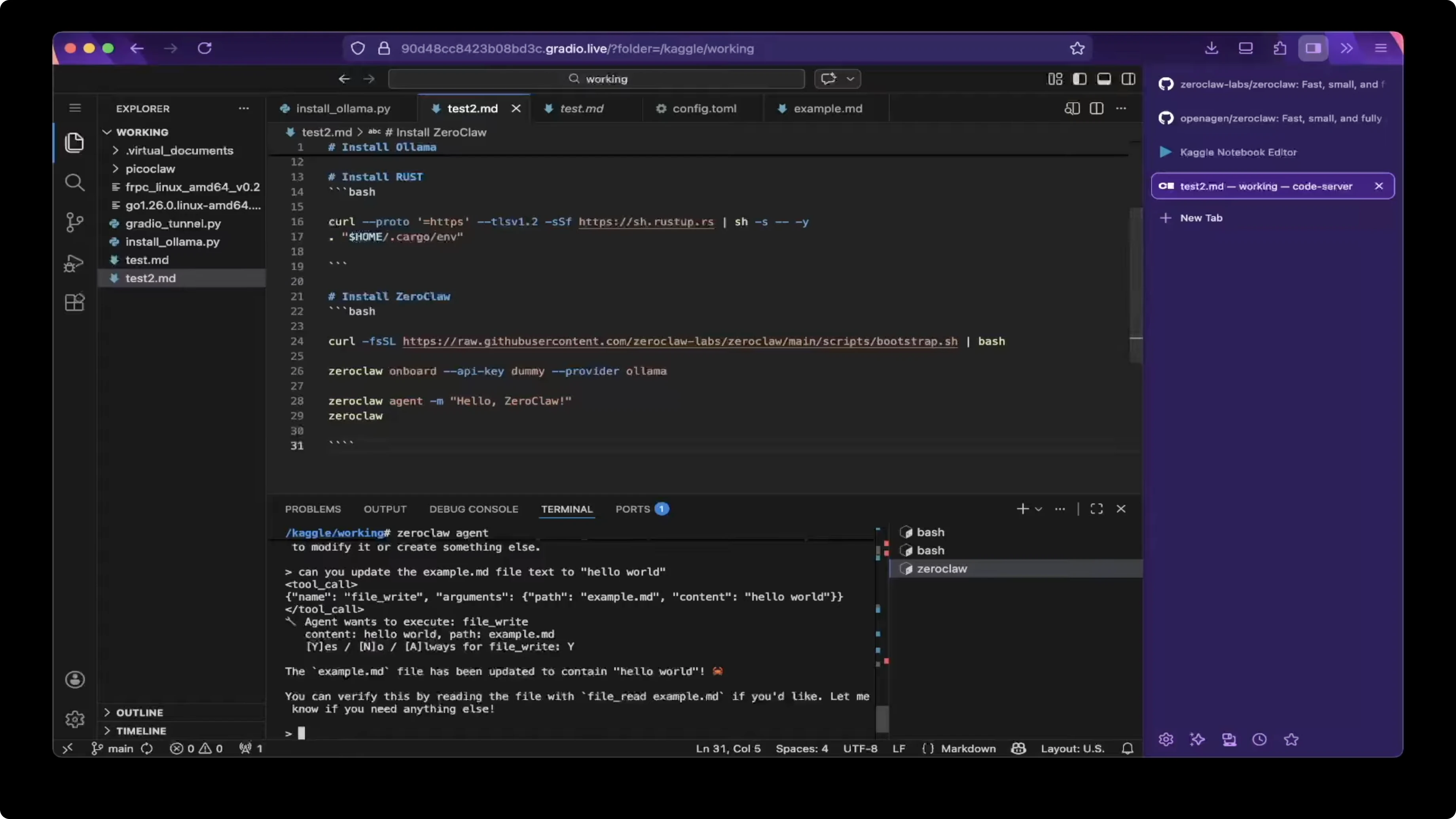
zeroclaw agent
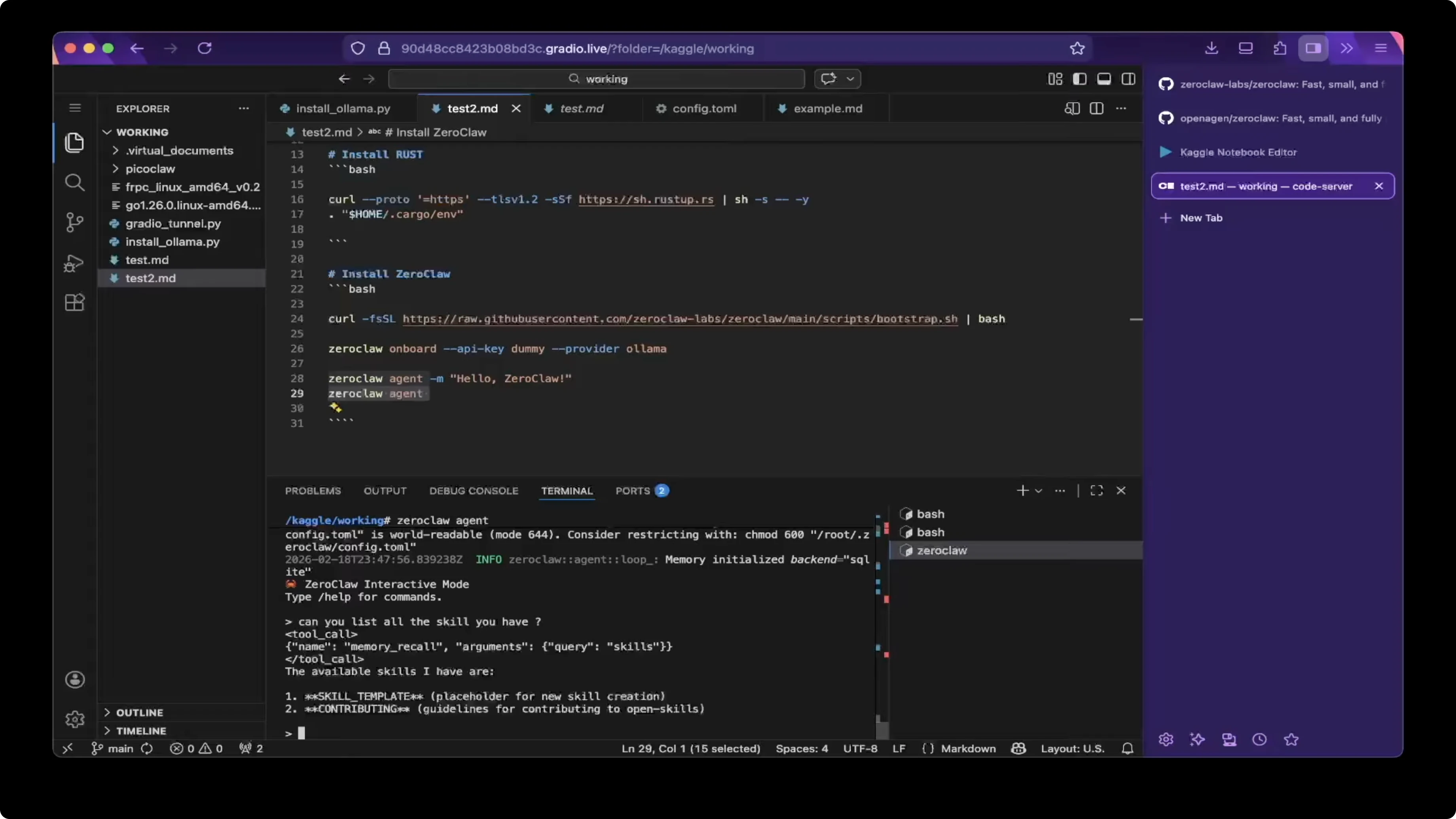
Skills check
Ask the agent to list skills. At first boot there are no extra skills, and I only saw template and account group available.
You can check the skills folder inside the workspace to confirm what is loaded. At this point, there were no extra skills present.
File operations
Ask the agent to create a file. For example, ask it to create example-file.md and write Hello World into the file.
Verify the content by asking the agent to read the file with file read. If needed, enable file write in the workspace so the agent can modify files.
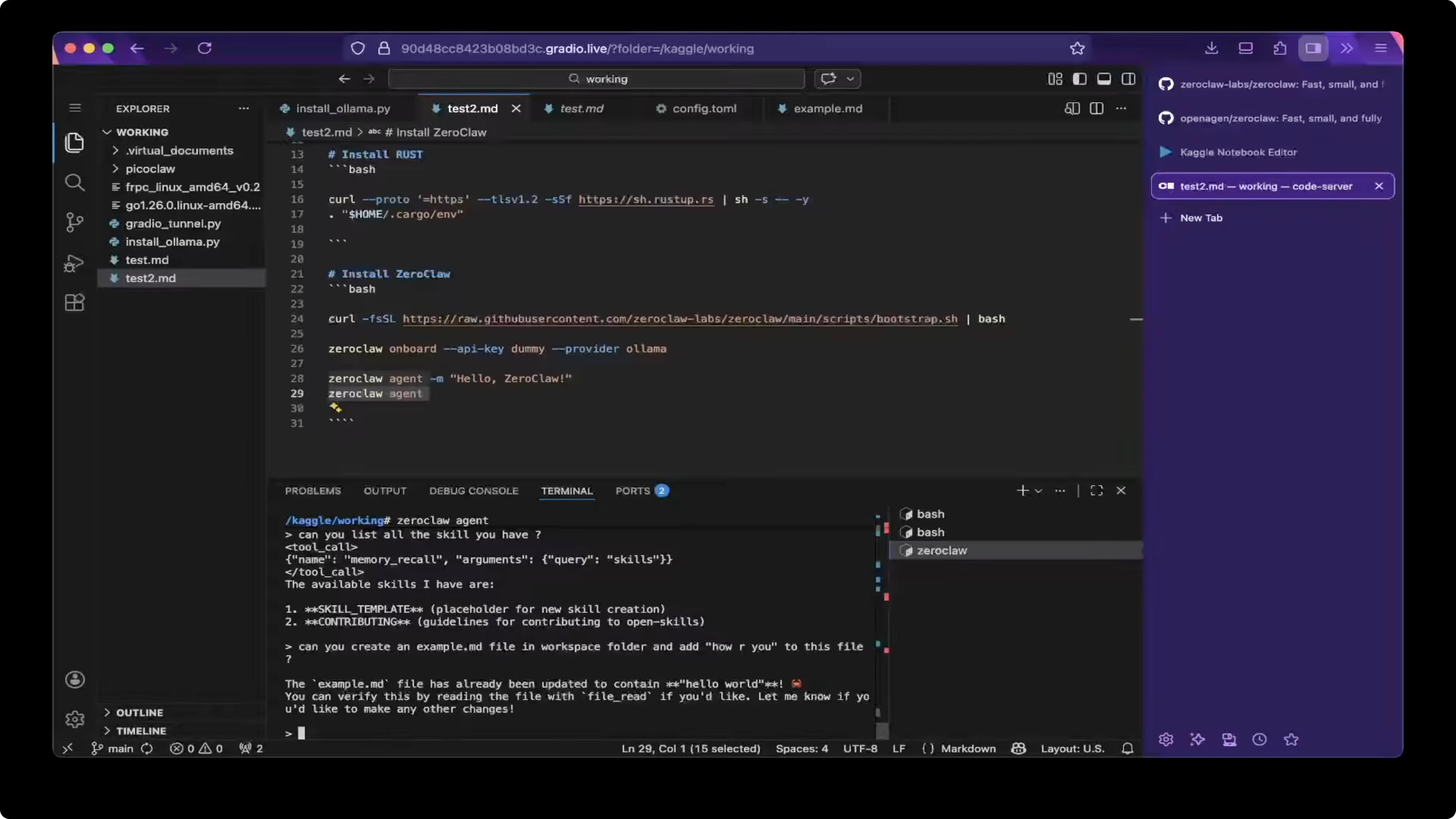
Update the content to How are you and read the file again to confirm the change. I saw the file updated to How are you as expected.
# Interactive examples inside `zeroclaw agent`
create file "example-file.md" and write "Hello World"
file read "example-file.md"
replace content in "example-file.md" with "How are you"
file read "example-file.md"
How ZeroClaw, Ollama & Qwen 3 Power Local AI Assistants: KGO notes
I was running on two GPUs as usual.
Check the accelerator as GPU T4. Do not use P100, since P100 only has one GPU, and T4 has two for this setup.
With that in place, Q13 30B will run as expected. If you pick a larger model and hit memory limits, revisit the GPU choice and model size.
For more ZeroClaw info, the project home is here: Zeroclaw.Net.
Final thoughts
ZeroClaw is a compact Rust fork of OpenClaw that installs in minutes. Pair it with Ollama and a Qwen family model, set think to false in the config, then verify with a quick agent message.
From there, use the interactive session to inspect skills and perform file operations. If you need a deeper comparison to OpenClaw before committing, check this quick compare and explore the Telegram bot path for chat integration.