Version notice — 8 October 2026: Verified against ZeroClaw v0.8.5. The gateway binds to
127.0.0.1:42617by default and is configured under[gateway]inconfig.toml, replacing legacy[channels.web]and port3000references. Serving the web dashboard requires built web assets (gateway.web_dist_diror bundled dist).
The terminal is a fine way to talk to an agent until you want to see what it has been doing, check its memory, or reach it from a device that is not the machine it runs on. That is what the gateway and web dashboard are for.
This guide covers running the gateway locally, configuring the security controls, completing pairing, testing active chat, and exposing the interface remotely without turning your agent into an unprotected endpoint.
Gateway, dashboard, tunnel
Three distinct components work together:
- The gateway is the HTTP and WebSocket server built into ZeroClaw. It serves the dashboard, exposes the REST and Agent Client Protocol (ACP) APIs, and receives webhooks from messaging channels.
- The web dashboard (or web UI) is the browser interface served by the gateway — providing live agent chat, chat history, memory inspection, and configuration management.
- A tunnel or private overlay is how you reach the gateway from outside the host network without opening an unprotected firewall port.
One command manages the runtime. Starting the gateway starts the API listener and serves the dashboard when web assets are present.
Starting the gateway
To start the gateway with default settings:
zeroclaw gateway
ZeroClaw v0.8.5 binds to 127.0.0.1:42617 by default. The dashboard is served at:
http://127.0.0.1:42617/
Older documentation occasionally referenced port 3000 or 8080. If you are unsure which port is listening, run zeroclaw status to inspect active listeners.
To specify a custom port explicitly:
zeroclaw gateway --port 8080
To let the operating system assign a random available high port:
zeroclaw gateway --port 0
Using a dynamic port removes predictable port scans across a local network, but it is not a standalone security boundary; pair it with tunneling.
Web dashboard distribution directory
ZeroClaw's core engine is distributed as a single static Rust binary. Prebuilt package releases run in API-only mode unless the web frontend assets are provided. If you navigate to the URL and receive an API response or see the startup notice:
Web dashboard: not available (set gateway.web_dist_dir or ZEROCLAW_WEB_DIST_DIR)
You can build the web frontend from the repository root:
cd web
npm ci
npm run build
Then point the gateway to the generated dist directory via configuration or the environment variable:
export ZEROCLAW_WEB_DIST_DIR="/path/to/zeroclaw/web/dist"
zeroclaw gateway
Configuration in config.toml
The gateway is configured in config.toml under [gateway]:
[gateway]
host = "127.0.0.1"
port = 42617
require_pairing = true
allow_public_bind = false
allow_remote_admin = false
session_persistence = true
websocket_ping_interval_secs = 30
web_dist_dir = "/path/to/zeroclaw/web/dist"
Notice that [channels.web] is legacy configuration from schema version 1 and 2. In v0.8.5 (schema version 3), legacy channels.web blocks are migrated to [gateway].
Host address and public binding controls
The host setting determines which network interfaces accept traffic:
127.0.0.1(default): Accepts connections exclusively from the local loopback interface. Other devices on your local network and the public internet cannot connect. This is the recommended setting for personal workstations.0.0.0.0: Accepts connections on every interface. Every device on your local network (and any external network routed to the host) can reach the port.
In ZeroClaw v0.8.5, binding to 0.0.0.0 or an external IP requires an explicit safety flag:
[gateway]
host = "0.0.0.0"
allow_public_bind = true
If allow_public_bind = false (the default) and host is set to 0.0.0.0, the gateway refuses to launch. This safeguard prevents accidental exposure caused by careless copy-pasting of sample configurations.
Pairing: Protecting the endpoint
The gateway requires pairing before granting access to the dashboard, REST endpoints, and WebSocket chat. This boundary separates network visibility from administrative control.
The pairing flow
- Start the gateway in your terminal:
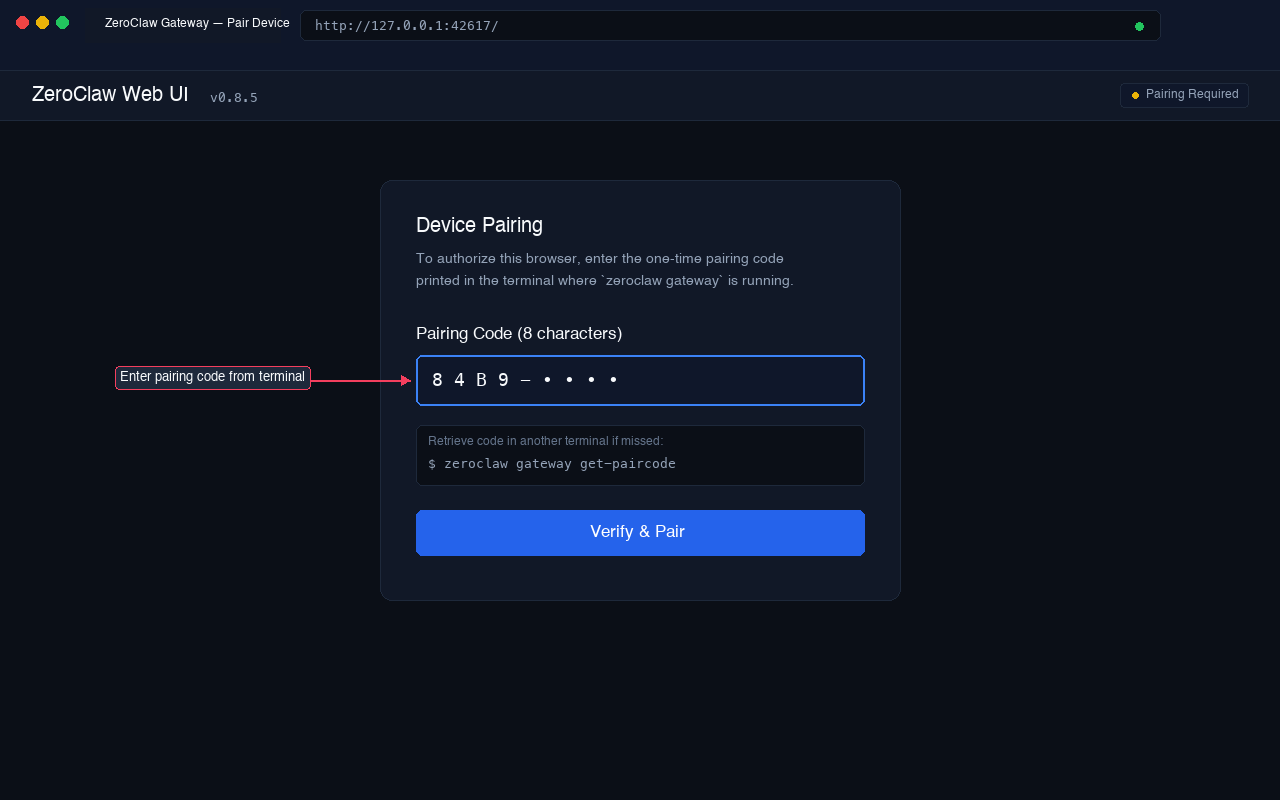
zeroclaw gateway - The runtime generates a secure 8-character pairing code and prints it in the startup banner:
If you missed the initial banner, retrieve the active code from another terminal session:[gateway] listening on http://127.0.0.1:42617 [gateway] pairing required — code: 84B9-XXXX (valid 60m)zeroclaw gateway get-paircode - Open
http://127.0.0.1:42617/in your browser. - The dashboard displays the Device Pairing modal.
- Enter the 8-character pairing code and click Verify & Pair.
- Upon successful verification, the gateway generates a bearer token and returns it to the browser. The token is stored locally in
localStorage.zeroclaw_token. All subsequent REST requests and WebSocket connections present this token.
Pairing security limits
ZeroClaw enforces rate limits and brute-force lockout on the pairing endpoint:
[gateway.pairing_dashboard]
code_length = 8
code_ttl_secs = 3600
max_pending_codes = 3
max_failed_attempts = 5
lockout_secs = 300
- After 5 failed attempts, the client IP is locked out for 300 seconds (5 minutes).
- Requests to
/pairare capped at 10 requests per minute by default. - Never share pairing codes over unencrypted public communication channels.
Active chat and agent dashboard
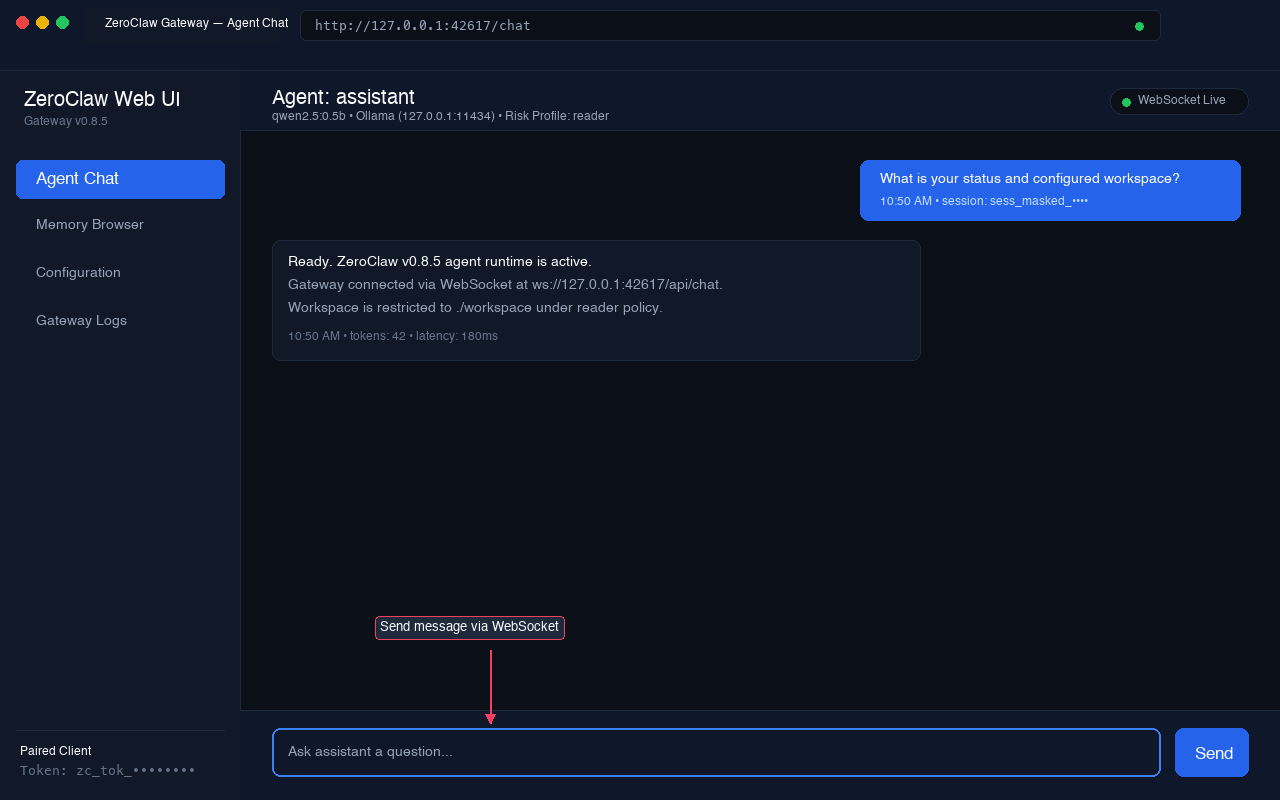
Once paired, the browser transitions directly to the agent dashboard.
Live WebSocket communication
Chat interactions do not poll HTTP endpoints; they stream over a dedicated WebSocket connection:
- Endpoint:
ws://127.0.0.1:42617/api/chat - Authentication: The client includes the paired bearer token in the connection handshake.
- Streaming: Responses are rendered token-by-token as generated by the underlying model provider (such as local Ollama or hosted providers).
- Session Persistence: With
session_persistence = true, conversation history is saved to the internal SQLite database and restored across browser refreshes.
Supervised action approval in the UI
If the active agent runs with a supervised risk profile (the default), tool operations requiring operator confirmation (such as file modifications or allowed shell commands) display inline approval prompts inside the chat UI. You can approve once, approve always, or deny the operation directly from the browser.
Reaching the gateway remotely
To access the dashboard from a phone, tablet, or laptop outside your home network, choose one of the following methods in order of security.
1. Overlay network or VPN (recommended)
Use Tailscale, WireGuard, or NetBird to place your mobile client and agent host on the same private virtual mesh network.
- Keep
host = "127.0.0.1"or bind to the specific Tailscale IP (e.g.100.x.y.z). - No public ports are opened.
- All traffic is encrypted and authenticated through the VPN layer before reaching ZeroClaw.
2. SSH local port forwarding (zero extra software)
If the host runs an SSH daemon:
ssh -N -f -L 42617:127.0.0.1:42617 user@agent-host
Open http://localhost:42617 on your laptop. The gateway remains bound to loopback; SSH provides authenticated transport encryption.
3. Authenticated reverse proxy
If you need a permanent URL for channel webhooks, terminate TLS and add HTTP Basic Authentication or OAuth in front of ZeroClaw using Nginx or Caddy:
server {
    listen 443 ssl http2;
    server_name agent.example.com;

    ssl_certificate     /etc/letsencrypt/live/agent.example.com/fullchain.pem;
    ssl_certificate_key /etc/letsencrypt/live/agent.example.com/privkey.pem;

    location / {
        auth_basic           "ZeroClaw Protected";
        auth_basic_user_file /etc/nginx/.htpasswd;

        proxy_pass http://127.0.0.1:42617;
        proxy_http_version 1.1;
        proxy_set_header Upgrade $http_upgrade;
        proxy_set_header Connection "upgrade";
        proxy_set_header Host $host;
        proxy_set_header X-Real-IP $remote_addr;
        proxy_set_header X-Forwarded-For $proxy_add_x_forwarded_for;
        proxy_set_header X-Forwarded-Proto $scheme;
    }
}
When placing the gateway behind a reverse proxy, enable forwarded header trust in config.toml:
[gateway]
trust_forwarded_headers = true
WebSocket upgrade headers (Upgrade and Connection) are necessary so the chat stream functions properly through the proxy.
4. Direct public exposure (avoid)
Setting host = "0.0.0.0", allow_public_bind = true, and forwarding router port 42617 directly to the internet is dangerous. Automated internet scanners will discover the endpoint. Even with pairing enabled, you expose authentication endpoints and rate limiters directly to untrusted internet traffic. Use a VPN or SSH tunnel instead.
Running the gateway as a background service
To keep the gateway active across reboots:
zeroclaw service install
zeroclaw service status
On Linux this configures a systemd user service; on macOS it configures a launchd agent. Run the service under a dedicated, unprivileged system user that owns only the agent workspace directory.
Troubleshooting
- Web dashboard not available. The binary was installed without prebuilt web assets. Compile them via
cd web && npm ci && npm run buildand setweb_dist_dir = "/path/to/dist"inconfig.toml, or exportZEROCLAW_WEB_DIST_DIR. - Address already in use. Another process occupies port 42617. Check with
lsof -i :42617or start on a different port:zeroclaw gateway --port 42618. - Refusing to bind to non-localhost. If binding to
0.0.0.0, you must addallow_public_bind = trueunder[gateway]. - Pairing code expired or locked out. The default code expires in 60 minutes. Run
zeroclaw gateway get-paircodeto inspect or generate a valid code. If locked out from repeated failed attempts, wait 300 seconds for the cooldown to reset. - WebSocket connection failed. Ensure your browser URL matches the gateway host, or check that your reverse proxy configuration passes
UpgradeandConnectionheaders.
A sensible default
A tested configuration for personal daily use:
schema_version = 3

[gateway]
host = "127.0.0.1"
port = 42617
require_pairing = true
allow_public_bind = false
allow_remote_admin = false
session_persistence = true
Bound strictly to localhost, accessed remotely through Tailscale or an SSH tunnel, protected by pairing, and executing under a supervised risk profile.
Related reading
- ZeroClaw security — risk profiles, sandboxing, and command allowlists
- config.toml reference — complete schema 3 reference guide
- Installing ZeroClaw — installation verification and setup
- Official ZeroClaw gateway documentation