Back up your data before updating ZeroClaw. Keep the previous binary too: a reliable rollback restores both the program and the data it used.
This walkthrough upgrades a standalone macOS Apple Silicon installation from 0.8.5 to 0.8.6. If you installed through a package manager or Docker, use that installation method to replace the program.
1. Find your installation
Run these in the terminal you normally use:
command -v zeroclaw
zeroclaw --version
zeroclaw status
Write down:
- The executable path from
command -v. - The Config and Workspace paths from
status. - Any separate agent workspaces, storage locations and service configuration.
The default data directory is often $HOME/.zeroclaw, but use the path your installation reports. A custom --config-dir must be used consistently throughout the update.
2. Stop ZeroClaw and make a backup
- Stop a foreground gateway or agent with Ctrl+C in its terminal.
- For an installed user service, run
zeroclaw service stop. - Stop other processes using the same data before copying it.
Set these values to your actual paths. The example assumes the executable is in $HOME/.local/bin and the config directory contains the data you want to preserve:
zc_bin="$HOME/.local/bin/zeroclaw"
zc_data="$HOME/.zeroclaw"
zc_backup="$HOME/zeroclaw-backup-$(date +%Y%m%d-%H%M%S)"
umask 077
mkdir -p "$zc_backup"
cp -p "$zc_bin" "$zc_backup/zeroclaw.previous"
tar -czf "$zc_backup/data.tgz" -C "$zc_data" .
shasum -a 256 "$zc_backup/data.tgz" > "$zc_backup/data.sha256"
tar -tzf "$zc_backup/data.tgz" | head
shasum -a 256 -c "$zc_backup/data.sha256"
The last command should print OK. Check that the archive includes config.toml and your expected data files.
- Copy separate workspaces and external storage using their own backup procedure.
- Save the matching dashboard assets if you serve them from a separate
web/distdirectory. - Keep the backup private: it can contain credentials, encryption material and conversations.
3. Update the standalone binary
The official source is the zeroclaw-labs/zeroclaw repository on GitHub. Select the v0.8.6 release and read its breaking changes before updating integrations or plugins.
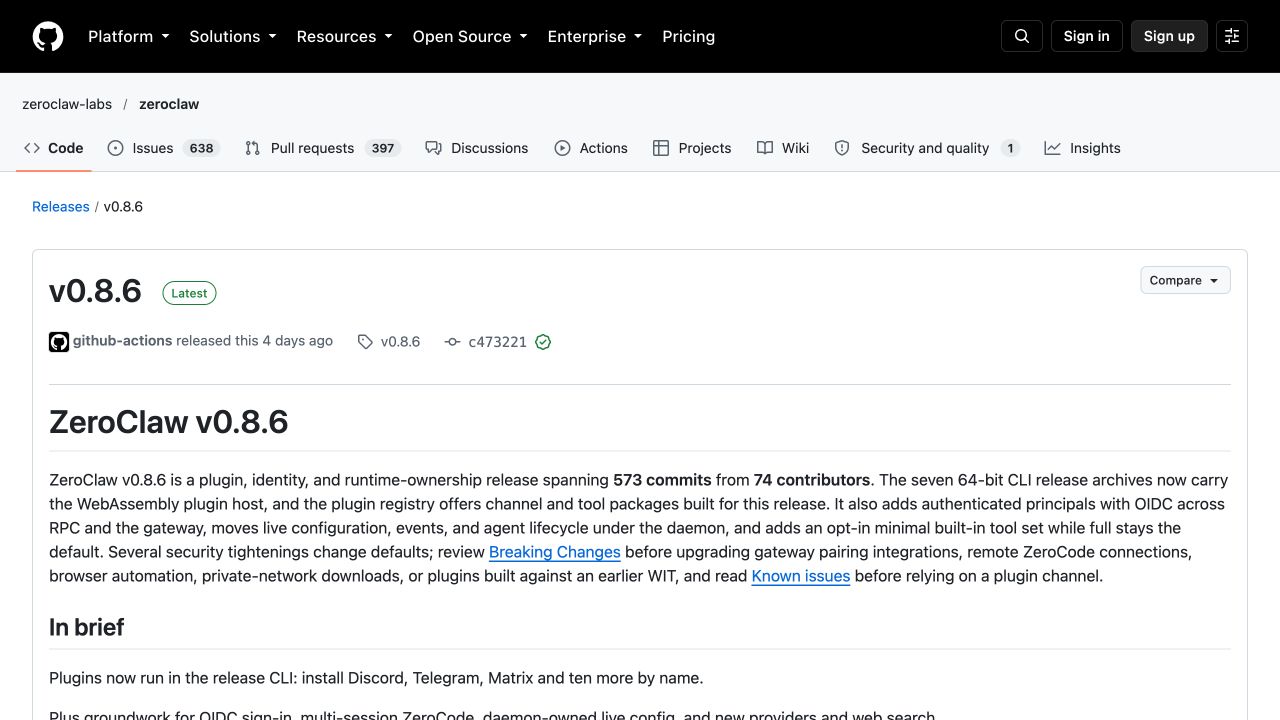
Check for an update, then select the version explicitly:
"$zc_bin" --config-dir "$zc_data" update --check
"$zc_bin" --config-dir "$zc_data" update --version 0.8.6
Follow the confirmation prompt. The updater downloads the release, backs up the executable, validates it and runs a smoke check. Keep your own data backup even though the updater has an automatic binary rollback path.
The upgrade returned:
Successfully updated to v0.8.6!
For manual downloads, use the archive for your operating system and CPU, together with the same release's SHA256SUMS. The installation guide includes the download and checksum commands. Keep external dashboard assets matched to the installed binary.
4. Check the new version
"$zc_bin" --version
"$zc_bin" --config-dir "$zc_data" config migrate --json
"$zc_bin" --config-dir "$zc_data" config migrate --json
For this release, the version output is:
zeroclaw 0.8.6 (c473221)
The first migration may update the file and create config.toml.backup. The second pass should report:
{"error": null, "migrated": false, "schema_version": 3, "valid": true}
Restart the gateway or service using the same config directory. Then:
- Open the dashboard and confirm your agent is listed.
- Check a file in your workspace.
- Send a short message to your configured model.
- Check any channel or scheduled workflow you depend on.
Use the troubleshooting guide if a check fails.
5. Roll back without overwriting the failed state
Stop ZeroClaw again. Use the backup path created in step 2; do not create a new backup variable with today's timestamp.
mv "$zc_data" "${zc_data}.after-update-$(date +%Y%m%d-%H%M%S)"
mkdir -p "$zc_data"
tar -xzf "$zc_backup/data.tgz" -C "$zc_data"
cp -p "$zc_backup/zeroclaw.previous" "$zc_bin"
"$zc_bin" --version
"$zc_bin" --config-dir "$zc_data" config migrate --json
Restore separately backed-up workspaces and dashboard assets as well. Restart the old version only after its matching data is back in place.
Our rollback returned zeroclaw 0.8.5 and restored all 10 saved files with matching hashes. Changes made after the backup stay in the renamed after-update directory; review them before copying anything into the restored installation.
6. Uninstall while keeping your data
For a manual standalone install:
- Stop the running process.
- If you registered a service, run
zeroclaw service stopandzeroclaw service uninstallfirst. - Remove only the executable you identified in step 1:
rm -i "$zc_bin"
command -v zeroclaw
If another path appears, a second installation remains. Do not delete it until you identify how it was installed.
| Item | Removing the standalone executable |
|---|---|
| Config and credentials | Preserved |
| Conversations, memory and workspace files | Preserved |
| Your backup archive | Preserved |
| Separate dashboard assets | Preserved |
| Ollama and downloaded models | Preserved |
| Shell PATH entry | Remains until you edit your shell profile |
The upstream install.sh --uninstall behaves differently: it targets the installer's Cargo bin location, removes its marked PATH block and offers to remove config/data in an interactive terminal. Choose No to keep that data. Non-interactive mode preserves the config directory. A manually copied binary in .local/bin may need separate removal.
For Docker, removing a container does not remove its named volume. Avoid docker compose down -v when you want to keep the data. See the Docker guide.
Next: install again, configure your agent, or fix a startup problem.