Your assistant can answer a question from its training, but how does it get information from a tool you control? MCP gives ZeroClaw a way to ask another program for that information.
We’ll connect one small server that returns a made-up Project Orchid note. You’ll see the connection start, find its tool in the dashboard and ask your agent to use it. The server cannot edit files or change the note, which keeps this first integration easy to follow.
What is MCP in ZeroClaw?#
MCP means Model Context Protocol: a shared way for an assistant to discover and call tools. ZeroClaw is the client, and the program offering the tool is the server. A server can run on your own computer; it does not have to be a separate machine.
In this example, the server offers one function, read_project_note. ZeroClaw names it orchid__read_project_note: the server name, two underscores and the tool name. When your agent calls it, the server returns the note and the model uses that result to answer you.
This is different from a skill, which supplies instructions. MCP supplies a callable tool. We’ll first create that tool, then tell ZeroClaw which agent may use it.
Before you start#
The walkthrough uses ZeroClaw 0.8.7, Python 3.11 or newer and the official MCP Python SDK 2.3.0. The official macOS arm64 ZeroClaw binary includes MCP support; no extra MCP build flag or plugin installation is needed. The commands below use a macOS/Linux shell.
- Follow the installation guide if you need ZeroClaw.
- Have a working model provider. This example uses
gemini.hostedwithgemini-3.5-flash-lite; the provider guide explains credentials and choices. - Keep the
web/distfolder from your ZeroClaw archive for the dashboard.
The MCP server itself needs no account. The agent still uses your chosen model provider, so the prompt and returned note are sent to that provider. Here, both contain only synthetic information.
1. Create the small local server#
Open a terminal and make a practice folder. A virtual environment keeps the server’s Python packages separate from other projects:
mkdir -p zeroclaw-mcp-demo
cd zeroclaw-mcp-demo
python3 -m venv .venv
.venv/bin/python -m pip install "mcp==2.3.0"
Save orchid_server.py inside this folder. Its complete code is below, so you can see exactly what the tool does:
import sys
from mcp.server.mcpserver import MCPServer

server = MCPServer("Orchid notes")

@server.tool()
def read_project_note() -> str:
    """Read the synthetic Project Orchid note. This tool changes nothing."""
    return "Project Orchid uses a violet folder. Its review day is Tuesday."

if __name__ == "__main__":
    print("Orchid notes starting: stdio; one read-only tool", file=sys.stderr)
    server.run(transport="stdio")
@server.tool() makes the function discoverable. Stdio means ZeroClaw starts this Python program and communicates through its input and output streams. Keep diagnostic messages on stderr, as above, so they do not interfere with the protocol on stdout.
You do not need to leave this script running in another terminal. ZeroClaw will launch it when the agent connects.
2. Give the agent access to the server#
Download the complete practice config and save it as config.toml in the same folder. Run pwd to find this folder’s full path, then replace /ABSOLUTE/PATH/zeroclaw-mcp-demo in its two path settings.
These are the MCP-specific parts:
[mcp]
enabled = true

[[mcp.servers]]
name = "orchid"
transport = "stdio"
command = "/ABSOLUTE/PATH/zeroclaw-mcp-demo/.venv/bin/python"
args = ["/ABSOLUTE/PATH/zeroclaw-mcp-demo/orchid_server.py"]

[mcp_bundles.notes]
servers = ["orchid"]

[agents.assistant]
model_provider = "gemini.hosted"
risk_profile = "reader"
mcp_bundles = ["notes"]
Think of notes as a named group of servers. Defining orchid tells ZeroClaw how to start it; assigning the notes bundle tells ZeroClaw that assistant may connect. Without the agent’s mcp_bundles entry, the server will not be available to that agent.
If you are adapting an existing config file, merge these fields into its existing sections. Do not paste a second [agents.assistant] section or replace other bundle grants accidentally.
The downloadable config lets this example’s orchid__read_project_note run without an approval prompt. That is suitable here because the server only returns a fixed note. When you add other servers, keep these boundaries in mind:
readonlydoes not prevent a third-party MCP server from making changes. Check what its tools can do.- A bundle controls which servers the agent connects to.
- In this release, MCP tool names containing
__can be admitted even when they are absent fromallowed_tools. Useexcluded_toolsto block specific tools instead of relying on that list alone.
Now validate the config and enter your Gemini key at the hidden prompt:
zeroclaw --config-dir "$PWD" config migrate --json
zeroclaw --config-dir "$PWD" config set providers.models.gemini.hosted.api_key
chmod 600 config.toml
The migration output should report schema_version: 3. migrated can be either true or false, depending on whether normalization was needed. With the file accepted, you can check the actual connection.
3. Start ZeroClaw and find the tool#
Start the gateway from the practice folder:
zeroclaw --config-dir "$PWD" --log-level info -v gateway start
Keep this terminal open. The startup output includes these messages:
Orchid notes starting: stdio; one read-only tool
MCP server `orchid` connected — 1 tool(s) available
MCP: 1 tool(s) registered from 1 server(s), 0 skipped by policy
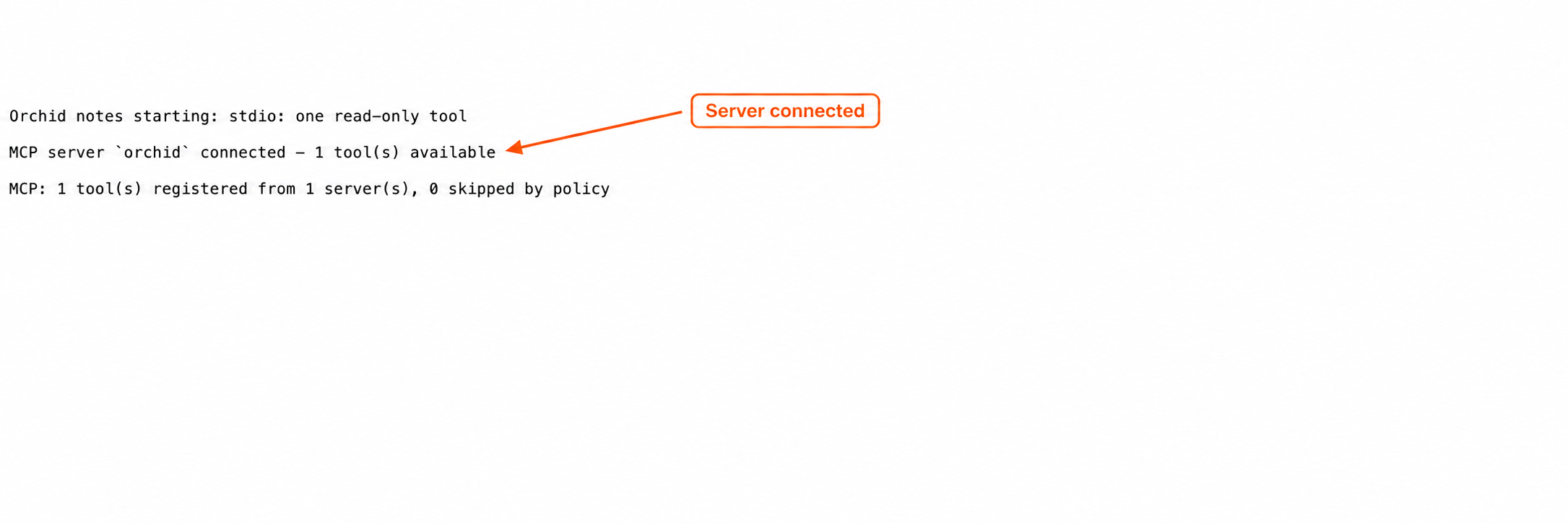
The screenshot shows the relevant log excerpt opened in a browser. The first line confirms the Python program started; the next two confirm ZeroClaw discovered and registered its tool.
Open http://127.0.0.1:42649 and pair the dashboard using the dashboard guide. If the assets are not found, set gateway.web_dist_dir to your archive’s full web/dist path and restart the gateway.
Choose Tools, select assistant if you have more than one agent, and search for orchid. You should see orchid__read_project_note:
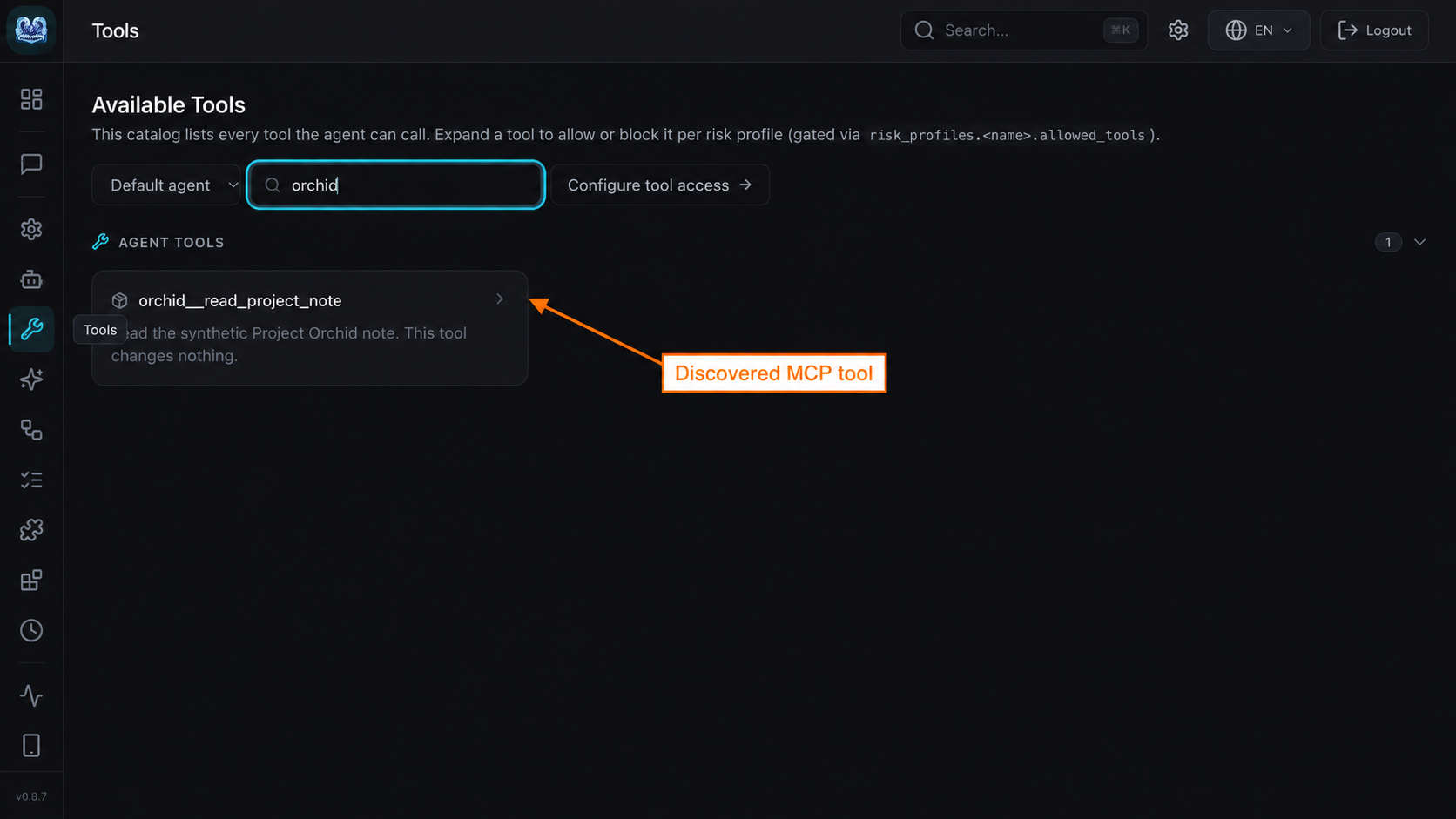
Seeing the tool confirms discovery. The next step checks that the agent can actually call it.
4. Ask the agent to read the note#
Return to Dashboard, choose Open chat for assistant, and send:
Use orchid__read_project_note now. Tell me the project name, folder color and review day returned by the tool.
Turn on Show tool activity and expand the tool result. Look for the tool name, a done status and this returned text:
Project Orchid uses a violet folder. Its review day is Tuesday.
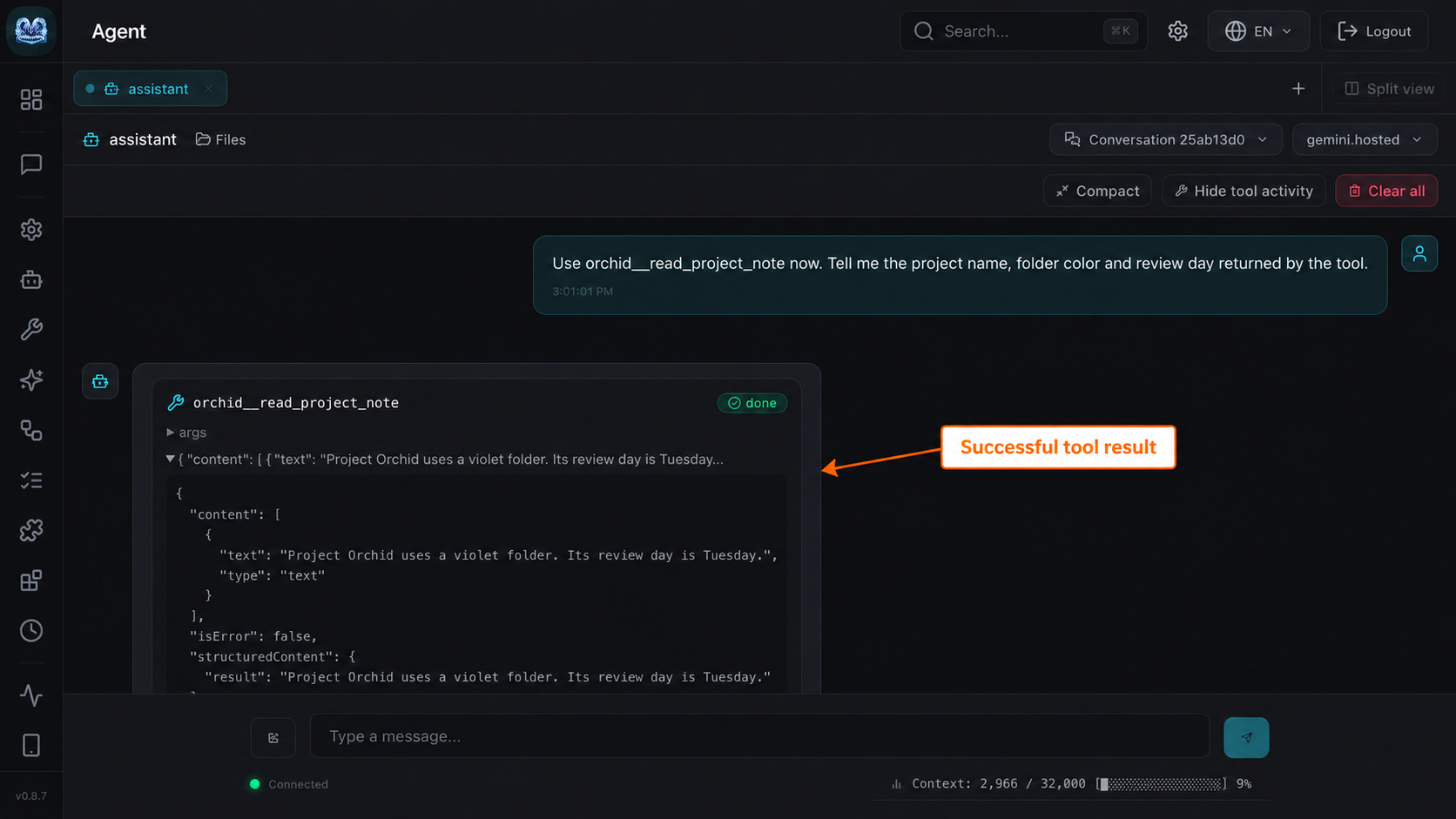
The expanded result contains isError: false. The model may phrase its answer differently, but the project, color and day should match the tool output. Checking the tool activity lets you distinguish a real call from an answer the model merely guessed.
For a terminal-only check, first stop the gateway with Ctrl+C, then run this from the same folder:
zeroclaw --config-dir "$PWD" --log-level info -v agent \
  --agent assistant \
  -m "Use orchid__read_project_note now and return its note."
Only one ZeroClaw process can own this config’s state at a time. If you leave the gateway running, use its chat instead of starting the standalone agent command.
5. Fix a missing server path#
A wrong command path prevents the Python process from starting. Changing it to a nonexistent python-missing executable produced this connection error:
Failed to connect to MCP server `orchid`: failed to create transport for MCP server `orchid`: failed to spawn MCP server `orchid`: No such file or directory (os error 2)
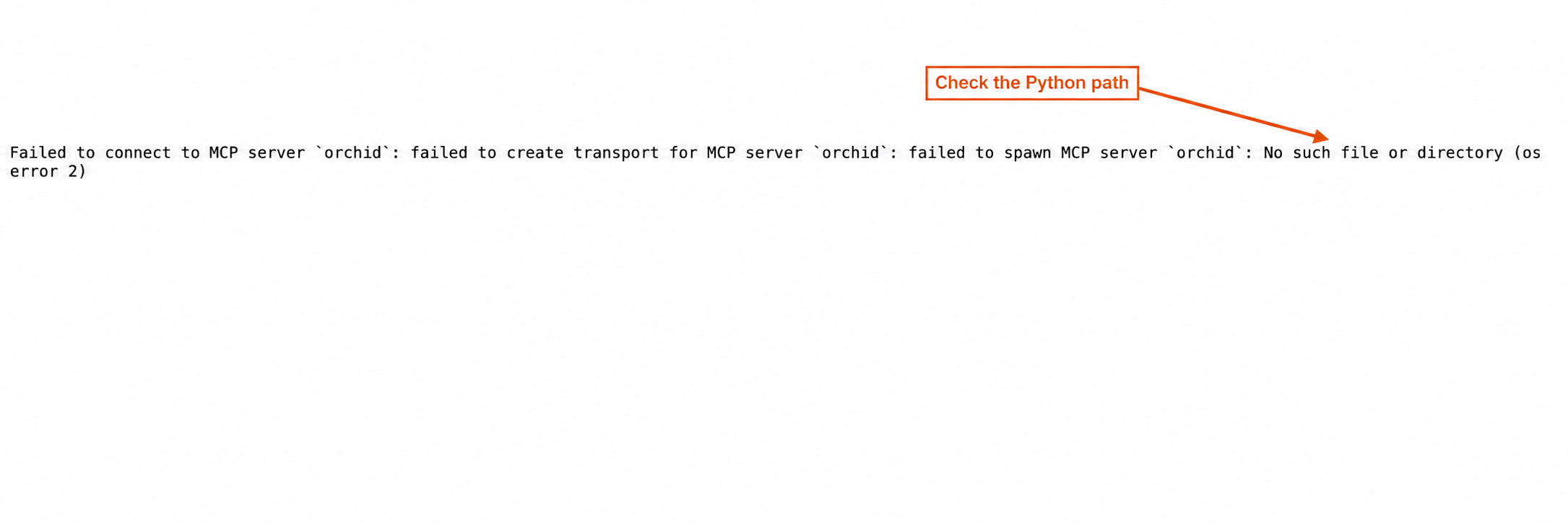
To fix it:
- Run
pwdin the practice folder and check.venv/bin/pythonexists. - Set
commandto that Python executable’s full path. Setargsto the full path oforchid_server.py. - Restart the gateway and open a fresh chat. Bundle changes also require a new session.
- Search Tools again, then repeat the same prompt.
After correcting the path, the connection returned to 1 tool registered, and the agent returned the Orchid note again.
If the program starts but the tool is absent, check mcp.enabled, the matching server name in mcp_bundles.notes, and the agent’s mcp_bundles list. If Python reports that mcp.server.fastmcp is missing, use the MCPServer import in step 1: older tutorials use the SDK’s previous class name.
Where to go next#
You now have a complete MCP connection: a server, an agent grant, a discovered tool and a successful call. Keep that working example before adding another integration.
ZeroClaw also accepts http and sse transports for servers with a URL. This local example uses stdio; it needs neither an MCP URL nor a listening port of its own. The dashboard’s port belongs to ZeroClaw, not the Python MCP server.
- Use the skills guide to add instructions for when your agent should use a tool.
- Use the configuration guide to manage agents and permissions.
- Visit troubleshooting for provider or dashboard errors, or return to the guide hub.