Imagine telling your assistant which day you review a project, then having to repeat it in the next conversation. Saved memory gives ZeroClaw a place to keep useful details and find them again later.
In this guide, you’ll save one made-up project note, find it, restart ZeroClaw and check that it is still there. Then you’ll make a backup and remove the note. You’ll follow the same small example from beginning to end, with screenshots showing what to look for.
What is ZeroClaw memory?#
Think of memory as a searchable notebook for your assistant. Each saved note has a key (its name), content (the information) and an optional category (a label). You can also choose which agent owns it.
For example, a note could say: “Project Orchid uses a violet folder. Its review day is Tuesday.” When you search for Orchid, ZeroClaw can retrieve that information from storage. In this walkthrough, you’ll save and search it yourself through the dashboard, so you can see exactly what happens.
That notebook is different from your chat history. Chat history records a conversation; saved memory holds entries that can be retrieved later. The model’s context is the text it receives for one response, which may include recalled notes. Saving a note does not mean every future answer will use it.
To keep this first exercise simple, we’ll use SQLite—a database stored in a file on your computer. You do not need to set up a separate database server or pay for an embedding service to follow these steps.
Before you start#
You’ll need ZeroClaw 0.8.6 and its web dashboard. If you are starting from scratch, follow the installation guide, then open the dashboard. The terminal commands below use a macOS/Linux shell.
We’ll work with an agent named assistant in a separate practice folder. All the information is invented, so you can learn how saving and deleting work without using personal notes. Once you have that setup, the first step is to give the practice agent a place to store its memory.
1. Give your practice agent a memory store#
Open a terminal in the folder where you want to keep the exercise. These commands create a new folder and save its path in a variable called zc_data:
zc_data="$PWD/zeroclaw-memory-demo"
mkdir -p "$zc_data"
Inside that folder, create a file named config.toml using the minimal configuration. This file tells ZeroClaw how your agent should run. Keep the provider and agent settings from that example, then add the memory settings below. If a section already exists, edit it instead of pasting a second copy:
[agents.assistant.memory]
backend = "sqlite"

[memory]
backend = "sqlite"
auto_save = false
embedding_provider = "none"
search_mode = "bm25"
sqlitekeeps the notes in a local database.auto_save = falselets you choose what to save during this exercise. Chat sessions have their own storage settings.bm25means keyword search. It finds matching words without an embedding service, which would turn text into numbers for meaning-based search.
With storage configured, you can open the dashboard. The first command below brings the config file up to the current format. The second starts the gateway, the local server that serves the dashboard. Keep this terminal open while you use it:
zeroclaw --config-dir "$zc_data" config migrate
zeroclaw --config-dir "$zc_data" gateway start
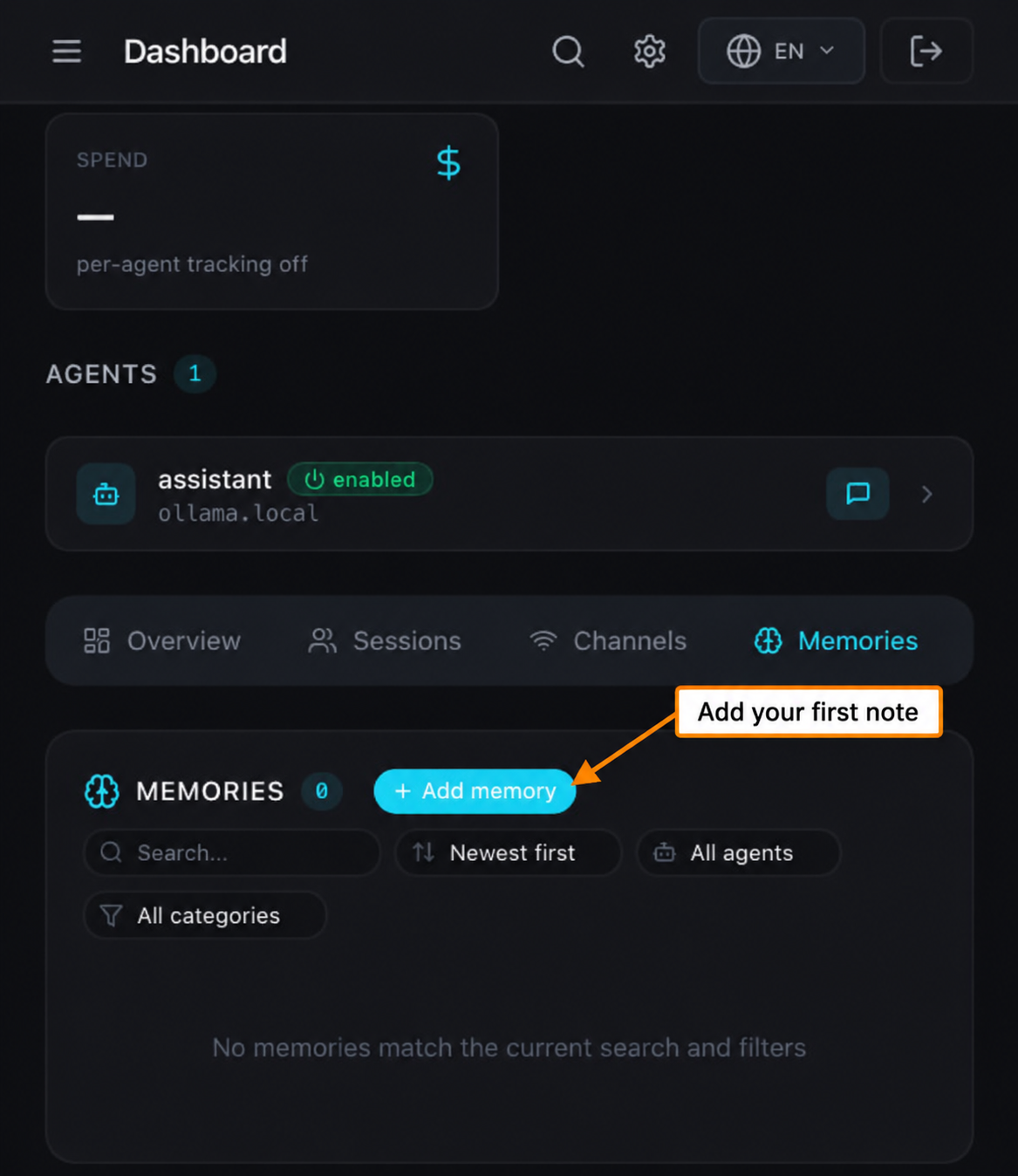
Open the local address printed in the terminal and pair your browser using the dashboard instructions. From Dashboard, select Memories. On a narrow screen, scroll the tab row sideways if needed. The empty test store should show a memory count of 0.
2. Save your first note#
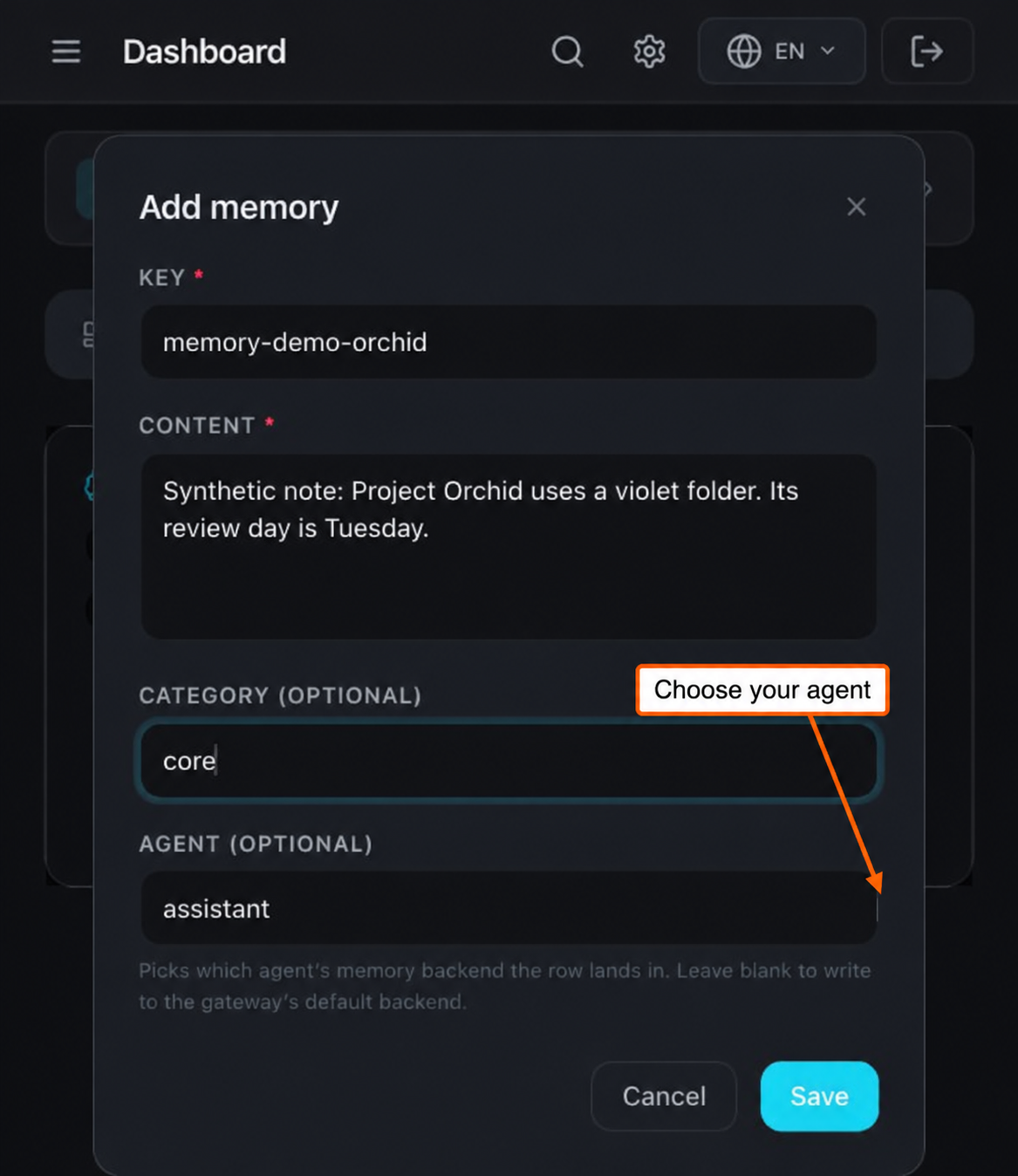
The empty panel is your starting point. Let’s add the Orchid note so you have something specific to find later. Click Add memory and enter:
- Key:
memory-demo-orchid - Content:
Synthetic note: Project Orchid uses a violet folder. Its review day is Tuesday. - Category:
core - Agent:
assistant
For Agent, choose assistant. This associates the note with the agent you are practising with. The default Install-wide (no agent attribution) option saves it without assigning an owner, so change that field before clicking Save.
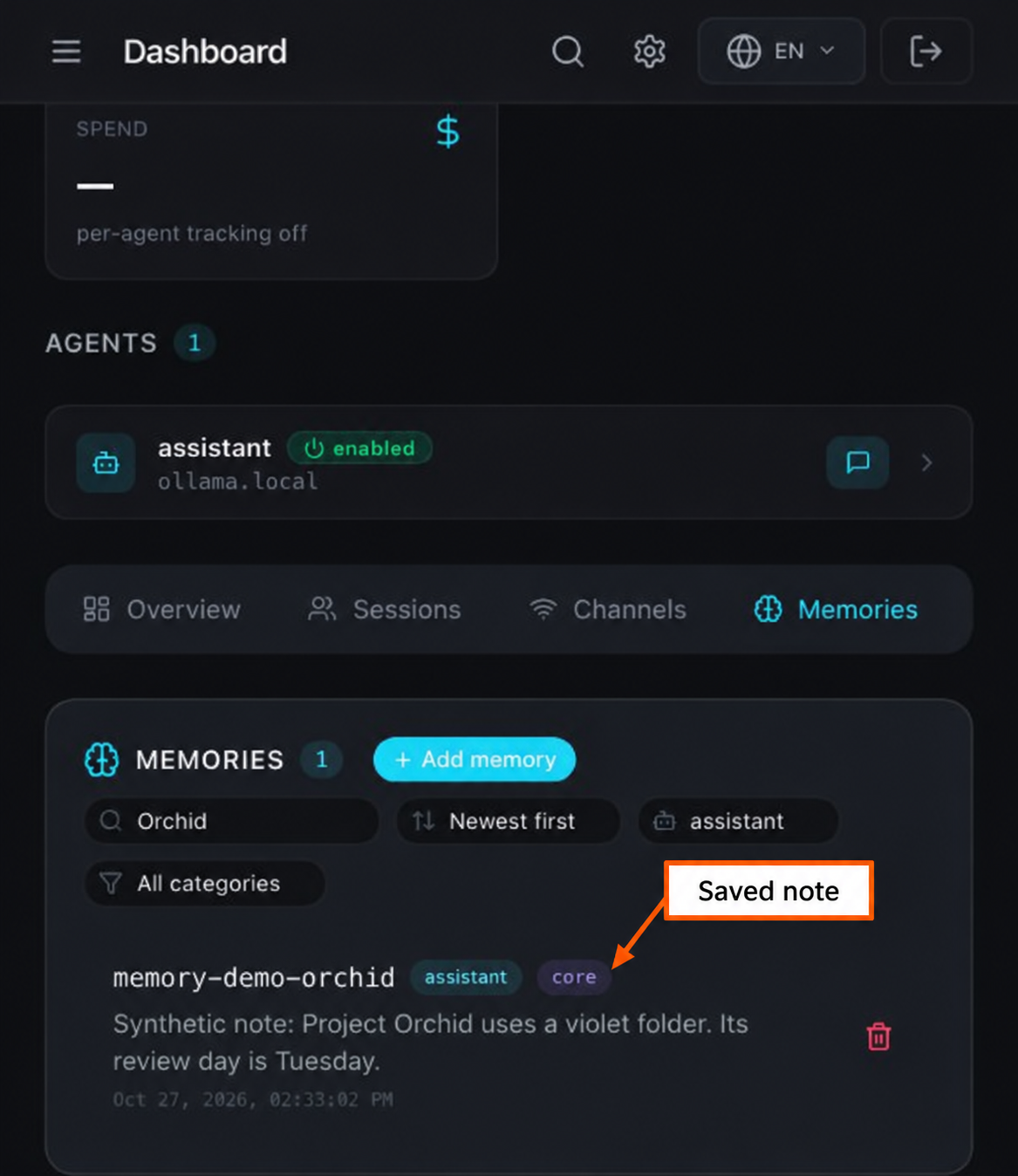
You should now see the note, its key and an assistant badge in the list. That visible row confirms the entry was saved. Next, you’ll check that ZeroClaw can find it through search.
3. Find the note again#
In the Memories panel's search field, type Orchid. Select assistant in the owning-agent filter. This searches the saved memory store. Use the field inside the Memories panel, rather than the search icon in the top toolbar.
You should see one result containing violet folder and Tuesday.
If the result is missing, clear the search and category filter first. Check the owning agent and config directory before changing the backend. A filtered empty list does not prove the database is empty.
Finding the note proves that search works. The next question is whether it remains available after ZeroClaw closes.
4. Check that the note survives a restart#
Return to the terminal running the gateway. Stop it with Ctrl+C, then run the same start command again:
zeroclaw --config-dir "$zc_data" gateway start
Reload the dashboard and search for Orchid again. The original note should still be present. Our note survived a complete gateway stop and start; the CLI list also matched before and after.
For a second check, open another terminal and set zc_data to the same practice folder’s full path. Then run these commands:
zeroclaw --config-dir "$zc_data" memory list
zeroclaw --config-dir "$zc_data" memory stats
For this one-note exercise, the statistics contain:
Backend:  sqlite
Health:   healthy
Total:    1
The note is now available after a restart. Before practising deletion, make a copy you can recover.
5. Make a backup you can restore#
Stop the gateway with Ctrl+C and stop any other process using this practice installation. In a new terminal, set zc_data to the same absolute directory if needed. Archive the whole directory, not just a running database file:
zc_backup="$PWD/zeroclaw-memory-backup-$(date +%Y%m%d-%H%M%S)"
umask 077
mkdir -p "$zc_backup"
tar -czf "$zc_backup/data.tgz" -C "$zc_data" .
shasum -a 256 "$zc_backup/data.tgz" > "$zc_backup/data.sha256"
shasum -a 256 -c "$zc_backup/data.sha256"
The last command checks the archive against its recorded fingerprint, called a checksum. It should end in OK. That confirms the archive matches the checksum; the restore check below shows whether you can read the note from it.
For this practice setup, the whole folder contains the local data you need. When you back up your everyday installation, use this checklist too:
- Include
config.toml, agent identities, the data directory and local workspaces. - Include separately configured SQLite paths or workspaces outside that directory.
- Keep encryption material and credentials private alongside the backup.
- Back up PostgreSQL, Qdrant or other external storage with that backend's own procedure.
- Record the ZeroClaw version and restore into a separate directory first.
Now check the backup by unpacking it into another new folder. This leaves your original practice installation in place:
zc_restore="$PWD/zeroclaw-memory-restore-check-$(date +%Y%m%d-%H%M%S)"
mkdir -p "$zc_restore"
tar -xzf "$zc_backup/data.tgz" -C "$zc_restore"
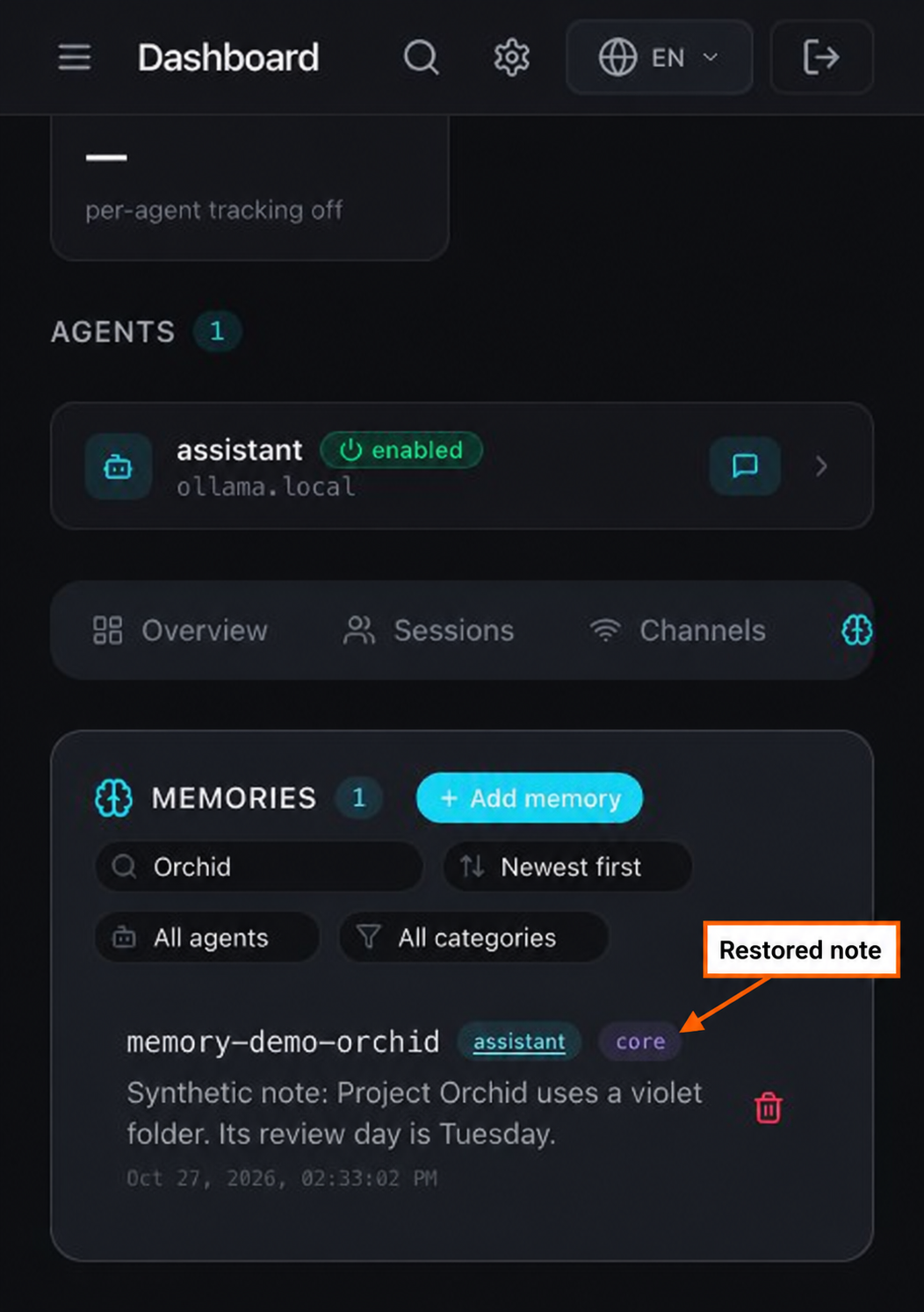
zeroclaw --config-dir "$zc_restore" memory list
For the default local paths in this exercise, the restored list contains memory-demo-orchid. If your config uses absolute external paths, point the restored copy at isolated copies before running it. The maintenance guide covers full-installation rollback.
With the backup checked, you can safely practise removing the original test entry.
6. Remove the practice note#
Start the original test gateway again with zeroclaw --config-dir "$zc_data" gateway start. In Memories, find memory-demo-orchid, click its trash icon and check the key in the confirmation dialog before choosing Delete.
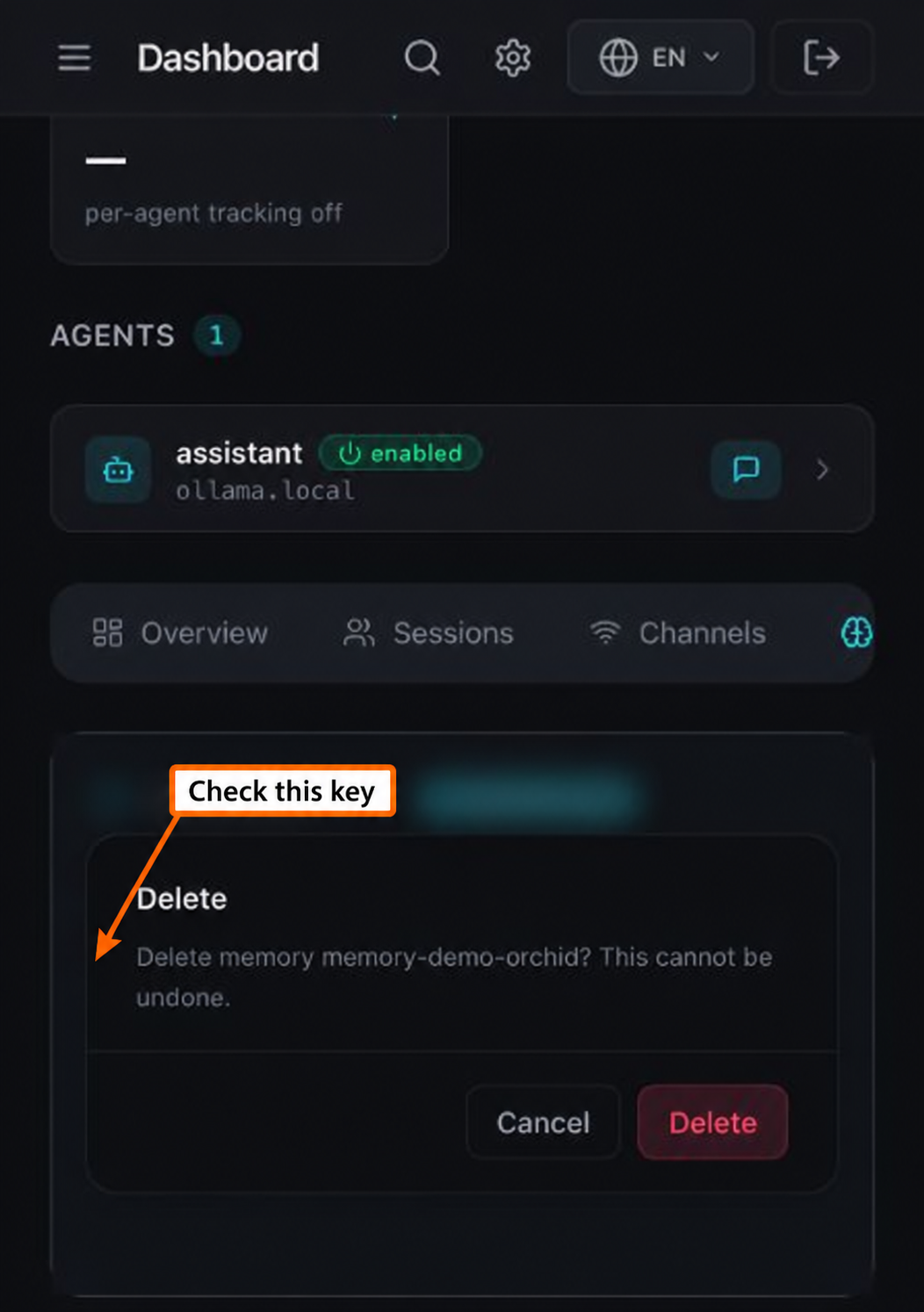
Clear the search and select All agents and All categories. Restart the gateway once more and reload the panel. In this otherwise empty test installation, the count should remain 0; memory stats should also report Total: 0.
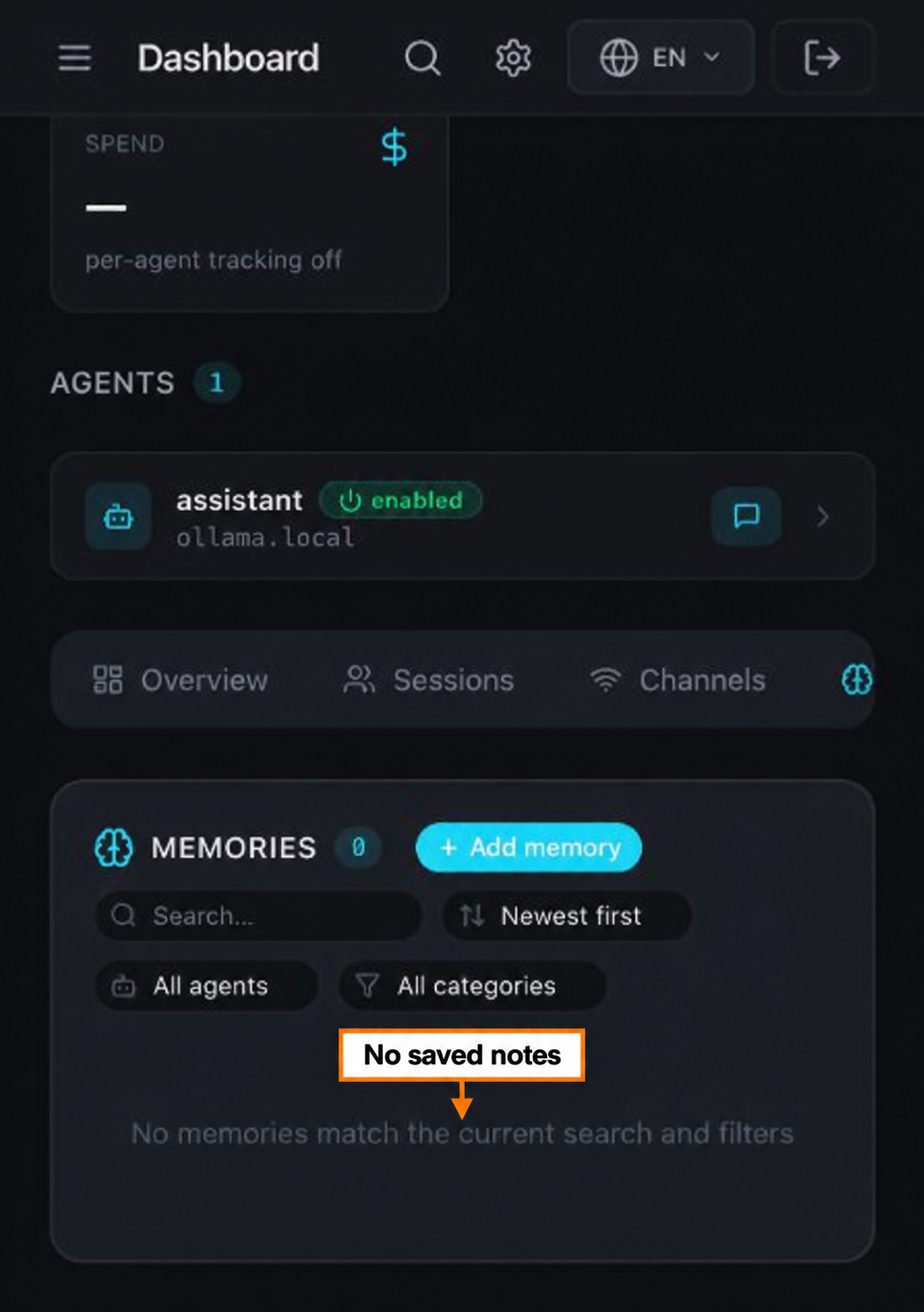
This removes the saved memory row. It does not erase chat transcripts, logs, exports or old backups. Use the dashboard to remove individual notes instead of deleting the database file. If snapshot recovery is enabled, ZeroClaw may rebuild a missing database from a saved snapshot. Keep your backup until you have verified the intended result.
You’ve now followed the full cycle: save, find, restart, back up and remove. Knowing where those notes live will help you repeat it on your everyday installation.
Where are your notes stored?#
In this default SQLite installation, the database is data/memory/brain.db beneath the config directory. Agent ownership separates rows inside the shared store. Custom storage settings can move the database, so do not assume every installation uses an older workspace/memory.db example.
Local storage does not automatically make a hosted-model conversation local. Recalled notes included in a prompt can be sent to your selected provider. Choose that provider using the model guide.
Which storage option should you choose?#
A backend is simply the system that stores and retrieves your notes. SQLite is a straightforward starting point for one local installation. You can leave the other options until you have a reason to manage a separate service or a different file format.
| Backend | When it fits | What you need to manage |
|---|---|---|
| SQLite | A simple local installation | Local files, backups and disk access |
| Markdown | Human-readable, per-agent notes | Workspace files and file-based retrieval |
| PostgreSQL | An existing managed database environment | Server credentials, database backups and a build with PostgreSQL support |
| Qdrant | A vector-store deployment | The external service, collection and embedding configuration |
| Lucid | An installation already using Lucid | Local SQLite plus the external Lucid tooling |
| None | An agent that should not retain saved memory | No durable memory; separate session/history settings still matter |
Version 0.8.6 has both global storage selection and per-agent backend settings. A backend choice can become locked once an agent has data. Editing backend is not a migration: export, back up and plan the destination before moving an existing agent.
For now, keep SQLite and keyword search, then repeat the exercise with another harmless note of your own. When you can save, find and recover it confidently, use the config guide to decide what your everyday agent should be allowed to do. You can explore meaning-based search later, when matching exact words is no longer enough.