Here is how I connect Telegram as a chat app to my ZeroClaw bot setup. This covers only the Telegram step. For a complete beginner setup, see the full setup.
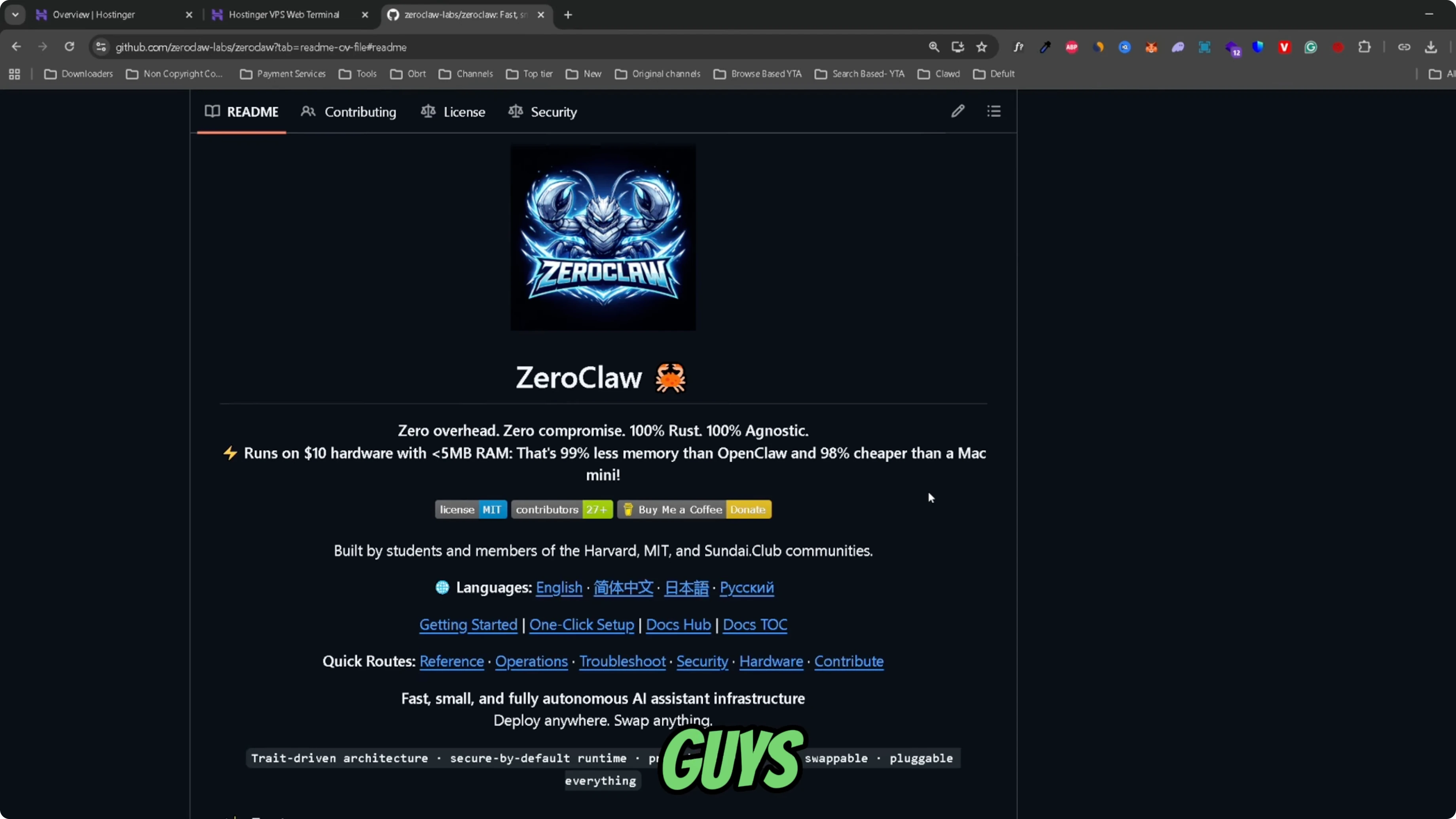
I have it set up locally on my hosting VPS with Olama, but the process is the same on any device. You only need your terminal and your Telegram account. For more on ZeroClaw in general, visit the ZeroClaw site.
Connect Telegram with ZeroClaw Bot?
Terminal setup
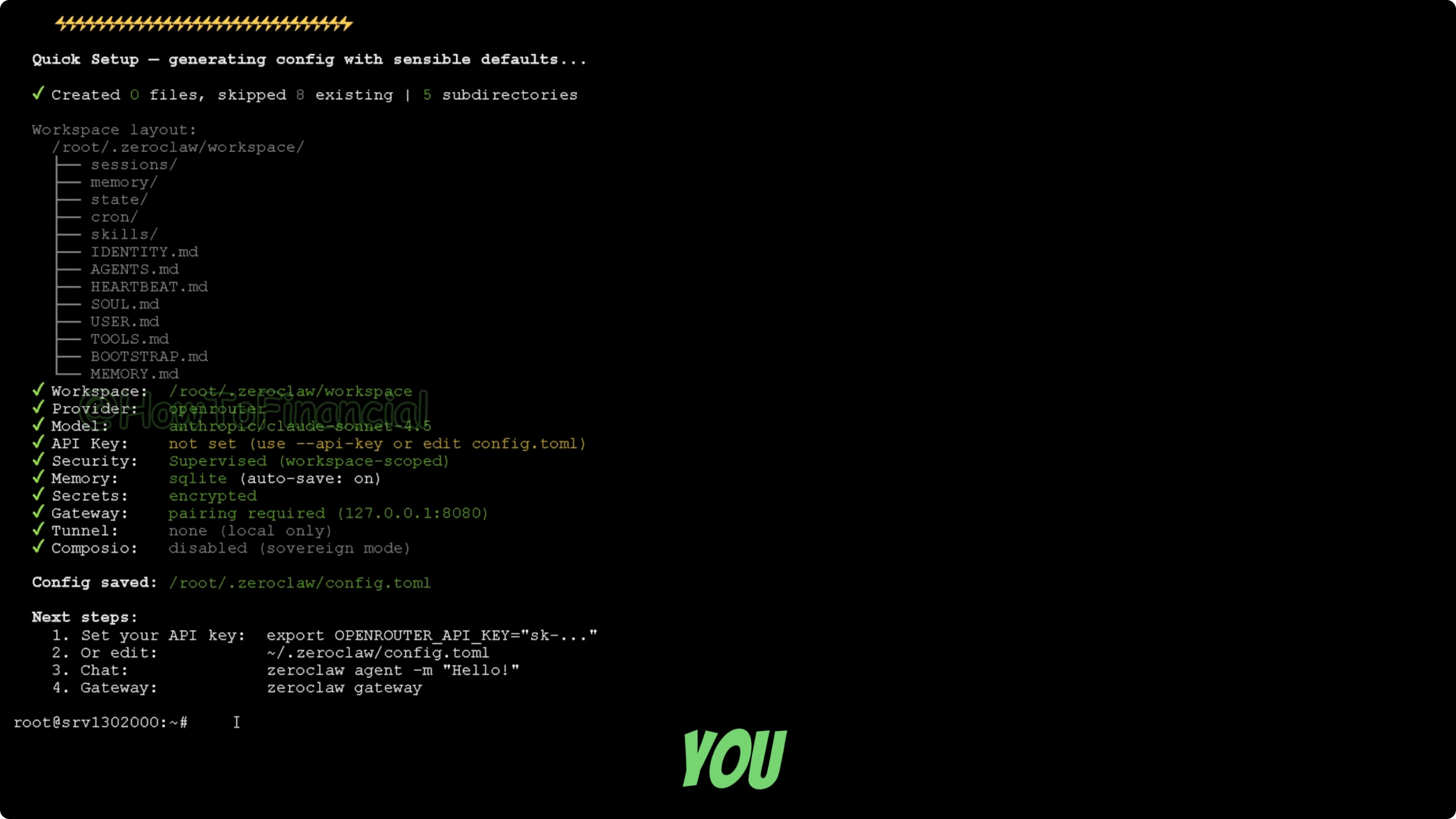
Open your terminal on your device or VPS. I have the OpenClaw onboard setup visible, but it does not matter how your terminal looks. Run the onboarding command for channels only.
zero claw onboard channels only
This command opens the channel setup wizard. Use the arrow keys on your keyboard to select the chat app of your choice. Press Enter to confirm Telegram as the selected chat app.
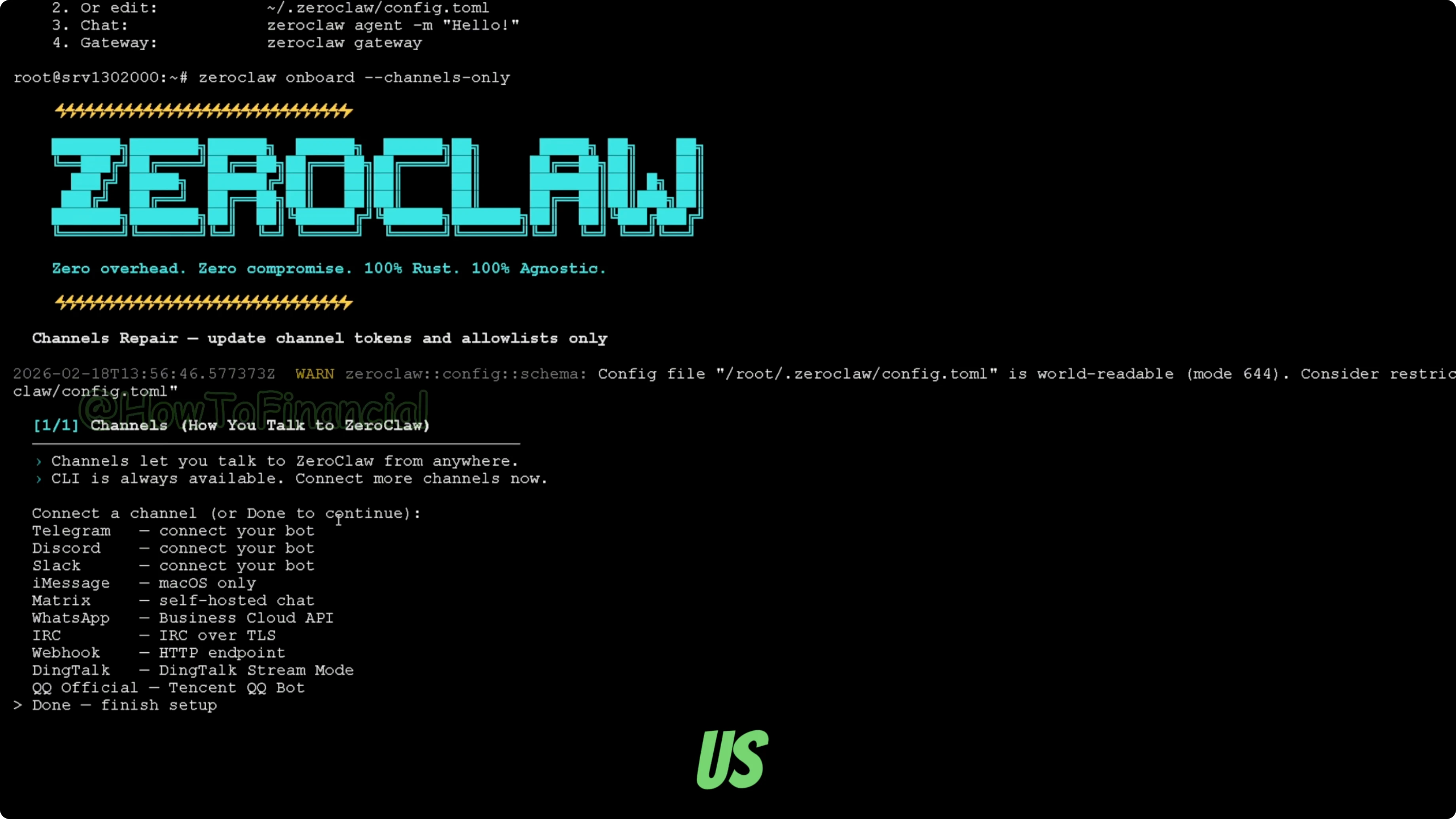
It is a similar wizard to OpenClaw. For context, see Openclaw vs ZeroClaw.
Create the Telegram bot
Open Telegram and message the user @BotFather. Search for botfather in the Telegram search bar and select the verified user. This bot lets you create new bots on Telegram that you can connect to ZeroClaw as a proxy of communication.
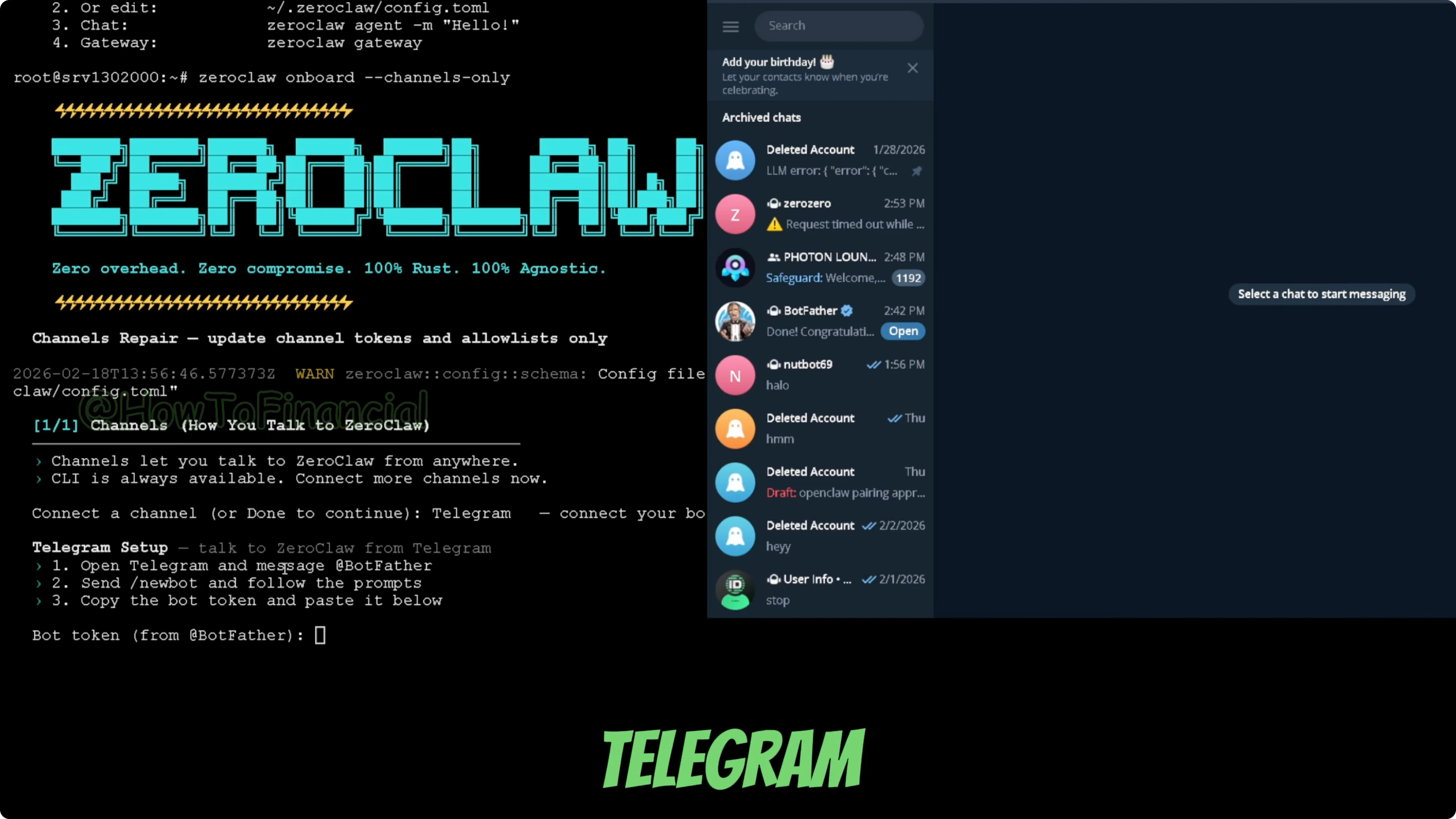
Start the new bot creation process by sending this command:
/newbot
Set a display name for your bot. I used something like Bot 77. This is just the name that appears in Telegram.
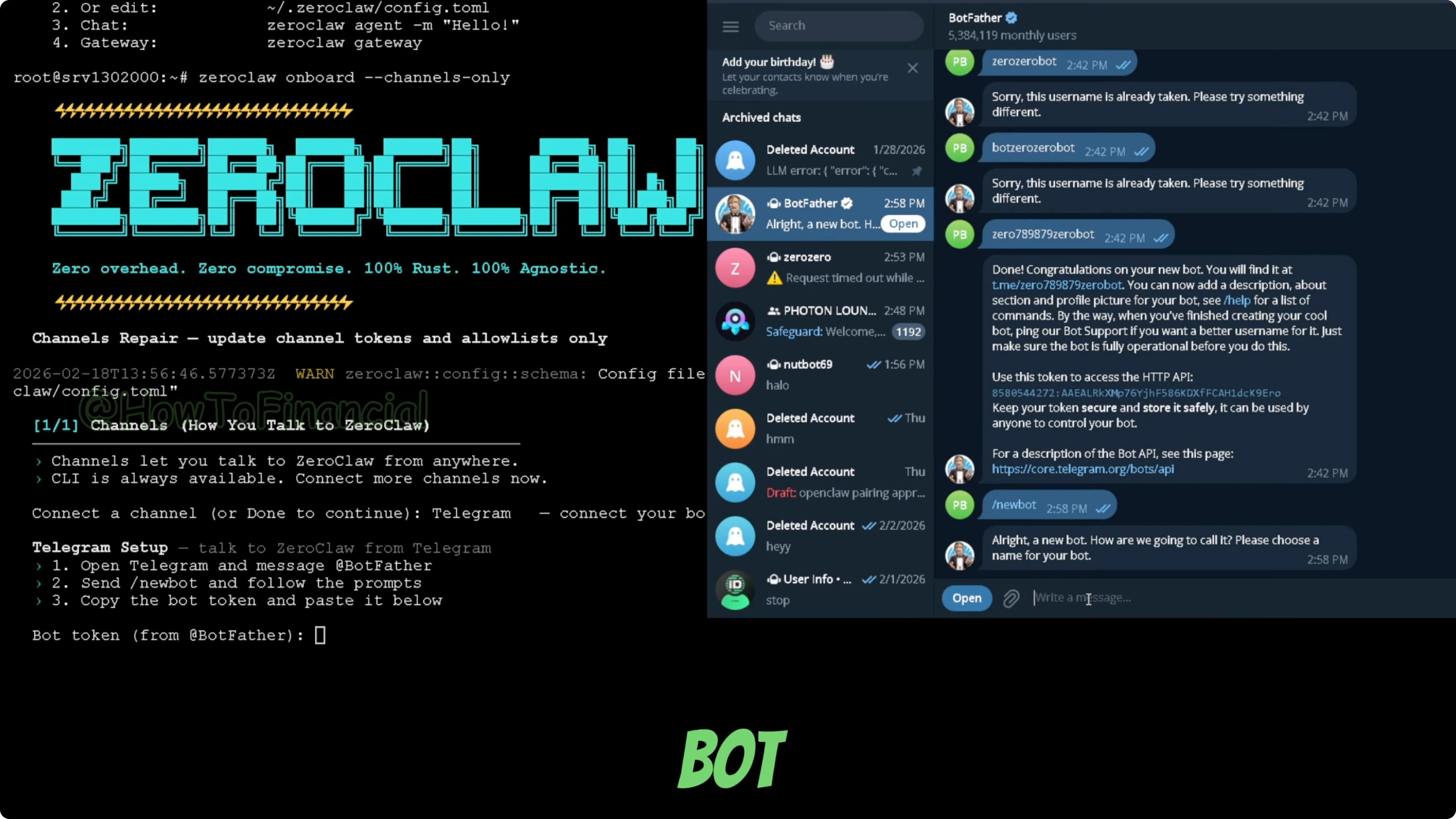
Choose a username. I added some random numbers and ended it with this prefix so the bot can be created.
my_example_bot
Make sure your bot username ends with _bot. Check if it is available. When the username is available, the bot is created automatically.
Get and paste the token
From the BotFather message, copy your pairing API token. It looks like a long string of letters and numbers. Paste it under the bot token that ZeroClaw needs.
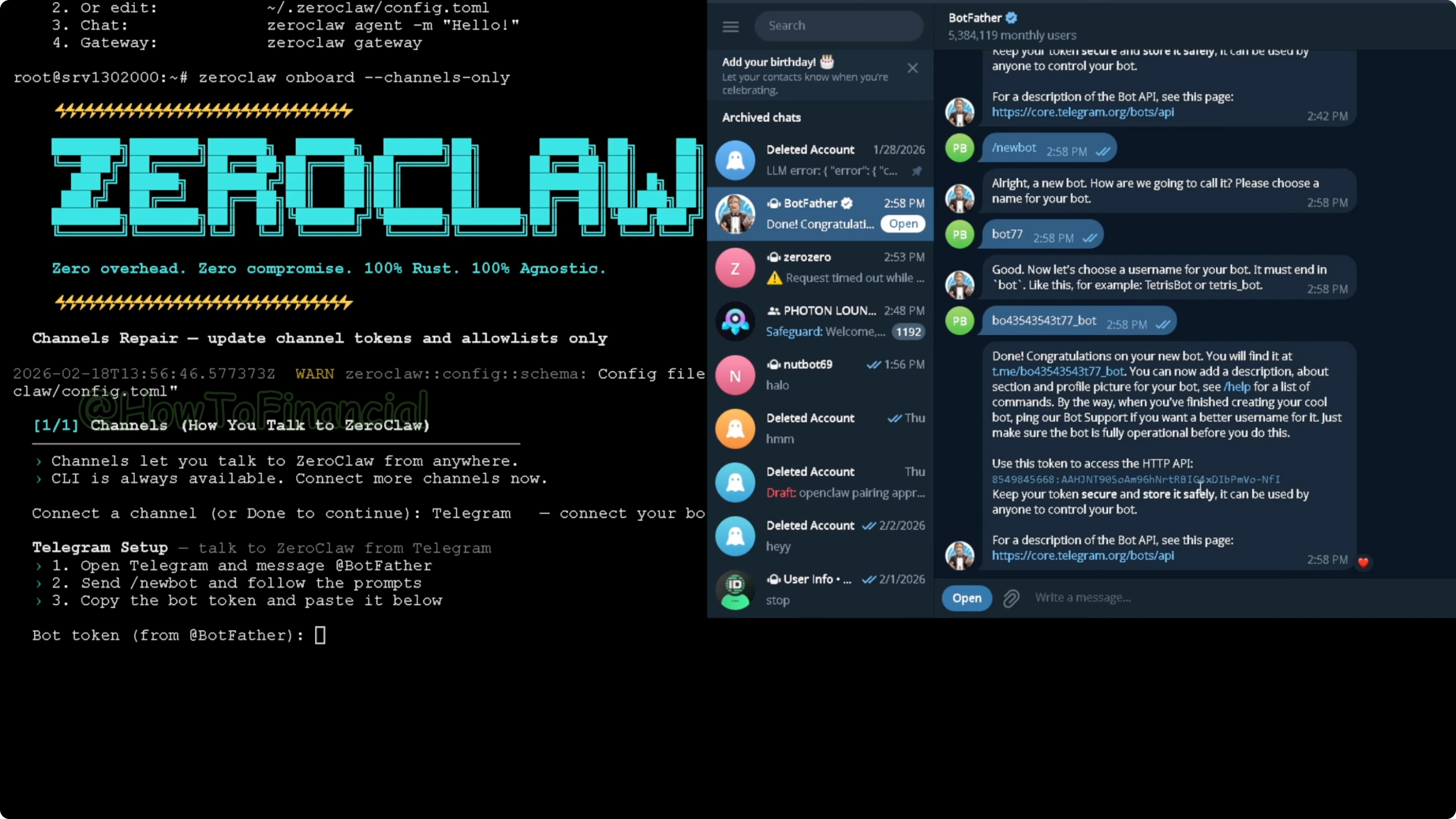
Confirm with Enter. This can take a few moments for everything to connect. When connected, the username it pulls should match the username of the bot you created.
Finish the wizard
Type the star and press Enter.
*
Press Enter on Done to finish the setup. That completes the setup process in the wizard. From there, restart the gateway or the daemon.
Restart and verify
After the restart, you should see this message:
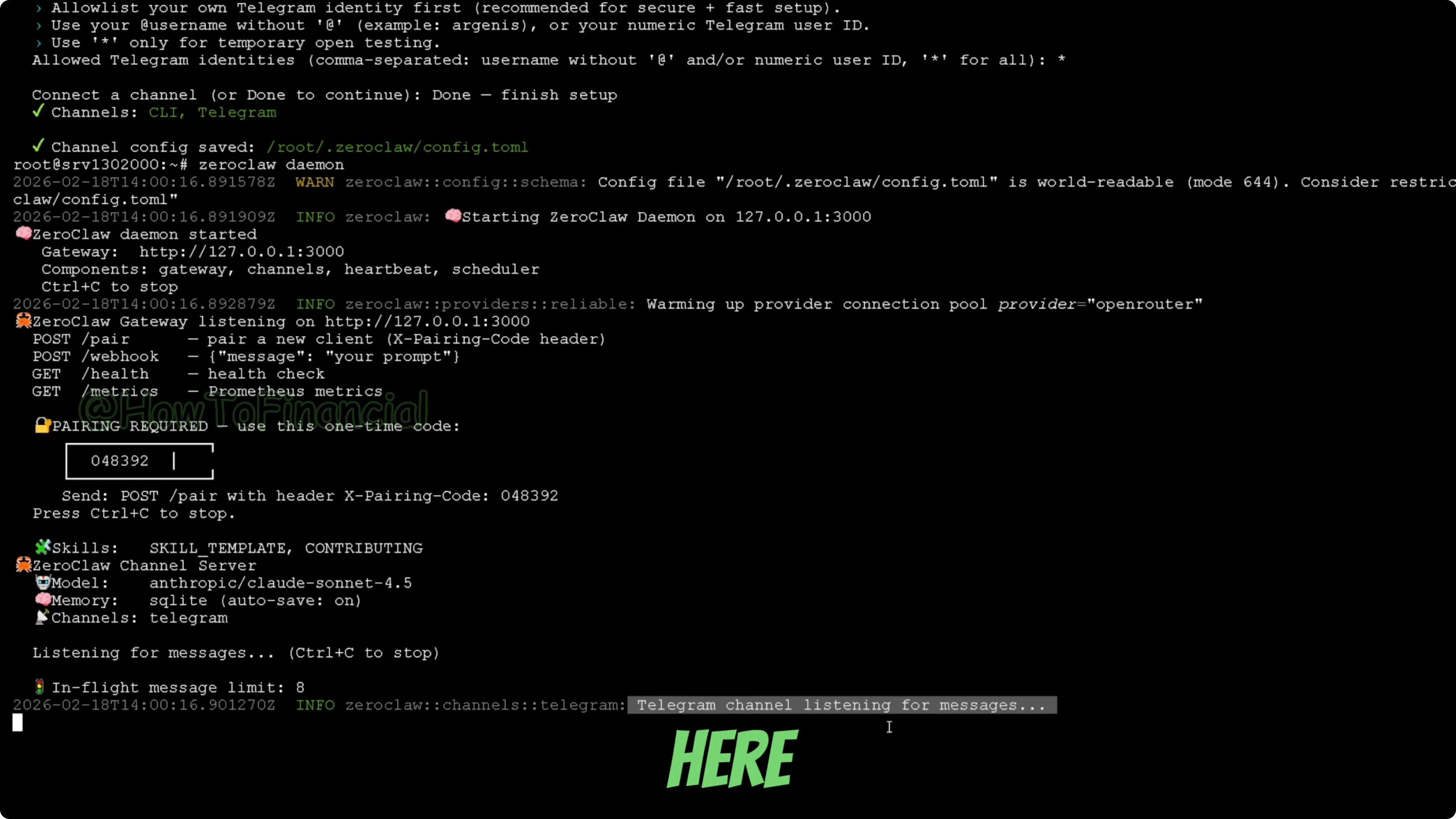
Telegram channel is listening for messages
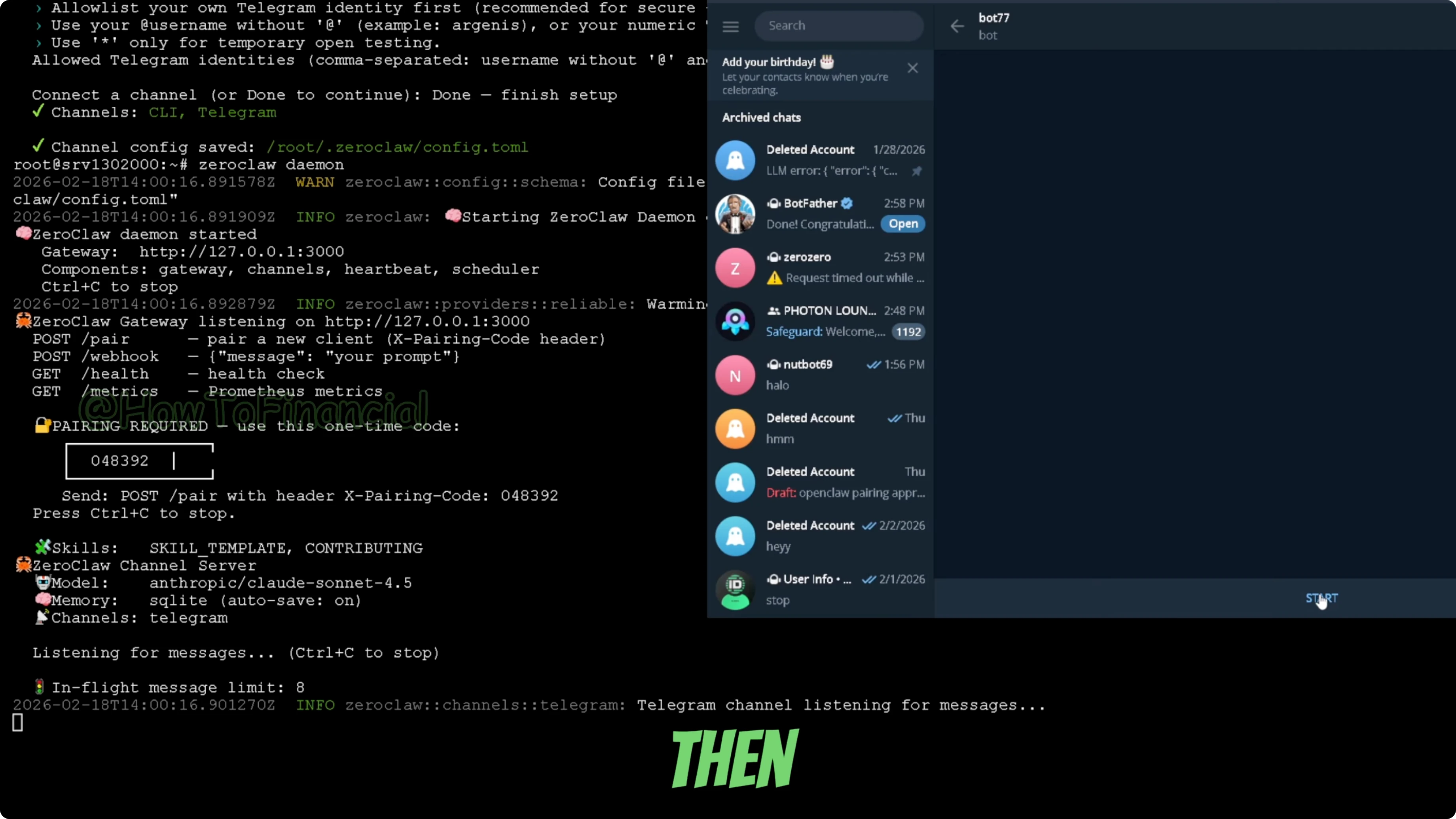
When you see that, the channel is active and ready to receive messages. Open Telegram again. Use the bot link you got from the BotFather message and start your bot.
Test the bot
Tap Start in your bot chat. I got a message because I did not connect it to an API, but if you did your setup correctly, it will respond. If you need the complete ZeroClaw setup with Olama, follow the full setup.
Final thoughts
That is how you can set up your ZeroClaw with Telegram. The key parts are running the channel wizard, creating the bot in BotFather, pasting the API token, and verifying the gateway is listening. For more resources and updates, visit the ZeroClaw site.