You already have a place where you ask questions: perhaps Discord, WhatsApp or email. A ZeroClaw channel brings your assistant into that place, so you can send a message without opening another dashboard.
Start by choosing the channel that fits your existing setup. Then follow the Discord example below to connect one bot, limit who can use it and check that a message gets a useful reply.
What is a ZeroClaw channel?#
A channel carries messages between an app and your ZeroClaw agent. Discord supplies the conversation window, ZeroClaw runs the agent, and your model provider generates the answer. Connecting a channel does not supply a model or replace its API key.
There are three separate pieces to configure:
- Connection: the bot token or account credentials that let ZeroClaw reach the app.
- Agent: the assistant that should answer messages arriving through that connection.
- People: the users allowed to talk to that assistant.
This separation explains a common surprise: a bot can appear online while still ignoring a message. The connection may work even though the agent has no channel assigned or the sender has not been allowed.
Choose a channel before setting it up#
The matrix below covers the main messaging choices in ZeroClaw v0.8.7. “Default” means included in the source build’s default channel bundle. Standard release archives add Matrix, Lark, Git and WhatsApp Web; the Android archive excludes WhatsApp Web. A custom or minimal build can differ.
Setup effort is a practical comparison: low means a token and permissions, medium adds app or account configuration, and high adds another service or infrastructure.
| Channel | Best fit | Setup effort | v0.8.7 support and limitation |
|---|---|---|---|
| Telegram | A personal bot conversation | Low | Default channel-telegram; needs a bot token and an allowed sender. |
| Discord | A bot in a private server or team channel | Low–medium | Default channel-discord; needs a bot token, Message Content Intent and channel permissions. |
| Slack | A team already using Slack | Medium | Optional channel-slack; needs Slack app tokens, scopes and workspace installation. |
| WhatsApp Web | A linked WhatsApp account | Medium | whatsapp-web in standard non-Android archives; requires device linking and persistent session storage. |
| WhatsApp Cloud API | A Meta business messaging setup | High | Optional channel-whatsapp-cloud; needs Meta credentials and a reachable, verified webhook. This is a different connection from WhatsApp Web. |
| Signal | An existing Signal account operated with signal-cli | High | Optional channel-signal; requires a linked or registered account and a running signal-cli HTTP daemon. The phone app alone is insufficient. |
| Email, including Gmail via IMAP/SMTP | Requests that belong in an inbox | Medium | Default channel-email; receiving and sending need working mail-server settings. Account policy determines which credentials are accepted. |
| Gmail Push | Event-driven Gmail processing | High | Uses channel-email; adds Google Cloud Pub/Sub, Gmail authorization and watch management. It is distinct from ordinary IMAP polling. |
| Matrix | A Matrix room or self-hosted messaging setup | Medium | Optional channel-matrix, included in standard archives; needs a homeserver account/token and room access. |
| Mattermost | An existing Mattermost team | Medium | Optional channel-mattermost; needs server access and bot credentials. |
For a first integration, choose the app you already understand. Discord is a useful starting point because a private test channel makes the input and reply easy to inspect. Signal and Gmail Push make more sense when you already operate the extra services they require.
Other channel implementations include IRC, LINE, Lark, Nextcloud Talk and several social or event integrations. A filesystem watcher is an input-only event source, not a chat app. Likewise, a gateway or webhook connection is a programmatic interface rather than a ready-made Discord or WhatsApp account.
Prepare a small Discord test#
Use a separate test bot and one private text channel. You’ll need:
- ZeroClaw v0.8.7 with the built-in Discord channel.
- An agent with a working model provider; follow the model-provider guide first if needed.
- A Discord account that can create an application and invite a bot to the test server.
- Your server ID, text-channel ID and Discord user ID.
We’ll use the built-in Discord channel. The experimental Discord plugin has a different configuration and fewer features, so do not connect the same token through both at once.
1. Create the Discord application#
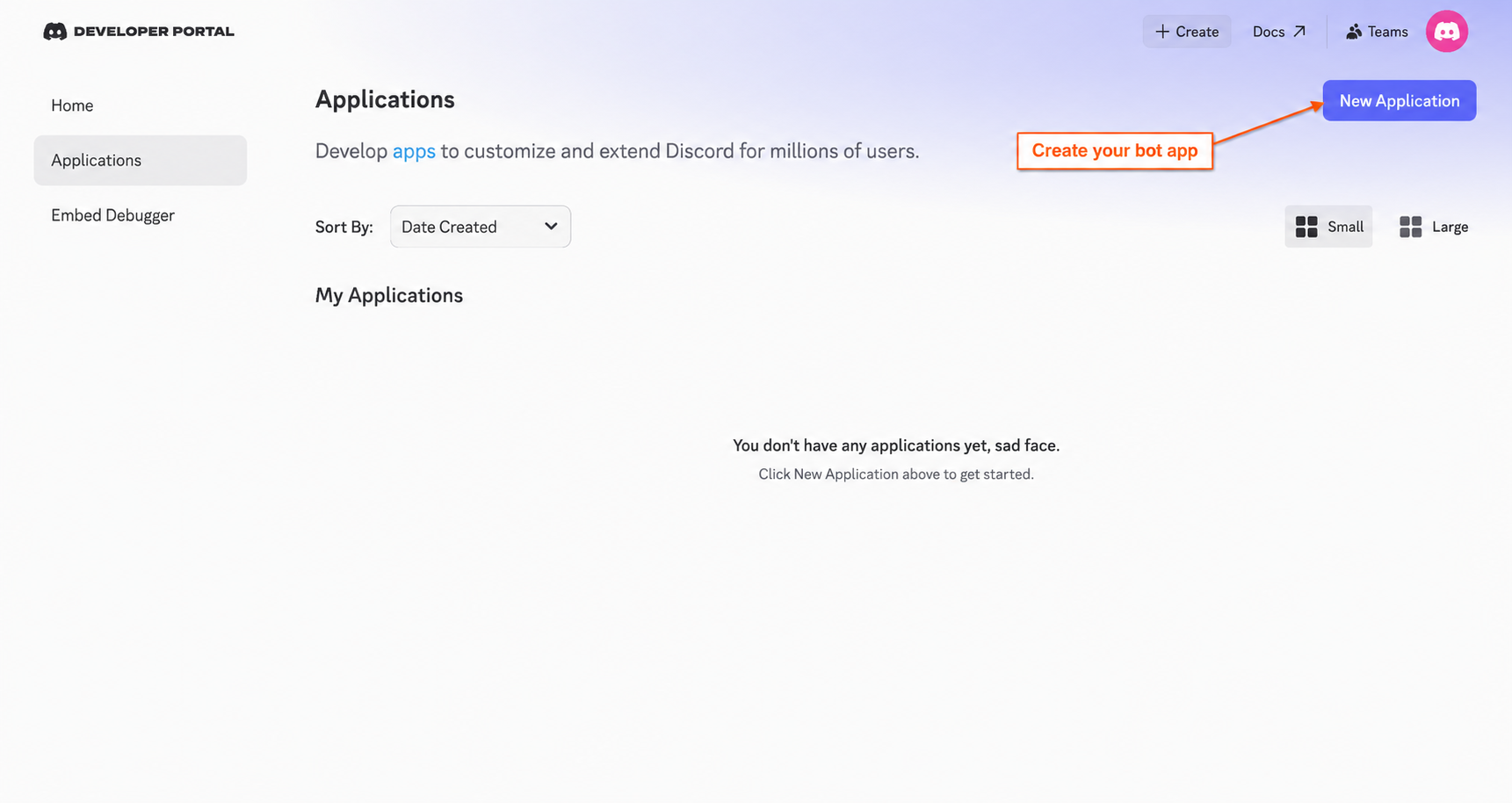
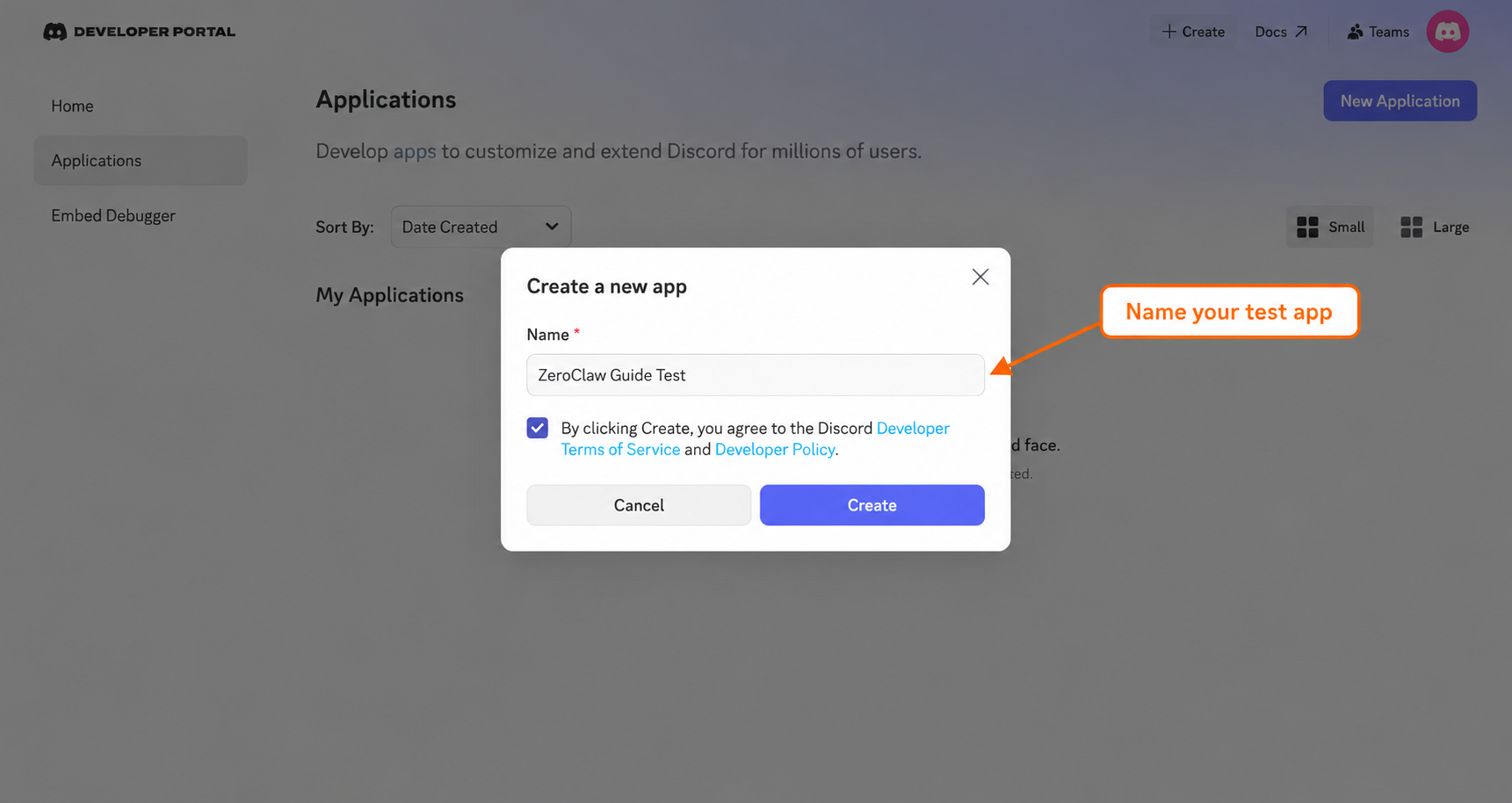
Open the Discord Developer Portal, choose Applications, then New Application. Name it ZeroClaw Guide Test so you can distinguish it from other bots.
Review the developer terms before selecting Create. Complete Discord’s human-verification prompt if it appears. Once creation finishes, the application has its own settings page; open Bot in the left menu.
2. Store the bot token privately#
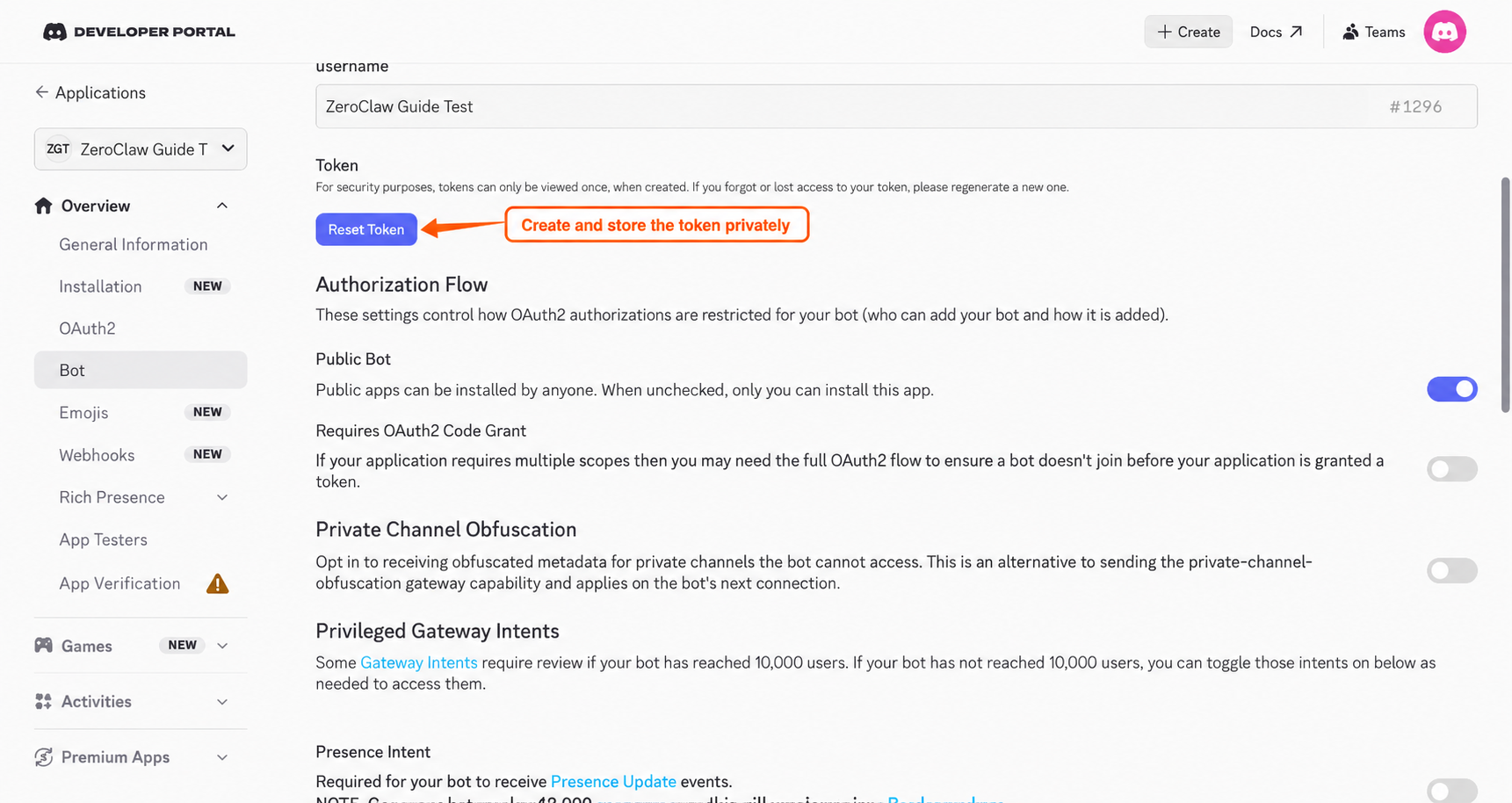
On the Bot page, choose Reset Token and complete Discord’s confirmation. Copy the newly shown token to a private location. It is the bot’s password, so keep it out of chat messages, screenshots and Git commits.
3. Let the bot receive message text#
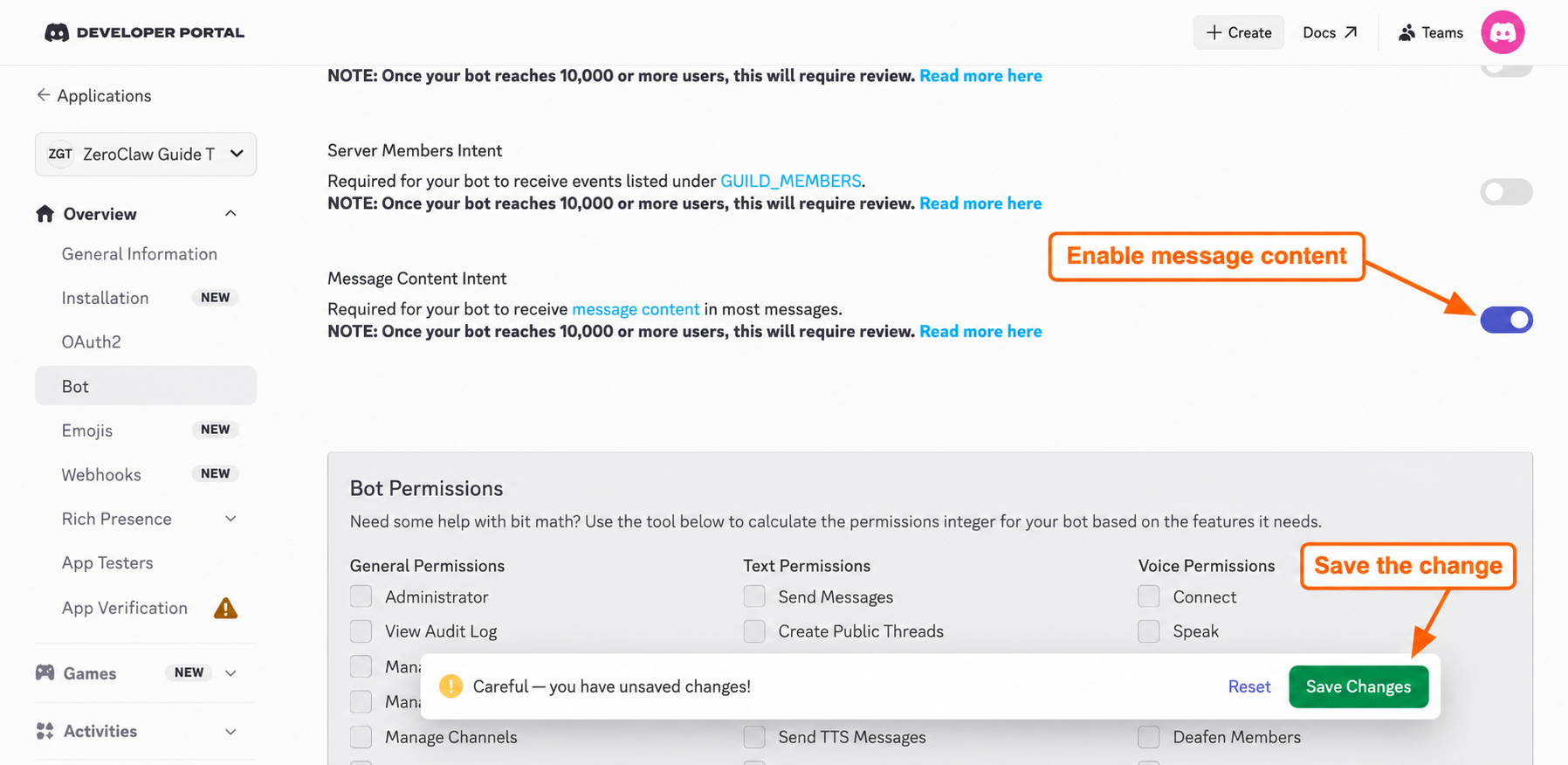
With the token saved privately, enable Message Content Intent under Privileged Gateway Intents and save. This lets the built-in channel receive message text. Leave the raw intents_mask override unset; the v0.8.7 text-message path does not require enabling every intent.
4. Invite the bot with text permissions#
Choose a test server first. If you need one, use Discord’s Add a Server → Create My Own → For me and my friends flow. We used a new server named ZeroClaw Guide Lab, with no other people invited.
Back in the Developer Portal, open OAuth2 and use the URL Generator. Select the bot scope, then View Channels, Send Messages and Read Message History.
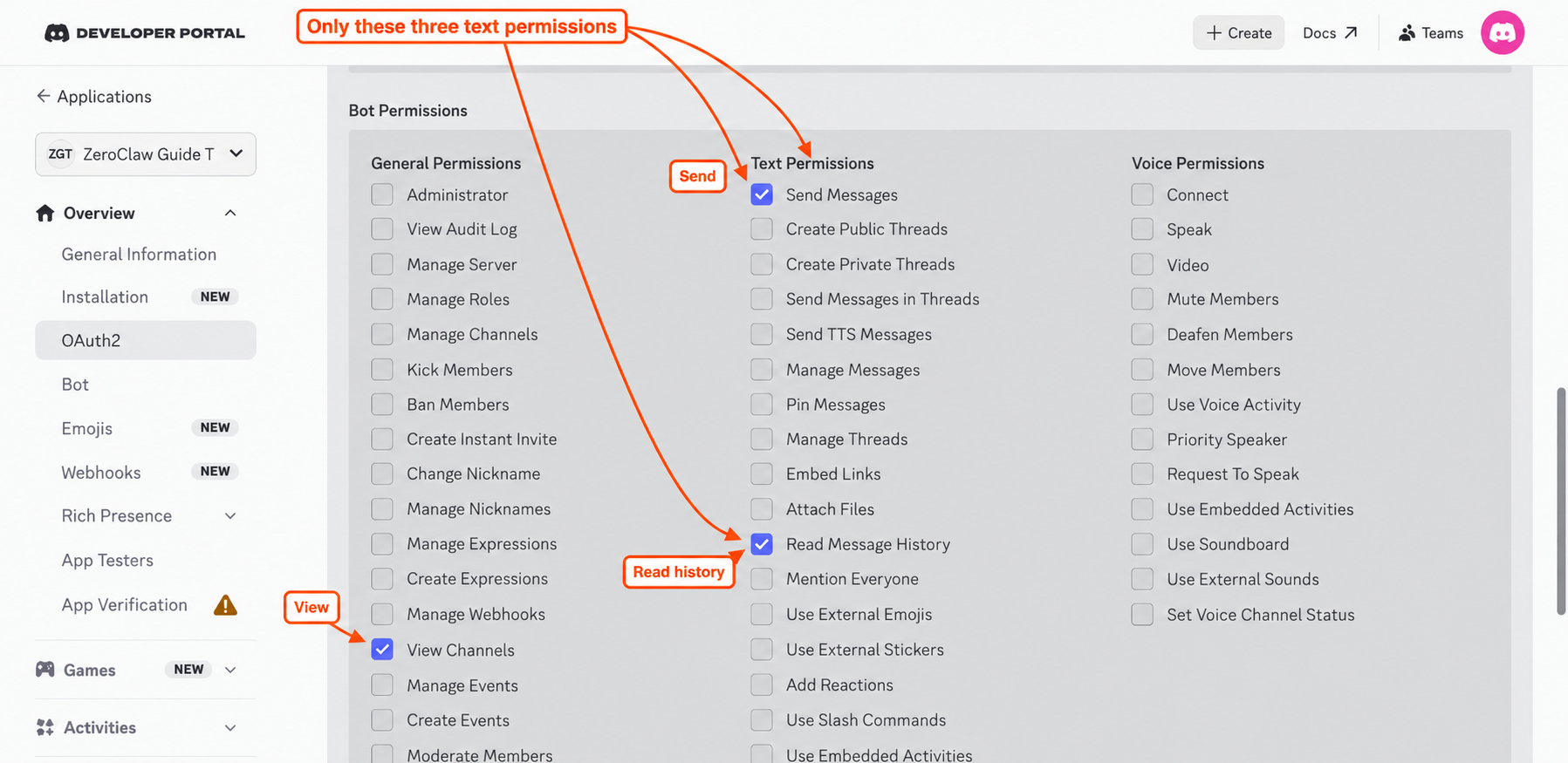
Copy the Generated URL at the bottom of that page and open it. Select your test server, choose Continue, then check the server name and the three permissions before selecting Authorise. Complete a human-verification prompt if Discord requests it.
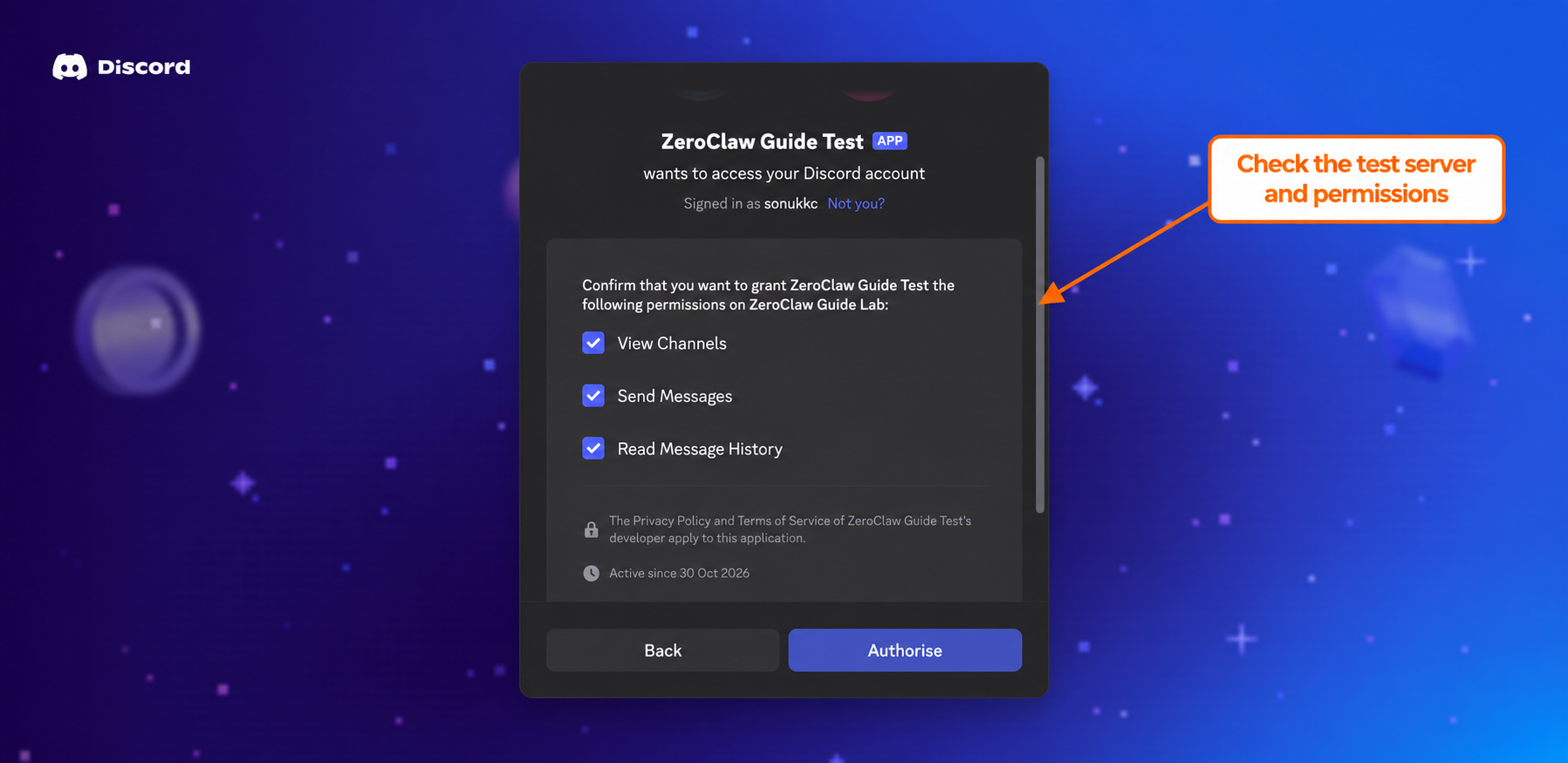
The bot also needs access to your private test channel. Check that channel’s permission overrides if it is hidden from ordinary server members. An offline bot is normal at this point: ZeroClaw has not connected yet.
5. Copy the IDs for your test setup#
Now that the bot is in the server, tell ZeroClaw exactly where it should listen. Open Discord’s User Settings → Developer and enable Developer Mode. Older Discord layouts place this switch under Advanced.
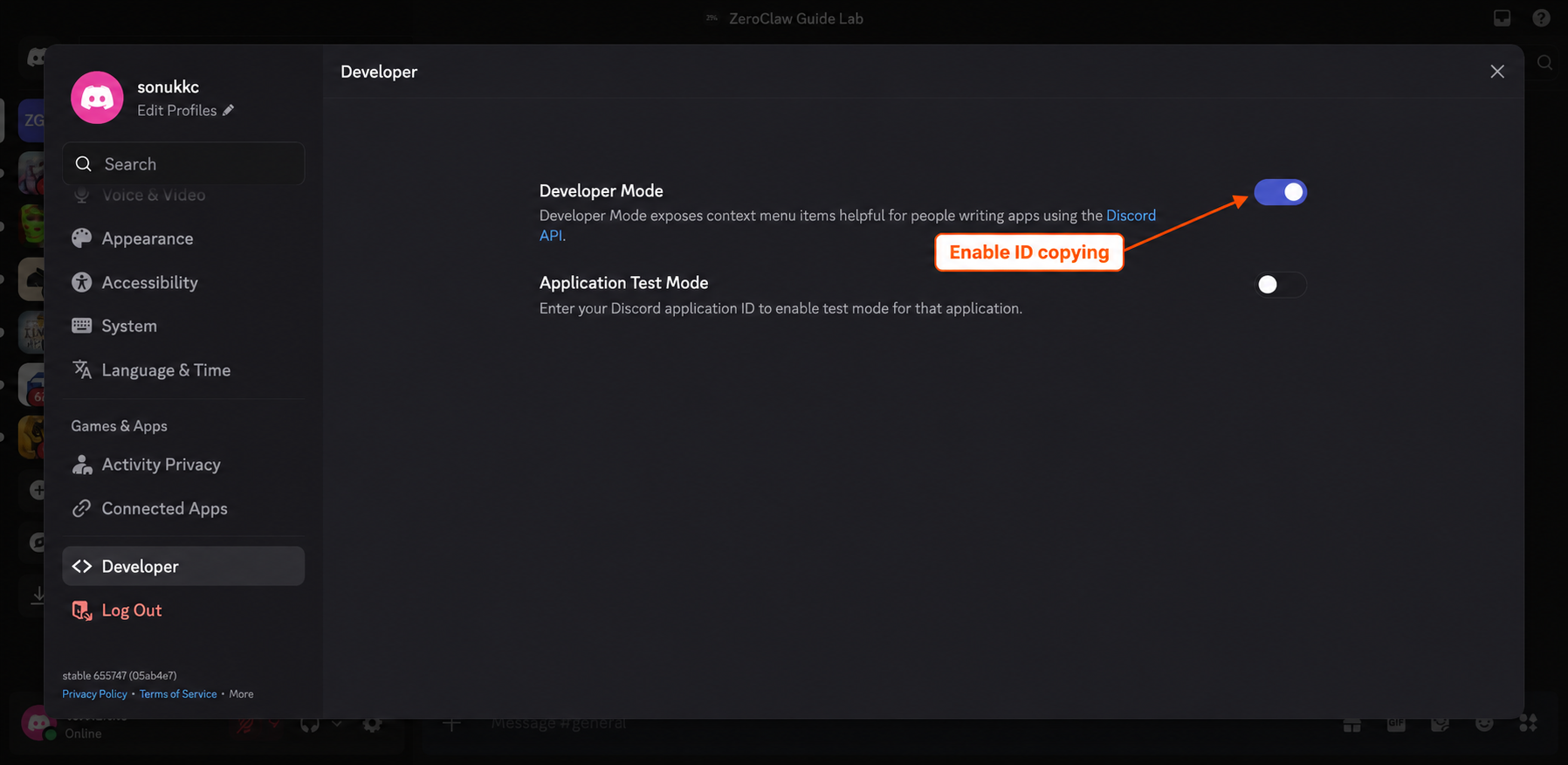
Close settings, then copy these three numbers:
- Right-click the test server’s icon and choose Copy Server ID.
- Right-click its text channel and choose Copy Channel ID.
- Right-click your username in a message or member list and choose Copy User ID.
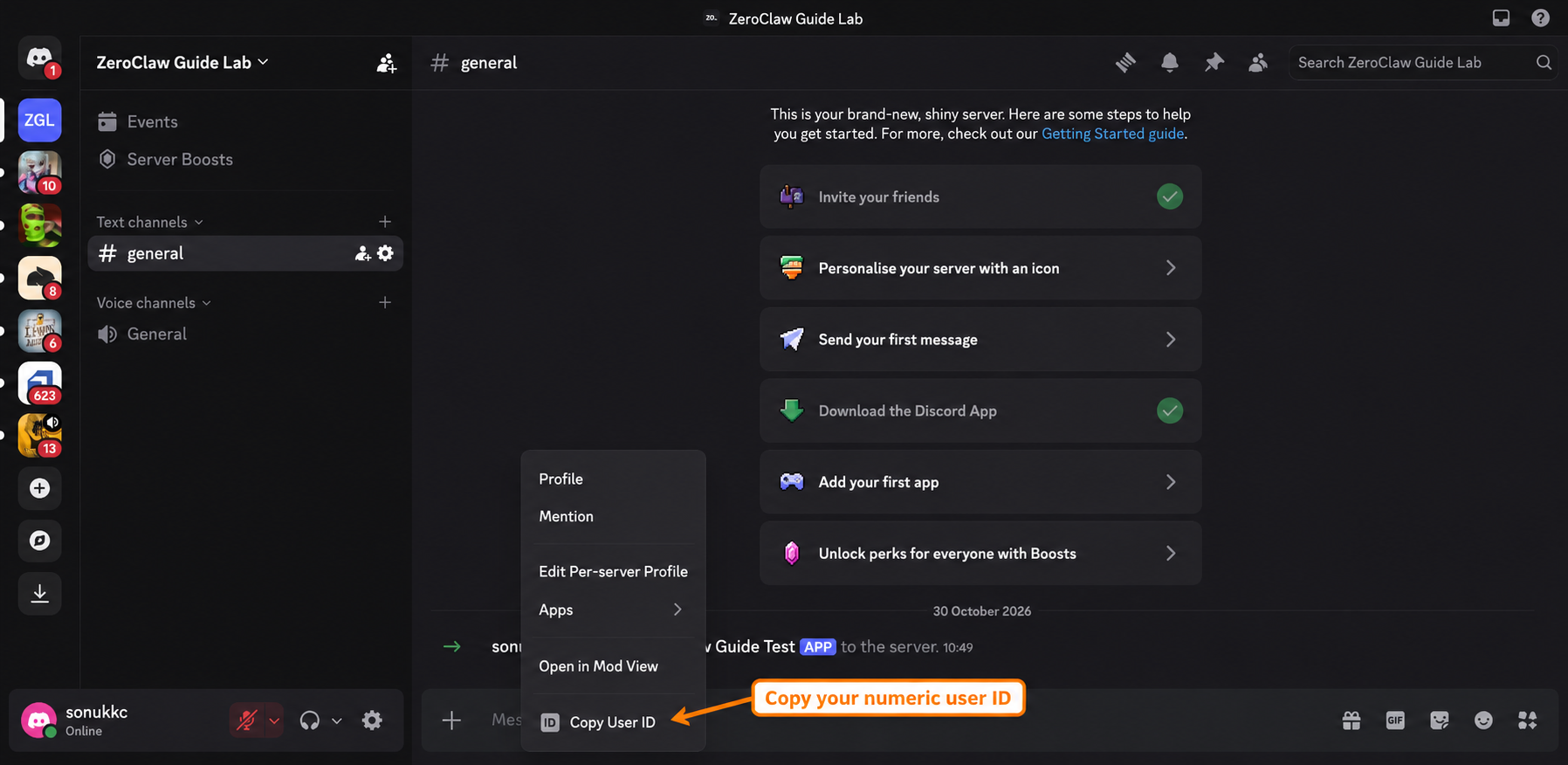
Keep the numbers labelled so you do not mix them up. The server and channel IDs choose the location; your user ID chooses who can ask the agent a question.
6. Connect Discord to a chat-only assistant#
Create a separate practice folder in a macOS/Linux terminal:
mkdir -p zeroclaw-discord-guide
cd zeroclaw-discord-guide
Save the complete practice config as config.toml in that folder. Replace YOUR_SERVER_ID, YOUR_CHANNEL_ID and YOUR_USER_ID with the numbers you copied. Keep the quotation marks.
The important connection settings are:
[agents.assistant]
model_provider = "gemini.hosted"
risk_profile = "chat_only"
channels = ["discord.guide"]

[risk_profiles.chat_only]
level = "readonly"
workspace_only = true
deny_all_tools = true

[channels.discord.guide]
enabled = false
guild_ids = ["YOUR_SERVER_ID"]
channel_ids = ["YOUR_CHANNEL_ID"]
mention_only = true
archive = false
listen_to_bots = false

[peer_groups.guide]
channel = "discord.guide"
external_peers = ["YOUR_USER_ID"]
Here, guide is the connection’s name, so discord.guide must match in the agent and peer group. deny_all_tools = true makes this a conversation-only example. An empty allowed_tools list is not a substitute for that setting.
The downloaded config uses Gemini 3.5 Flash-Lite. Validate it, enter your model key and bot token at the hidden prompts, then enable the channel:
zeroclaw --config-dir "$PWD" config migrate --json
zeroclaw --config-dir "$PWD" config set providers.models.gemini.hosted.api_key
zeroclaw --config-dir "$PWD" config set channels.discord.guide.bot_token
zeroclaw --config-dir "$PWD" config set channels.discord.guide.enabled true
chmod 600 config.toml
The first command reports "schema_version": 3 and may normalize the file with "migrated": true. Run it again to confirm "valid": true. The two secret-setting commands accept the value without showing it on screen. ZeroClaw encrypts those values in the config and keeps the encryption key in .secret_key beside it.
Dashboard access is optional for the bot. To follow these dashboard screens, set gateway.web_dist_dir in the practice config to your archive’s web/dist folder and follow the existing dashboard setup guide.
Start the daemon from this practice folder and keep the terminal open:
zeroclaw --config-dir "$PWD" daemon
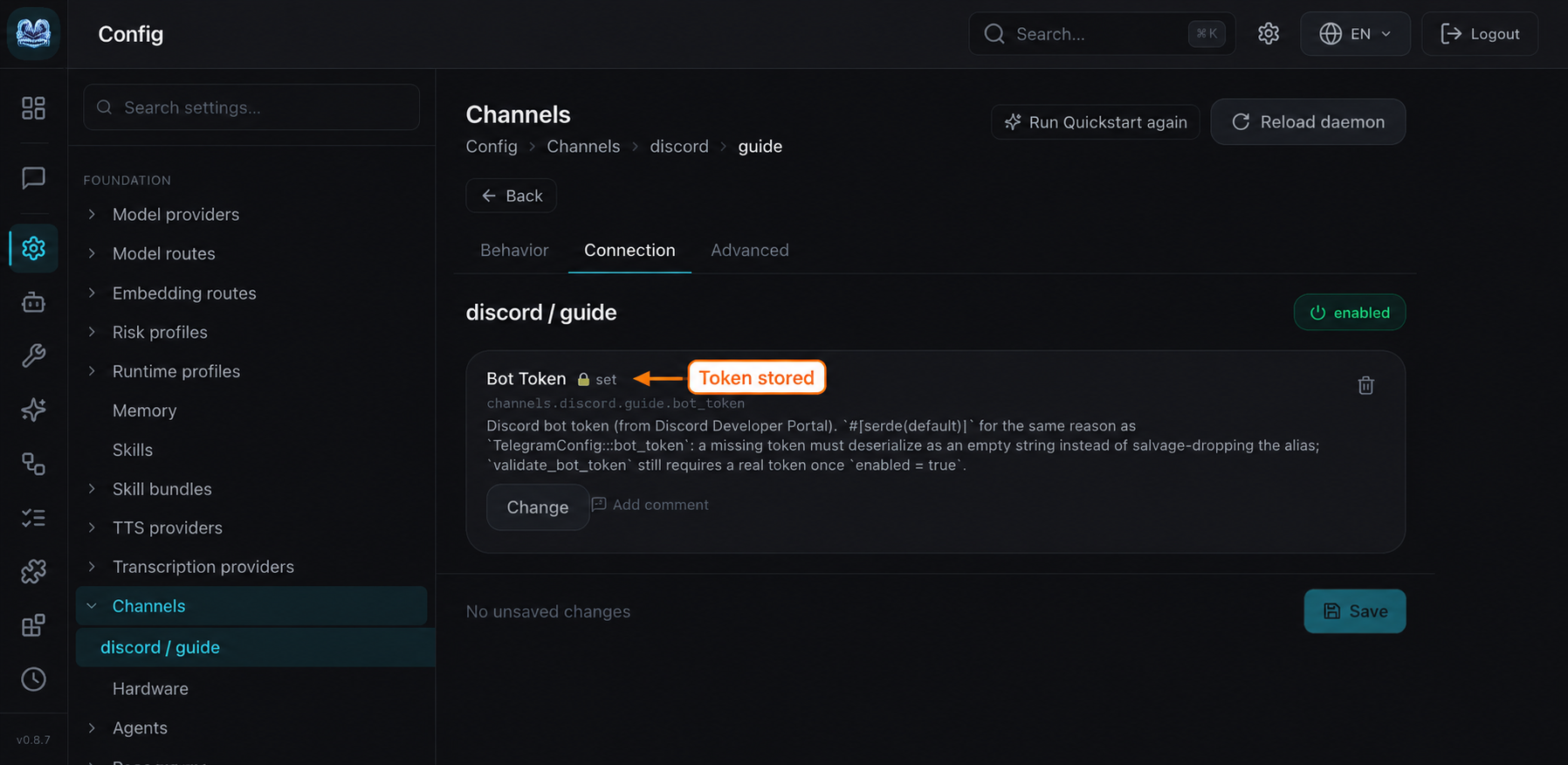
If you use the dashboard, open Config → Channels → discord / guide → Connection. The token should show set, without revealing its value:
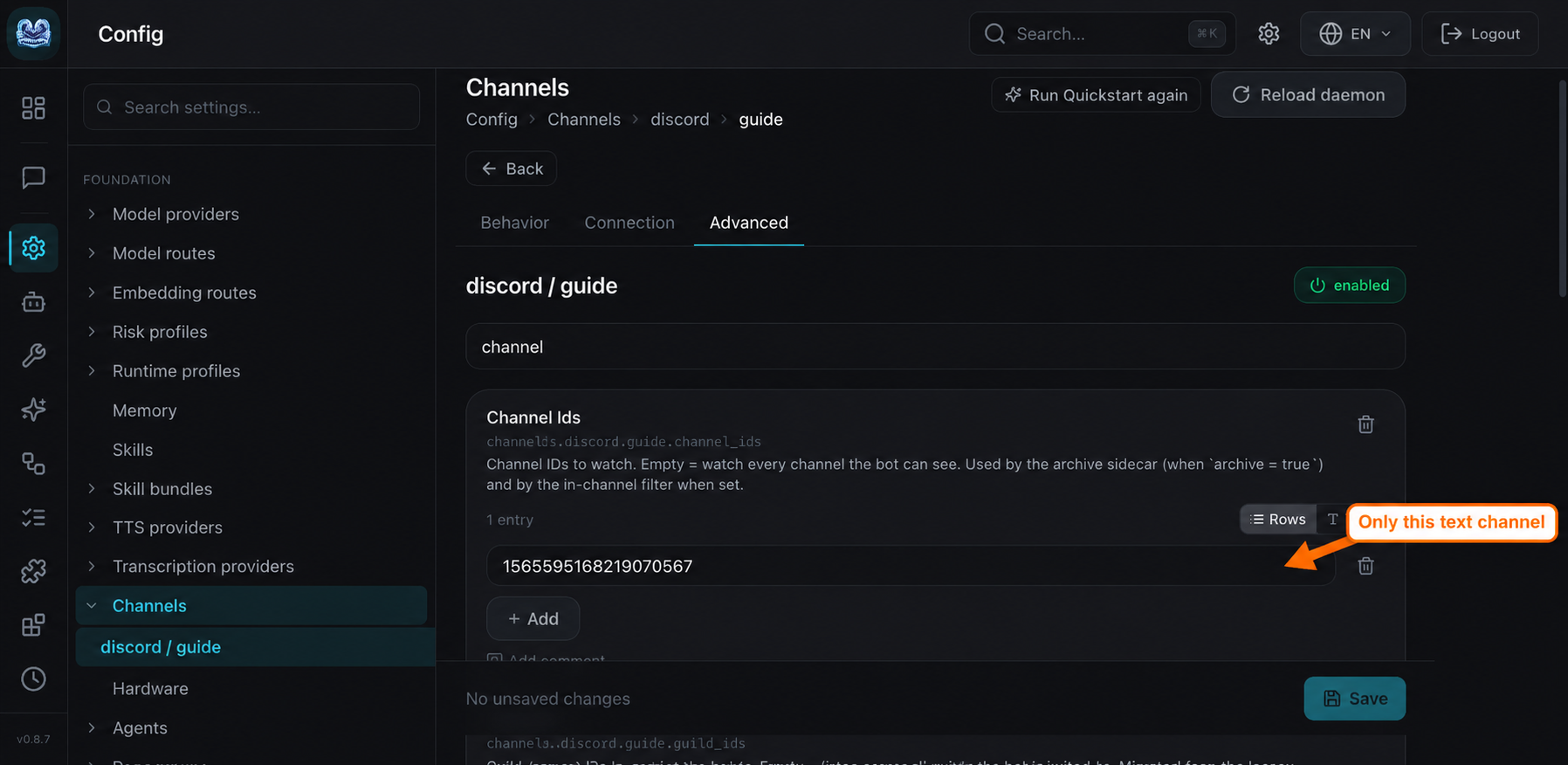
Open Advanced to inspect Channel Ids and Guild Ids. The screenshot shows the channel restriction used for this example:
7. Check the connection and send a request#
With the daemon running, open a second terminal in the practice folder and check the connection:
zeroclaw --config-dir "$PWD" channel doctor
Our connection check reported Discord healthy and 1 healthy, 0 unhealthy, 0 timed out. Next, check the actual conversation: type @Zero in Discord, select ZeroClaw Guide Test from the member suggestions, then add this request:
Project Orchid: Maya will review the draft on Friday. Arun will send the photo on Thursday. Reply with two bullets showing each owner, task and day. Do not add facts or use tools.
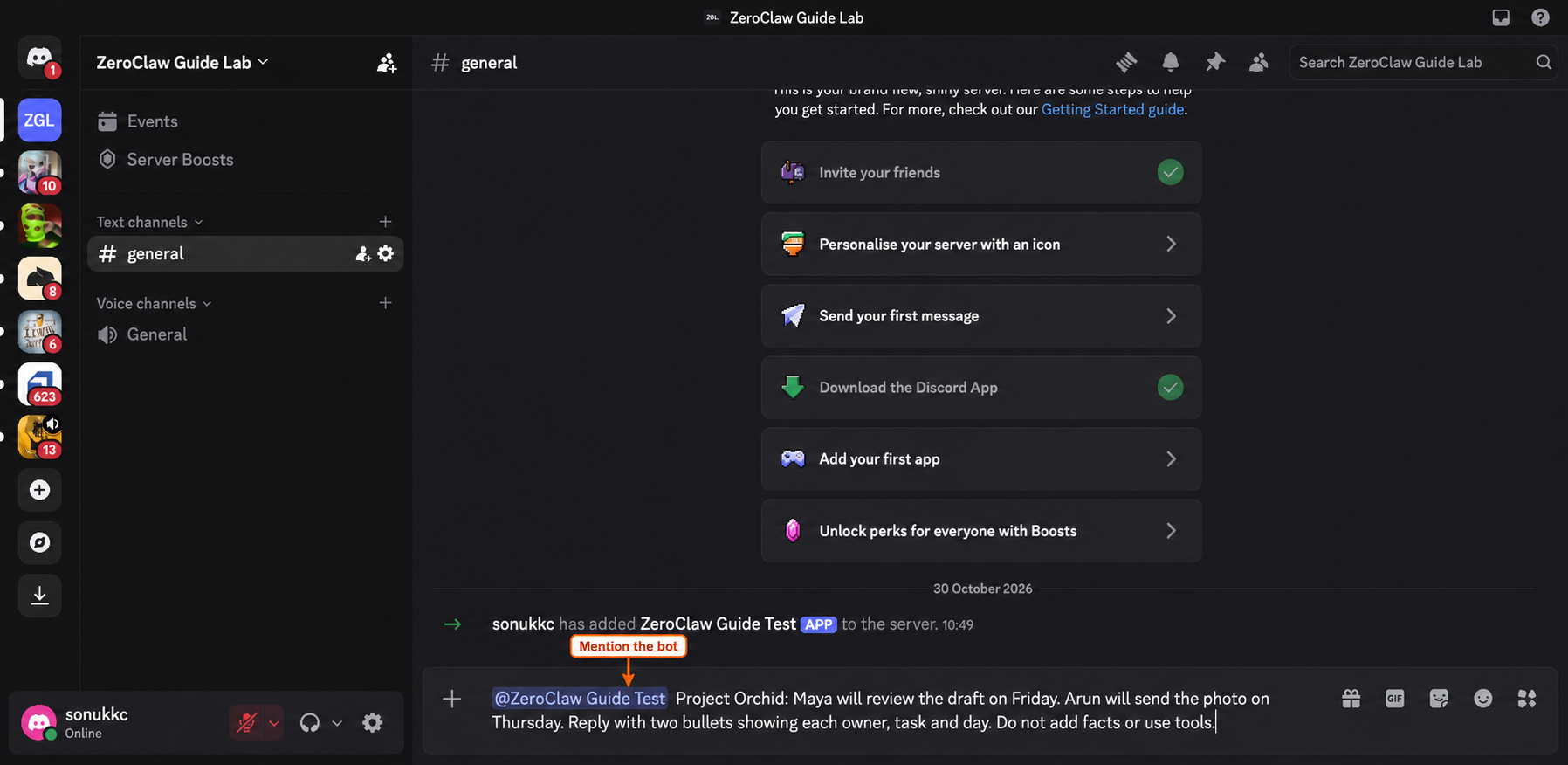
Press Enter to send it. Our bot returned:
- Maya: review the draft on Friday
- Arun: send the photo on Thursday
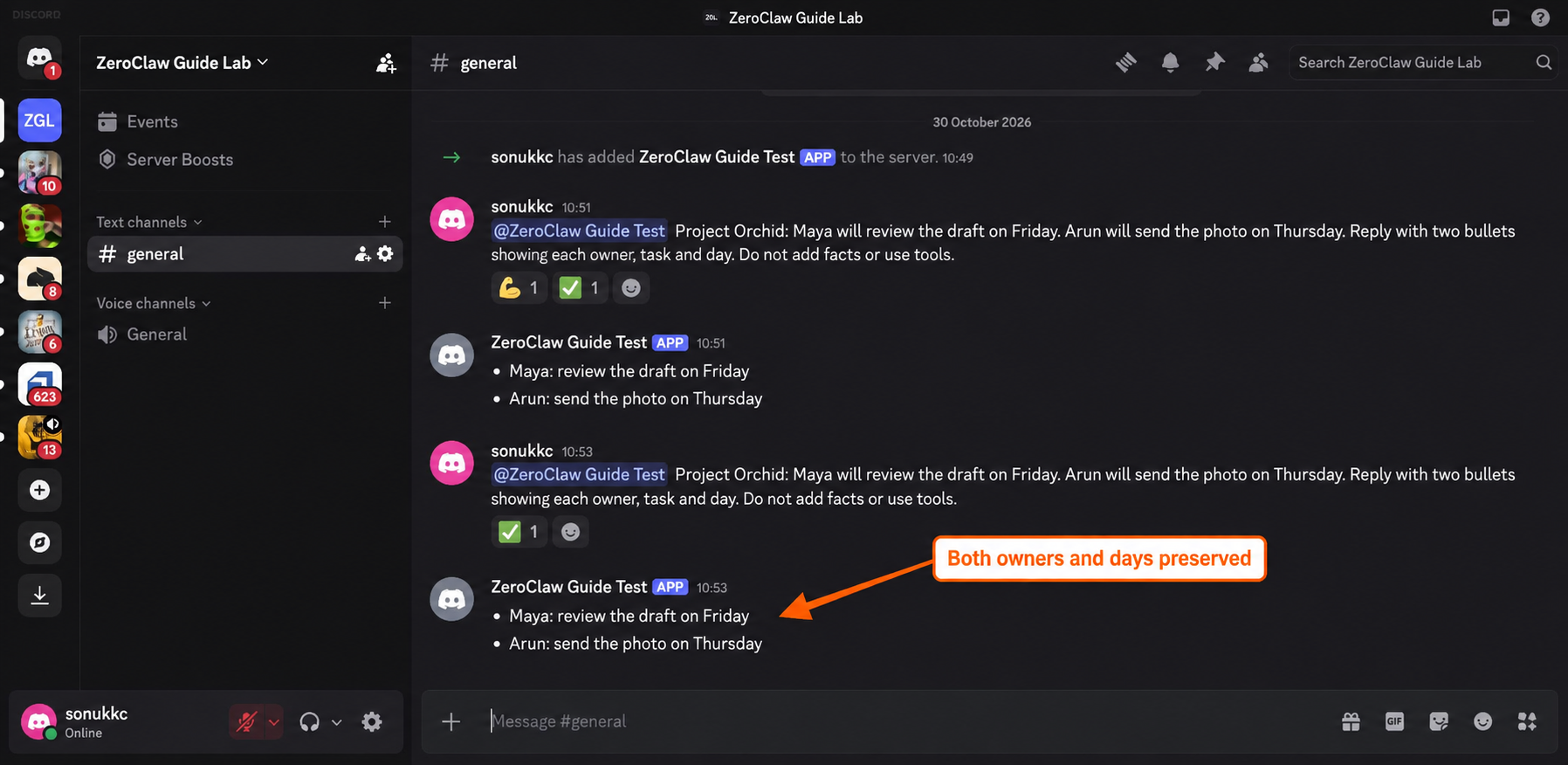
Both names, tasks and weekdays match the input. This checks the complete path from Discord through the agent and model provider and back to Discord. Wording may vary, so compare the facts rather than expecting identical punctuation.
When finished, press Ctrl+C in the daemon terminal to stop this practice bot. Keep the test server and config if you want to repeat the exercise later.
If the bot is online but quiet#
Work through the same three pieces you configured earlier:
- Connection: check the token, Message Content Intent and the bot’s access to the text channel.
- Agent: check that the assistant lists the exact Discord alias in its
channelssetting. - People: check that a matching peer group includes your numeric user ID.
If mention_only is enabled, mention the bot in the message. Also check any guild_ids and channel_ids filters. An empty peer list denies senders; adding "*" would admit everyone, so add the intended user instead.
Keep the first integration small#
Once one request works, try the message-to-actions workflow with another synthetic example. Keep your model, tool permissions and channel access narrow while deciding what the assistant should do.
For changes to the agent itself, use the configuration guide. For connection or provider errors, continue with troubleshooting.