A useful assistant should leave you with something you can act on: a shorter project update, a clear list of tasks or a digest ready when you need it. You do not need to connect your whole digital life to get there.
These three ZeroClaw workflows use one small, made-up project. Start by summarizing its notes, turn a message into assigned actions, then schedule a digest. Each example includes the input, the steps and the result to look for.
What is a ZeroClaw workflow?#
A workflow is a repeatable path from information to a useful result. You give ZeroClaw an input, tell it what to do and choose how the output should look. A tool lets it read a file; a schedule lets it run a prompt later.
For example, “summarize this project” is vague. “Read these notes and return Completed, Blocked and Next” gives you a result you can quickly check. We’ll use that same principle in all three examples.
| Workflow | Input | Useful output |
|---|---|---|
| File summary | A short project-notes file | Three bullets covering progress, blockers and next actions |
| Message assistant | A message containing tasks | An owner, task and due-date table |
| Scheduled digest | The notes file plus a scheduled prompt | A saved project digest in the job’s run history |
The message example uses the built-in dashboard, so you can follow it without creating a Telegram bot. All three exercises stay in a separate practice install.
Watch a two-minute message-to-actions demo#
Before trying the examples yourself, watch one message become a useful action table. This paced screen-capture walkthrough follows a real ZeroClaw 0.8.7 conversation: send the sample, check the missing details, then supply them and copy the finished result.
The video is silent, with English captions. Turn on CC, or use the transcript below. You can repeat it with the chat-only config in the starter kit.
Download the video · English captions · Video transcript
Copy the demo input#
Turn this message into an action table with Owner, Task and Due columns. Use only this message. If a due date or owner is missing, write Not specified. Do not send anything or create reminders. No emojis.

Message: Maya, review the landing-page draft on Friday. Arun, send the product photo on Thursday. I also need someone to check the links; no owner or date is assigned yet.
Check that the first table leaves the link-check owner and date as Not specified. Then send this follow-up:
Update only the unassigned link-check row: Noor owns it and the due day is Monday. Return the complete table. Keep Maya and Arun unchanged. Do not send messages or create reminders.
The final table should preserve Maya’s Friday review and Arun’s Thursday photo, while adding Noor’s Monday link check. This is the habit to carry into the other workflows: compare the answer with its input before using it.
Demo transcript#
- 0:00–0:10: Start with a fresh assistant conversation. This example uses ZeroClaw 0.8.7 and a chat-only Gemini configuration.
- 0:10–0:35: Paste the synthetic message. Ask for Owner, Task and Due columns. Tell the assistant to mark missing facts as Not specified.
- 0:35–0:40: Send the request. The model processes the message; this workflow does not contact anyone or create reminders.
- 0:40–1:00: Read the table against your input. Maya reviews on Friday. Arun sends the photo on Thursday. The link check still has no owner or day.
- 1:00–1:20: Supply the missing facts: Noor owns the link check, due Monday. Ask to keep Maya and Arun unchanged.
- 1:20–1:45: Check the complete table. Noor and Monday now appear, while the other two rows preserve their original facts.
- 1:45–2:00: Use Copy message to take the reviewed table into your own notes. Agree on assignments before using this with a real team.
Set up your practice workspace#
You’ll need ZeroClaw 0.8.7, its dashboard files and a working model provider. The examples use Gemini 3.5 Flash-Lite through gemini.hosted. If you need the basics first, follow installation, model providers and dashboard setup.
These terminal commands use a macOS/Linux shell:
mkdir -p zeroclaw-workflows/agents/assistant/workspace
cd zeroclaw-workflows
Save the practice config as config.toml in this folder. Set its gateway.web_dist_dir to the full path of the web/dist folder from your ZeroClaw archive. Then validate it and enter your Gemini key at the hidden prompt:
zeroclaw --config-dir "$PWD" config migrate --json
zeroclaw --config-dir "$PWD" config set providers.models.gemini.hosted.api_key
chmod 600 config.toml
The config gives assistant only the file_read tool and keeps file access inside its workspace. It uses supervised autonomy because scheduled agent jobs require it; the tool list does not grant shell execution or file writing.
Next, save project-notes.txt inside agents/assistant/workspace. Here is the complete input:
Project Orchid — weekly notes
Completed: Maya finished the landing-page draft.
Blocked: The launch banner is waiting for a product photo from Arun.
Next: Maya will review the draft on Friday.
Next: Arun will send the product photo on Thursday.
Budget: No budget was agreed in this meeting.
These names and details are invented. With a hosted model, the text you ask it to process leaves your computer for that provider. Keep using the sample until you have decided which real information is appropriate to send.
Start the daemon, the long-running process that includes both the dashboard and scheduler:
zeroclaw --config-dir "$PWD" daemon
Keep this terminal open. Visit http://127.0.0.1:42659, pair the dashboard, then select Open chat for assistant. You’re ready to use the notes.
1. Turn a file into a short project update#
Use this when: you need to understand a handover or prepare a quick status update.
The input is project-notes.txt. The useful output is three bullets that preserve the facts while removing the extra wording.
- Open the
assistantchat. - Paste the prompt below and send it.
- Turn on Show tool activity to confirm that
file_readran. - Compare the answer with the notes before sharing it.
Read project-notes.txt using file_read. Return exactly three short bullets: Completed, Blocked, Next. Preserve names and days. Do not invent a budget or send messages. No emojis.
The dashboard returned:
- Completed: Maya finished the landing-page draft.
- Blocked: The launch banner is waiting for a product photo from Arun.
- Next: Maya will review the draft on Friday, and Arun will send the product photo on Thursday.
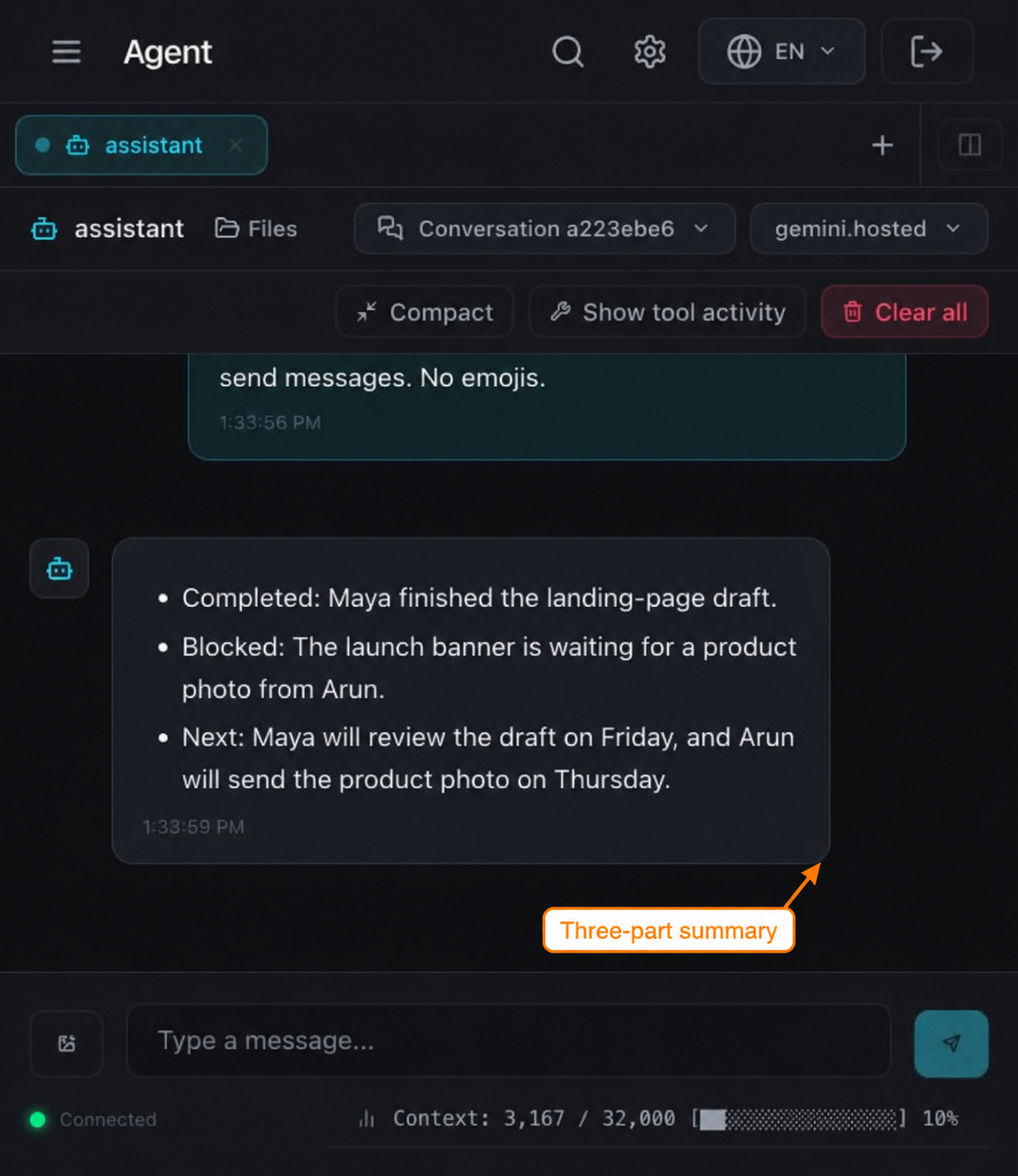
The summary is useful because it keeps the blocker and both next steps. It also avoids making up a budget. If your result omits an owner or changes a day, correct the prompt before using it on a longer document.
Now that you have a short update, you can turn individual requests into a task list.
2. Turn a message into an action table#
Use this when: a chat message contains several requests and you want to see who owns each one.
This example needs no file tool. Paste the message directly into the dashboard and ask for a table:
Turn this message into an action table with Owner, Task and Due columns. Use only this message. If a due date is missing, write Not specified. Do not send anything or create reminders. No emojis.

Message: Maya, review the landing-page draft on Friday. Arun, send the product photo on Thursday. I also need someone to check the links; no owner or date is assigned yet.
The result separates the tasks and keeps missing details visible:
| Owner | Task | Due |
|---|---|---|
| Maya | review the landing-page draft | Friday |
| Arun | send the product photo | Thursday |
| Not specified | check the links | Not specified |
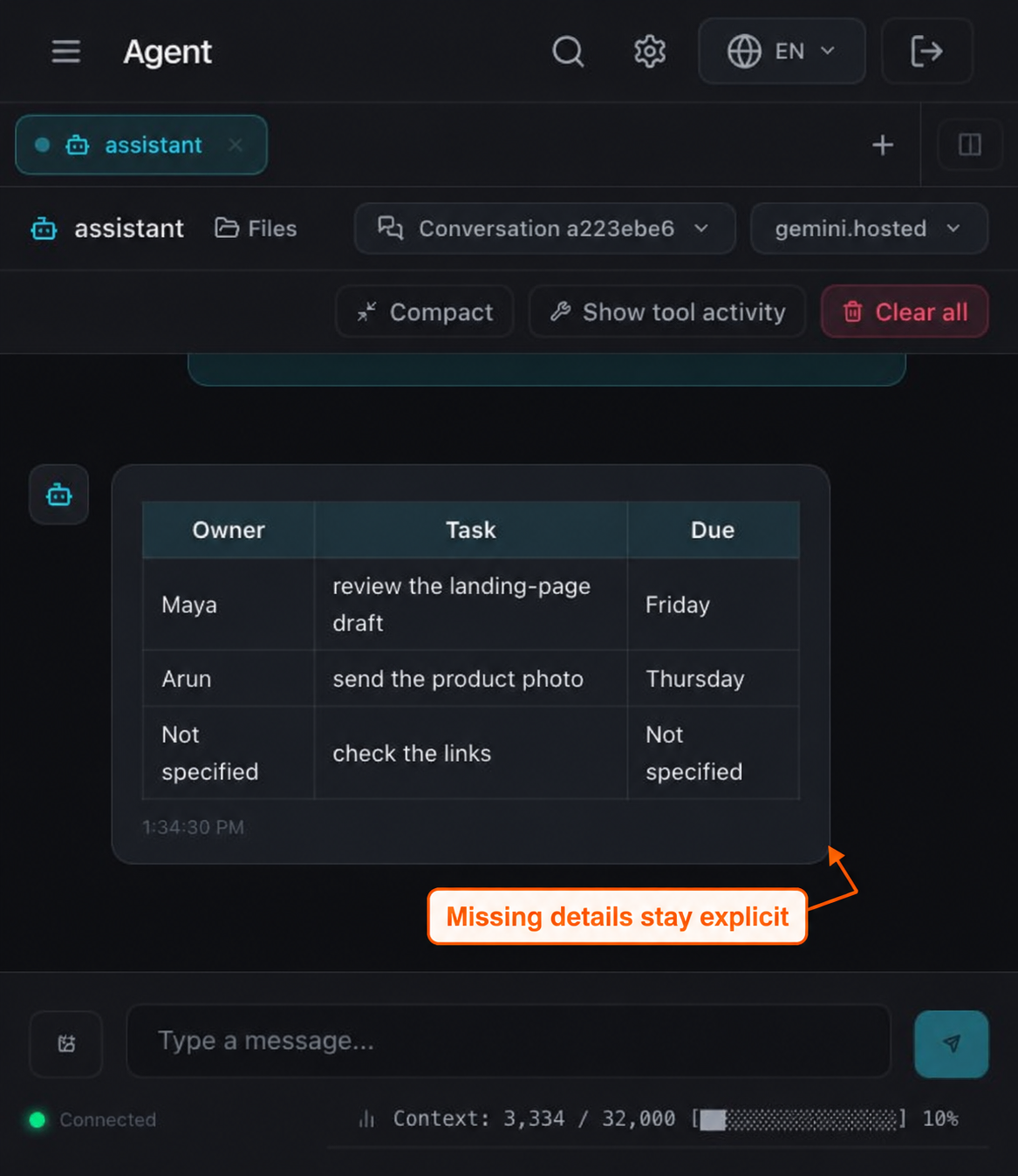
Before copying this into your task manager, assign the link check to someone and agree on a date. The assistant has organized the message; it has not assigned work, contacted anyone or created reminders.
For chat-app access later, use the separate Telegram setup guide. Keep the same clear input-and-output format when moving a prompt to another channel.
3. Schedule a project digest#
Use this when: you want the same notes summarized later without typing the prompt again.
The input is still project-notes.txt. The difference is the trigger: ZeroClaw’s scheduler starts the agent, and the result is stored in the job’s run history. This example does not send the digest to a chat channel.
For this practice run, use a one-minute interval so you can see the result quickly. Pause it after the first successful run to avoid repeated model calls. Stop the practice daemon with Ctrl+C, then create the job from the same folder:
zeroclaw --config-dir "$PWD" cron add-every \
  --agent assistant \
  --prompt \
  --allowed-tool file_read \
  --uses-memory false \
  60000 \
  'Read project-notes.txt using file_read. Write a short Project Orchid digest with Completed, Blocked and Next sections. Include owners and days exactly as written, without relative day counts. Do not add facts or send messages. No emojis.'
60000 is the interval in milliseconds: one minute. The command prints a job ID, a scheduled time and Delivery: disabled (output is not sent anywhere). Save the ID so you can identify the job. Then restart the daemon:
zeroclaw --config-dir "$PWD" daemon
Leave it running. The job becomes due after one minute and runs on a scheduler check, so allow a little extra time for the model response. In the dashboard:
- Open Automations from the menu.
- Refresh the page after the scheduled time.
- Find the job ID and wait for a successful last status.
- Choose Pause for that job.
- Expand Run history, then its output.
The successful run produced this digest:
Project Orchid Digest

Completed:
- Maya finished the landing-page draft.

Blocked:
- The launch banner is waiting for a product photo from Arun.

Next:
- Maya will review the draft on Friday.
- Arun will send the product photo on Thursday.
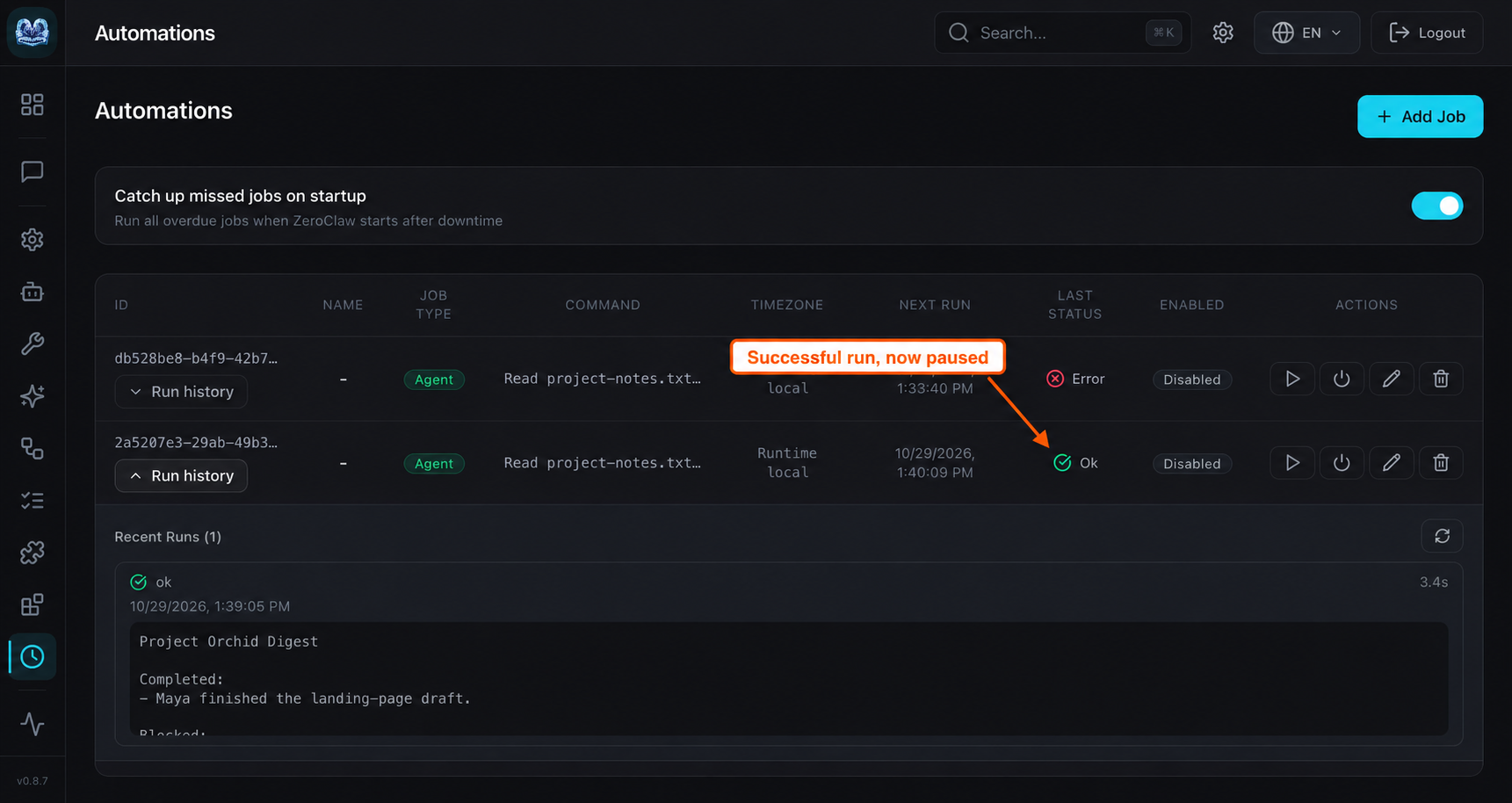
Your wording may differ, so compare the names and weekdays with the source file. For a real digest, put explicit calendar dates in your notes to avoid ambiguity.
If the scheduled run is blocked#
A first run with level = "readonly" returned:
blocked by security policy: autonomy is read-only
The practice config uses this working setup:
[risk_profiles.reader]
level = "supervised"
workspace_only = true
allowed_tools = ["file_read"]
auto_approve = ["file_read"]
Edit the existing section rather than adding a duplicate. Restart the daemon and retry the job. With that change, the scheduled run completed with status ok and saved the digest above.
If a job stays pending, check that you started zeroclaw daemon, not just zeroclaw gateway start, and that the computer is awake. If it cannot find the notes, check the filename and the agents/assistant/workspace folder.
Keep the job paused while reviewing the result. You can also pause it from a second terminal with zeroclaw --config-dir "$PWD" cron pause JOB_ID, replacing JOB_ID with the ID printed at creation. Run that command from the practice folder.
A one-shot job created with cron once is another option, but successful one-shot jobs disappear from the Automations list. The paused interval job keeps its history easy to find.
When would you use a ZeroClaw SOP?#
An SOP, or standard operating procedure, is useful when a workflow needs explicit steps, triggers and approvals. These examples are simpler: one prompt at a time, with a scheduler for the digest. A cron job and an SOP are separate features.
Start with a prompt whose result you can check. Add a skill when you want reusable instructions, or an MCP tool when you need another program to supply information. Move to a multi-step procedure only when the steps and their failure conditions are clear.
Choose where your assistant should answer with the channel chooser and Discord setup, including a private-server example and sender restrictions.
Choose your next workflow#
- Need a quick status update? Start with the file summary.
- Need to clarify a busy message? Use the action table and resolve the missing fields.
- Need the same update later? Schedule a digest, inspect its history and pause the practice job.
For a broader list of ideas, see the OpenClaw use-cases article. For ZeroClaw setup changes, continue with configuration or troubleshooting.